eSellify Documentation
Complete setup and deployment guide for the eSellify classifieds platform.
v1.5 · Flutter + Firebase
About eSellify
eSellify is an online classifieds platform — like OLX, Gumtree, or Craigslist — built end-to-end with Flutter and Firebase. Buyers and sellers post free or paid listings with photos, categories, location, and price; chat directly inside the app; and discover ads near them. The platform ships as a mobile app (Android & iOS), a customer web app, an admin panel, Cloud Functions for email/notifications, and a marketing landing page. Subscriptions, featured ads, and watermarks are built in and fully configurable from the admin panel.
📱
Platforms
Android, iOS & Web
🔧
Stack
Flutter + Firebase
What's Included
- Customer App — Flutter mobile app for Android & iOS (folder: customer/)
- Customer Web App — Flutter web app for browsers (folder: customer_web/)
- Admin Panel — Flutter web dashboard for managing the platform (folder: admin_panel/)
- Cloud Functions — Firebase Functions for transactional emails and notifications (folder: function/)
- Landing Page — Static HTML marketing page (folder: landing-page/)
- Database Files — Pre-built Firestore collections for a quick start
- Firestore Indexes — Optimized query indexes for performance
- Documentation — This comprehensive setup guide
Live Demo
📝 Demo Credentials
Admin Panel: admin@esellify.com / 123456
Before starting the setup, make sure you have the following tools and accounts ready.
⚠ External Services & Costs
eSellify uses third-party services billed separately by their providers:
Firebase (Blaze pay-as-you-go beyond the free tier), Google Maps Platform
(billed after the free monthly credit), OpenAI (per-token API pricing for AI content
generation), and payment gateways (per-transaction fees, own merchant accounts).
AdMob is free to integrate (it pays you). These costs are not included in the item price —
review each provider's pricing before launching commercially.
Required Software
| Software |
Version |
Required For |
| Flutter SDK |
3.11+ (latest stable) |
Building all apps |
| Android Studio |
Latest |
Android build & emulator |
| Xcode (macOS only) |
15.0+ |
iOS build & simulator |
| Node.js |
22.x |
Cloud Functions & database import |
| Firebase CLI |
Latest |
Deploy Firebase services |
| Google Cloud SDK |
Latest |
Storage CORS configuration |
| Git |
Latest |
Version control |
| CocoaPods (macOS only) |
Latest |
iOS dependency management |
Required Accounts
- Google / Firebase Account — for the Firebase Console and Google Cloud
- Apple Developer Account ($99/year) — required for iOS deployment and Sign in with Apple
- Google Play Console ($25 one-time) — required to publish on Play Store
- Payment Gateway Account — Stripe, Razorpay, PayPal, etc.
Important
- Firebase Blaze plan (pay-as-you-go) is required for Cloud Functions and some auth features. Free tier limits cover most small projects.
- iOS development & Sign in with Apple require macOS with Xcode. Building iOS on Windows is not supported.
The complete setup takes about 1–2 hours. Follow each step in order.
⚠️ Read First
You received the Flutter source code — not a ready-to-upload website. You must (1) set up Firebase, (2) build the app, and (3) upload only the build output. The raw lib/ source cannot be uploaded directly to a web server.
The complete, ordered installation walkthrough. Follow the steps in this order —
they match the numbered steps in the left menu, and each links to its detailed section.
Phase 1 — Environment
- Install the Flutter SDK and run flutter doctor until clean — Step 1.
- Unzip the package: customer/, customer_web/, admin_panel/, function/, landing-page/, documentation/.
Phase 2 — Firebase Backend
- Create the project and register the apps — Create Project.
- Enable sign-in methods — Authentication.
- Create Firestore, import starter data, deploy indexes — Firestore Database.
- Enable Storage + CORS — Storage & CORS.
- Deploy Cloud Functions (Node.js 22) — Cloud Functions.
Phase 3 — Configure & Build the Apps
- Set your app name, logo, package/bundle id and Maps key — Step 3.
- Android: SHA keys, release signing, build APK/AAB — Step 4.
- iOS: bundle id, capabilities, APNS, build & TestFlight — Step 5.
- Web: run and deploy Customer Web + Admin Panel — Step 6.
Phase 4 — Go Live
- Publish the landing page — Step 7.
- Configure push notifications — Step 8.
- Enable payments, ads, OpenAI and SMTP from the Admin Panel — Step 9.
- Enable your languages — Step 10.
Stuck?
Check Troubleshooting — common setup errors are listed with exact fixes.
Install Flutter SDK on your machine. Choose your operating system below.
Windows
System Requirements
- Windows 10 or later (64-bit)
- At least 2.8 GB disk space (excluding IDE and tools)
- Git for Windows installed
Step 1: Download Flutter SDK
- Visit the official Flutter installation page.
- Download the latest stable Flutter SDK (ZIP file).
- Extract the ZIP and move the flutter folder to C:\src\flutter (avoid paths with spaces or admin folders like Program Files).
Step 2: Add Flutter to System PATH
- Open Start Menu, search for "Environment Variables", click "Edit the system environment variables".
- Click Environment Variables.
- Under User variables, select Path and click Edit.
- Click New and add: C:\src\flutter\bin
- Click OK to save and close all dialogs. Restart your terminal.
Step 3: Install Android Studio
- Download from developer.android.com/studio.
- Run the installer with the default options — it installs the Android SDK, command-line tools, and build tools.
- Open Android Studio → Settings → Plugins → install Flutter and Dart plugins, then restart.
Step 4: Create an Android Emulator
- Open Android Studio.
- Go to Tools → Device Manager (or AVD Manager on older versions).
- Click Create Device, pick a phone profile, choose a recent system image (API 33+), and finish.
Step 5: Verify Installation
flutter doctor
Resolve any red marks before continuing. Accept Android licenses if prompted:
flutter doctor --android-licenses
macOS
System Requirements
- macOS 10.15 (Catalina) or later
- At least 2.8 GB disk space (excluding IDE and tools)
- Xcode 15+ (for iOS development)
Step 1: Download Flutter SDK
Step 2: Add Flutter to PATH
Edit your shell profile (~/.zshrc for zsh or ~/.bashrc for bash):
export PATH="$PATH:$HOME/development/flutter/bin"
Reload the shell:
source ~/.zshrc
Step 3: Install Xcode
- Install Xcode from the Mac App Store (free, but very large — ~10 GB).
- Open Xcode at least once and accept the license agreement.
- Configure command-line tools:
sudo xcode-select --switch /Applications/Xcode.app/Contents/Developer
sudo xcodebuild -runFirstLaunch
Step 4: Install CocoaPods
sudo gem install cocoapods
Step 5: Install Android Studio (Optional, for Android)
If you also need Android, install Android Studio + Flutter / Dart plugins, same as the Windows steps.
Step 6: Verify Installation
flutter doctor
You should see green checkmarks for Flutter, Xcode, and (if installed) Android toolchain.
Firebase powers authentication, the database, storage, push notifications, and Cloud Functions. Set it up before building any of the apps.
1. Create a Firebase Project
- Go to Firebase Console and sign in with a Google account.
- Click Add project, give it a name (e.g. eSellify-Prod), and accept the terms.
- Enable Google Analytics (recommended) and finish creating the project.
- In Project Settings → General, upgrade to the Blaze (pay-as-you-go) plan. This is required for Cloud Functions and some auth methods.
Install Firebase CLI & FlutterFire CLI
npm install -g firebase-tools
dart pub global activate flutterfire_cli
Login & Configure Each App
Login once:
firebase login
Then, in each of customer/, customer_web/, and admin_panel/, run:
flutter pub get
flutterfire configure
Select your Firebase project when prompted. This generates lib/firebase_options.dart and downloads google-services.json (Android) and GoogleService-Info.plist (iOS).
2. Authentication
In Firebase Console → Authentication → Sign-in method, enable each provider you want:
Phone Authentication
- Click Phone → Enable.
- Add test phone numbers (optional, but useful for development): e.g., +91 9876543210 with code 123456.
- Save.
Google Sign-In
- Click Google → Enable.
- Set the project support email.
- Save.
Apple Sign-In
- Click Apple → Enable.
- You'll need an Apple Developer account — configuration is covered in the iOS Capabilities section below.
Authorized Domains (for Web)
Under the Settings tab of Authentication, add your web app's domain (e.g. esellify.yourdomain.com) to Authorized domains.
3. Firestore Database
Create the Database
- In Firebase Console → Firestore Database → Create database.
- Choose production mode (we'll add security rules later).
- Pick a location close to your users (this cannot be changed later).
Import Pre-built Collections
The project ships with starter Firestore data (categories, languages, settings). To import:
- Generate a service account key: Firebase Console → Project Settings → Service Accounts → Generate new private key.
- Save the file as serviceAccountKey.json in the database import folder.
- Run the import:
cd database_import
npm install
node import.js
Deploy Indexes
The project's Firestore indexes are defined in firestore.indexes.json. Deploy them so queries are fast:
firebase deploy --only firestore:indexes
4. Storage & CORS
Enable Storage
- Firebase Console → Storage → Get started.
- Choose production mode and pick a location (same region as Firestore is fine).
Storage Security Rules
Replace the default rules with the following (requires login to upload/read):
rules_version = '2';
service firebase.storage {
  match /b/{bucket}/o {
    match /{allPaths=**} {
      allow read, write: if request.auth != null;
    }
  }
}
Configure CORS (required for Customer Web)
The web app needs CORS configured on the Storage bucket to upload images. Install the Google Cloud SDK, then:
- Create a file cors.json:
[
  {
    "origin": ["*"],
    "method": ["GET", "POST", "PUT", "DELETE", "HEAD"],
    "responseHeader": ["Content-Type", "Authorization"],
    "maxAgeSeconds": 3600
  }
]
- Apply it to your bucket (replace YOUR_PROJECT_ID):
gsutil cors set cors.json gs://YOUR_PROJECT_ID.appspot.com
- Verify:
gsutil cors get gs://YOUR_PROJECT_ID.appspot.com
5. Cloud Functions
Cloud Functions handle SMTP/email and notification fan-out. Deploy them once:
cd function/functions
npm install
firebase deploy --only functions
To deploy a single function:
firebase deploy --only functions:sendTransactionalEmail
To view logs:
firebase functions:log
💡 Node.js Version
Cloud Functions in this project run on Node.js 22. Your local Node version must match. Check with node --version.
Customize the app's name, logo, package ID, and API keys for your brand.
App Name & Logo
Most branding is configurable at runtime from the Admin Panel → App Settings:
- App name — displayed across customer apps
- App logos — light, dark, admin, landing page, customer web
- Favicon
- Watermark image — overlay shown on all uploaded ad images
- Theme colors — customer, admin, web
Changes sync in real-time across the customer app and web. For static assets shipped with the app (launcher icons, splash screens):
flutter pub run flutter_launcher_icons:main
flutter pub run flutter_native_splash:create
Package Name (Android) & Bundle ID (iOS)
Android Package Name
Edit android/app/build.gradle:
defaultConfig {
    applicationId "com.yourcompany.esellify"
    // ...
}
Also update android/app/src/main/AndroidManifest.xml — the package attribute.
iOS Bundle Identifier
- Open ios/Runner.xcworkspace in Xcode.
- Select the Runner target.
- Under General → Identity, set Bundle Identifier to com.yourcompany.esellify.
- Make sure the Bundle ID is registered in your Apple Developer account.
⚠️ Important
Set the package name / bundle ID before connecting Firebase. The next step (Connect Firebase) registers each app using these IDs, so they must be final first.
Connect Firebase to Each App
Do this after setting the Android package name and iOS bundle ID above — flutterfire configure registers each app in Firebase using those IDs, so they must be final first. eSellify has three Flutter apps that all talk to the same Firebase project: the mobile Customer App (customer/), the Customer Web app (customer_web/), and the Admin Panel (admin_panel/). Run flutterfire configure once per folder so each gets its own lib/firebase_options.dart.
Prerequisites (run once)
npm install -g firebase-tools
dart pub global activate flutterfire_cli
firebase login
firebase login opens a browser window to authenticate with your Google account.
1. Customer App (Mobile — Android & iOS)
cd customer
flutter pub get
flutterfire configure --project=YOUR_PROJECT_ID
When asked which platforms to support, select android and ios:
? Which platforms should your configuration support?
  (*) android    <-- select
  (*) ios        <-- select
  ( ) macos
  ( ) web
  ( ) windows
Use the arrow keys and Space to toggle, then press Enter. This generates customer/lib/firebase_options.dart and downloads google-services.json (Android) and GoogleService-Info.plist (iOS).
2. Customer Web (Web only)
cd customer_web
flutter pub get
flutterfire configure --project=YOUR_PROJECT_ID
Select web only:
? Which platforms should your configuration support?
  ( ) android
  ( ) ios
  ( ) macos
  (*) web        <-- select ONLY this
  ( ) windows
⚠️ Keep the web keys in sync
Flutter reads customer_web/lib/firebase_options.dart, while the JS SDK in web/index.html and the background service worker firebase-messaging-sw.js read their own copies. All three must use the same Firebase web config, or you will get authentication errors or silent FCM failures.
3. Admin Panel (Web only)
cd admin_panel
flutter pub get
flutterfire configure --project=YOUR_PROJECT_ID
Select web only (same as Customer Web). When asked “firebase_options.dart already exists. Do you want to override it?”, type yes. Setup is complete when you see “Firebase configuration file lib/firebase_options.dart generated successfully.”
⚠️ Same project, three apps
Run the command in all three folders but always choose the same Firebase project when prompted, so the mobile app, web app and admin panel share one backend (users, ads, chat, subscriptions, etc.).
Google Maps API Key
Required for location features (map view, address picker).
Generate the Key
- Go to Google Cloud Console.
- Select your Firebase project (it's already linked).
- Enable these APIs: Maps SDK for Android, Maps SDK for iOS, Maps JavaScript API, Geocoding API, Places API.
- Create an API key under APIs & Services → Credentials.
- Restrict the key by platform (Android package name + SHA-1, iOS bundle ID, HTTP referrer for web).
Add to Android
In android/app/src/main/AndroidManifest.xml:
<meta-data
    android:name="com.google.android.geo.API_KEY"
    android:value="YOUR_ANDROID_MAPS_KEY"/>
Add to iOS
In ios/Runner/AppDelegate.swift:
import GoogleMaps

GMSServices.provideAPIKey("YOUR_IOS_MAPS_KEY")
Add to Web
In web/index.html (head section):
<script src="https://maps.googleapis.com/maps/api/js?key=YOUR_WEB_MAPS_KEY&libraries=places"></script>
SHA-1 & SHA-256 Keys
Required for Google Sign-In and Firebase phone authentication on Android.
Generate the Keys
cd android
./gradlew signingReport
On Windows: gradlew signingReport
You'll see output like:
SHA1: AB:CD:EF:...:01:23
SHA-256: AB:CD:EF:...:01:23
Add to Firebase
- Firebase Console → Project Settings → Your apps → Android app.
- Click Add fingerprint.
- Paste SHA-1, then add another for SHA-256.
- Re-download google-services.json and replace the one in android/app/.
Release Signing
For production builds, you need a release keystore (not the debug one).
Generate a Keystore
keytool -genkey -v -keystore ~/upload-keystore.jks \
  -keyalg RSA -keysize 2048 -validity 10000 -alias upload
Remember the keystore password — you'll need it for every release.
Create key.properties
Create android/key.properties (DO NOT commit to Git):
storePassword=YOUR_KEYSTORE_PASSWORD
keyPassword=YOUR_KEY_PASSWORD
keyAlias=upload
storeFile=/Users/yourname/upload-keystore.jks
Configure build.gradle
The project's android/app/build.gradle is already configured to use key.properties for release signing.
Get Release SHA-1 / SHA-256
keytool -list -v -keystore ~/upload-keystore.jks -alias upload
Add the release SHA-1 and SHA-256 to Firebase (same as debug keys above).
Build APK / AAB
APK (for direct install / testing)
cd customer
flutter build apk --release
Output: build/app/outputs/flutter-apk/app-release.apk
AAB (for Google Play Store)
flutter build appbundle --release
Output: build/app/outputs/bundle/release/app-release.aab
Upload the AAB to the Google Play Console.
The most detailed setup section — iOS has the strictest signing and capability requirements. Follow each step in order.
iOS Prerequisites
- macOS machine (iOS cannot be built on Windows)
- Xcode 15+ installed from the Mac App Store
- CocoaPods installed (sudo gem install cocoapods)
- Apple Developer Account ($99/year) — required for device testing and App Store submission
- Apple ID signed into Xcode (Xcode → Settings → Accounts)
Install iOS Dependencies
cd customer/ios
pod install
If you see CocoaPods errors, try:
pod repo update
pod install --repo-update
Bundle ID & Signing Team
Step 1: Register a Bundle ID
- Go to Apple Developer → Identifiers.
- Click + to create a new identifier.
- Select App IDs → App.
- Description: e.g. "eSellify Customer".
- Bundle ID: Explicit — com.yourcompany.esellify (must be globally unique).
- Under Capabilities, enable: Push Notifications, Sign in with Apple, Associated Domains (if using deep links).
- Save.
Step 2: Set Bundle ID in Xcode
- Open customer/ios/Runner.xcworkspace in Xcode.
- Select the Runner project, then the Runner target.
- Under General → Identity, set Bundle Identifier to match the one you registered.
- Set Display Name to "eSellify" (or your brand name).
- Set Version (e.g. 1.4.0) and Build (e.g. 1).
Step 3: Select Signing Team
- Under Signing & Capabilities tab, check Automatically manage signing.
- Select your Team (your Apple Developer account).
- Xcode will automatically create a provisioning profile.
Capabilities
Enable these capabilities in Xcode → Signing & Capabilities tab → + Capability:
Push Notifications
Add the Push Notifications capability. Xcode generates a .entitlements file automatically.
Background Modes
Add Background Modes and enable:
- Background fetch
- Remote notifications
Sign in with Apple
- Add Sign in with Apple capability.
- In Apple Developer Portal → Identifiers, edit your App ID and confirm Sign in with Apple is enabled.
- In Firebase Console → Authentication → Sign-in method → Apple, enable it.
- Add your Bundle ID as the Services ID in Firebase (for web/Android) and configure the redirect URL.
Associated Domains (Optional)
For universal links (deep linking from web URLs), add Associated Domains with:
applinks:yourdomain.com
APNS Authentication Key (Push Notifications)
iOS push notifications via Firebase need an Apple Push Notification Service (APNS) key.
Step 1: Generate APNS Key
- Go to Apple Developer → Keys.
- Click + to create a new key.
- Name it (e.g. "APNS for eSellify").
- Enable Apple Push Notifications service (APNs).
- Continue → Register.
- Download the .p8 file — you can only download it once! Save it securely.
- Note the Key ID and your Team ID (top right of the page).
Step 2: Upload Key to Firebase
- Firebase Console → Project Settings → Cloud Messaging.
- Under Apple app configuration, click Upload next to APNs Authentication Key.
- Upload the .p8 file.
- Enter the Key ID and Team ID.
- Save.
Info.plist Permissions
iOS requires explicit usage descriptions for each permission. Open ios/Runner/Info.plist in Xcode (or as XML) and ensure these keys are present:
<key>NSCameraUsageDescription</key>
<string>eSellify uses your camera to take photos of items you want to sell.</string>

<key>NSPhotoLibraryUsageDescription</key>
<string>eSellify uses your photo library to add photos to your listings.</string>

<key>NSPhotoLibraryAddUsageDescription</key>
<string>eSellify saves photos to your photo library.</string>

<key>NSLocationWhenInUseUsageDescription</key>
<string>eSellify uses your location to show ads near you.</string>

<key>NSLocationAlwaysAndWhenInUseUsageDescription</key>
<string>eSellify uses your location to show ads near you.</string>

<key>NSMicrophoneUsageDescription</key>
<string>eSellify uses your microphone for voice messages in chat.</string>

<key>NSContactsUsageDescription</key>
<string>eSellify uses your contacts to help you find friends.</string>
Also confirm these app transport keys are present:
<key>NSAppTransportSecurity</key>
<dict>
    <key>NSAllowsArbitraryLoads</key>
    <true/>
</dict>
Build & Archive
Run on Simulator
cd customer
flutter run
Pick an iOS simulator from the device dropdown.
Run on Real Device
- Connect your iPhone via USB.
- Trust the computer on the device.
- In Xcode, select your device from the device dropdown.
- Run: flutter run
- On the device, go to Settings → General → VPN & Device Management and trust your developer certificate.
Release Build (Archive)
cd customer
flutter build ios --release
Then in Xcode:
- Open ios/Runner.xcworkspace.
- Select Any iOS Device (arm64) as the destination (top bar).
- Go to Product → Archive.
- Wait for the archive to build (~5–10 minutes).
- The Organizer window opens with your archive.
TestFlight Distribution
Use TestFlight for internal testing before public release.
Step 1: Create App in App Store Connect
- Go to App Store Connect.
- Click My Apps → + → New App.
- Platform: iOS, Bundle ID: pick the one you registered, SKU: any unique string.
- Create.
Step 2: Upload Archive
- In Xcode Organizer, select your archive.
- Click Distribute App → App Store Connect → Upload.
- Use default options (let Xcode manage signing).
- Wait for upload to complete (~5–15 minutes).
Step 3: Add Testers
- In App Store Connect → your app → TestFlight tab.
- Wait for the build to finish processing (~10–30 minutes).
- Once ready, add testers (internal team or external by email/group).
- For external testers, you need to submit for a brief Apple review (~24 hours).
App Store Submission
Prepare Store Listing
In App Store Connect → your app → App Store tab, fill in:
- App name (must match the registered name)
- Subtitle (optional, 30 chars)
- App description, keywords
- Screenshots (required sizes: 6.7", 5.5", iPad 12.9")
- App preview videos (optional)
- Support URL, Marketing URL, Privacy Policy URL
- Age rating questionnaire
- Pricing (free or paid)
- App category (Shopping, Lifestyle, etc.)
Submit for Review
- Select the build you uploaded from TestFlight.
- Fill in App Review Information — demo account credentials, contact info.
- Click Submit for Review.
- Review usually takes 24–72 hours.
💡 Common Rejection Reasons
- Missing Privacy Policy URL
- Demo account not working
- Crashes on launch (test on real device first)
- Missing Info.plist permission strings
- Sign in with Apple not offered alongside other social logins
eSellify ships with two Flutter web apps: the Customer Web for buyers/sellers, and the Admin Panel for moderation.
Customer Web
Path: customer_web/
Changing Application Name (Customer Web)
1. Update HTML Title & Meta
- Open: customer_web/web/index.html
- Inside the <head> section, update the following tags:
<title>Your New App Name</title>
<meta name="description" content="Your short app description">
<meta name="apple-mobile-web-app-title" content="Your App Name">
2. Update PWA Manifest
- Open: customer_web/web/manifest.json
- Update the name, short_name, and description fields:
{
    "name": "Your App Name",
    "short_name": "AppShort",
    "description": "Your app description",
    "theme_color": "#3068FF",
    ...
}
Configure Firebase for Customer Web
Customer Web needs Firebase credentials in three places. All three must use the same web app from your Firebase project.
1. Get Your Firebase Web Config
- Go to the Firebase Console → your project → Project Settings → General tab.
- Scroll to Your apps. If you do not have a Web app yet, click Add app → select the Web icon (</>) → register it.
- Copy the firebaseConfig values (apiKey, authDomain, projectId, storageBucket, messagingSenderId, appId, measurementId).
2. Update web/index.html
- Open: customer_web/web/index.html
- Find the window.firebaseConfig object and paste your values:
window.firebaseConfig = {
    apiKey: "YOUR_API_KEY",
    authDomain: "YOUR_PROJECT.firebaseapp.com",
    projectId: "YOUR_PROJECT_ID",
    storageBucket: "YOUR_PROJECT.firebasestorage.app",
    messagingSenderId: "YOUR_SENDER_ID",
    appId: "YOUR_APP_ID",
    measurementId: "YOUR_MEASUREMENT_ID"
};
3. Update web/firebase-messaging-sw.js
- Open: customer_web/web/firebase-messaging-sw.js
- Paste the same config inside firebase.initializeApp({ ... }). This file handles background push notifications and needs its own copy.
4. Update lib/firebase_options.dart
- Open: customer_web/lib/firebase_options.dart
- Find static const FirebaseOptions web = ... and replace the values:
static const FirebaseOptions web = FirebaseOptions(
    apiKey: 'YOUR_API_KEY',
    appId: 'YOUR_APP_ID',
    messagingSenderId: 'YOUR_SENDER_ID',
    projectId: 'YOUR_PROJECT_ID',
    authDomain: 'YOUR_PROJECT.firebaseapp.com',
    storageBucket: 'YOUR_PROJECT.firebasestorage.app',
    measurementId: 'YOUR_MEASUREMENT_ID',
);
All three must match
Flutter reads from firebase_options.dart, while the JS SDK in index.html and the background service worker firebase-messaging-sw.js read their own copies. If the three are not identical you will get authentication errors or silent FCM failures.
Alternatively, you can let the FlutterFire CLI generate lib/firebase_options.dart for you:
cd customer_web
flutter pub get
flutterfire configure
Select your Firebase project and choose the Web platform — you'll still need to update web/index.html and web/firebase-messaging-sw.js by hand.
Google Maps API Key (Customer Web)
Customer Web uses Google Maps for the location picker, address selection, and ad-detail map embed. If you already created a Google Maps API key for your admin panel or mobile app, you can reuse it — just make sure the key has the Maps JavaScript API and Places API enabled and is not restricted to a different referrer.
1. Enable Required APIs
- Go to the Google Cloud Console → APIs & Services → Library.
- Search and Enable:
- Maps JavaScript API
- Places API
- Geocoding API
2. Add Your API Key to web/index.html
- Open: customer_web/web/index.html
- Inside the <head>, add (replace YOUR_API_KEY):
<script src="https://maps.googleapis.com/maps/api/js?key=YOUR_API_KEY&libraries=places"></script>
3. Restrict the Key (Recommended)
- In the Cloud Console → Credentials → click your API key.
- Under Application restrictions, choose HTTP referrers and add your domains (e.g. *.your-domain.com/*, your-project.web.app/*).
- Under API restrictions, restrict to only the APIs listed above.
Run Locally
flutter run -d chrome
Admin Panel
Path: admin_panel/
Configure Firebase
cd admin_panel
flutter pub get
flutterfire configure
Run Locally
flutter run -d chrome
First-Time Admin Setup (Automatic Signup)
You do not need to create the admin account manually in Firebase. On a fresh project (when the admin collection in Firestore is still empty), the very first email and password you enter on the Admin Panel login screen automatically signs up that account as the Super Admin:
- A Firebase Auth user is created with the email and password you typed.
- An admin profile document is created in the admin collection.
- The default Super Admin role with all permissions is created and assigned.
Type carefully: whatever email and password you enter first become your permanent Super Admin credentials. Every login after that works as a normal sign-in — no further automatic signups happen once an admin exists.
Default Admin Login (Demo Database)
If you imported the bundled demo database instead, an admin already exists — login with:
- Email: admin@esellify.com
- Password: 123456
Change this password immediately from the admin profile after first login.
Build & Deploy
Build for Production
cd admin_panel        # or customer_web
flutter build web --release
Output: build/web/ — this is what you deploy.
Deploy to Firebase Hosting
firebase login
firebase init hosting
When prompted:
- Public directory: build/web
- Single-page app: Yes
- Don't overwrite index.html: No
Then:
firebase deploy --only hosting
Deploy to Other Hosts
You can also upload the build/web/ folder contents to any static host: Hostinger, Netlify, Vercel, GitHub Pages, AWS S3, etc.
Landing Page Setting
One config, all pages
Firebase credentials for the Landing Page are now stored in one shared file: landing-page/firebase-config.js. This single file is automatically used by index.html, privacy-policy.html, and terms-and-conditions.html — so you only need to update your credentials in one place.
1. Open the Shared Firebase Config File
- Open the file landing-page/firebase-config.js in your code editor (VS Code, Android Studio, etc.).
- Inside, you'll find a firebaseConfig object that looks like this:
// landing-page/firebase-config.js
var firebaseConfig = {
    apiKey: "YOUR_API_KEY",
    authDomain: "YOUR_AUTH_DOMAIN",
    projectId: "YOUR_PROJECT_ID",
    storageBucket: "YOUR_STORAGE_BUCKET",
    messagingSenderId: "YOUR_MESSAGING_SENDER_ID",
    appId: "YOUR_APP_ID",
    measurementId: "YOUR_MEASUREMENT_ID"
};
2. Get Firebase Credentials
- Go to the Firebase Console.
- Select your project. Click on the gear icon (⚙) next to "Project Overview" in the left sidebar.
- Select Project settings.
- In the "General" tab, scroll down to "Your apps" section.
- Under Web apps, you will see your registered web app (e.g. "admin_panel (web)").
- Below it, you will see the Firebase SDK snippet with the firebaseConfig object containing all your keys (apiKey, authDomain, projectId, etc.).
No Web App shown?
If no Web App is listed, click Add app → select the Web icon (</>) → enter a nickname → click Register app. The firebaseConfig will then appear.
3. Replace the Config
- Copy the values from the firebaseConfig object in the Firebase Console.
- Open landing-page/firebase-config.js.
- Replace the existing values inside firebaseConfig with your copied values.
- Save the file. That's it — all three HTML pages (index.html, privacy-policy.html, terms-and-conditions.html) will automatically pick up the new credentials. No other files need to be edited.
⚠️ Do not add firebase.initializeApp() to individual HTML files
The shared firebase-config.js already calls firebase.initializeApp() and exposes window.db for every page. Duplicating the init call inside index.html or any other HTML file will cause a "Firebase App named '[DEFAULT]' already exists" error.
Navigation Path: Firebase Console → ⚙ Gear Icon → Project Settings → General tab → Your apps → Web app → SDK setup and configuration → Copy firebaseConfig → Paste into landing-page/firebase-config.js
Deploying to Hostinger / Shared Hosting
This section applies to Admin Panel and Customer Web when hosted on Hostinger, cPanel, or any shared Apache / LiteSpeed hosting. It fixes the three most common problems: changes not reflecting after re-upload, direct URLs returning 404, and blank white pages.
Upload the build, not the source
You can only upload a compiled build to shared hosting. Set up Firebase, run flutter build web --release, and upload the contents of the build/web/ folder — uploading the project source code will not work.
⚠️ Why changes don't reflect after upload
- Flutter's service worker (flutter_service_worker.js) aggressively caches the old build. Visitors keep seeing the old version until the cache is busted.
- Hostinger's LiteSpeed cache caches index.html at the server level.
- Browser caching of main.dart.js and other assets.
1. Add an .htaccess file to your web folder
Create a file named .htaccess inside your project's web/ folder (so Flutter copies it into build/web/ on every build) with the following contents:
# --- SPA route rewrite ---
<IfModule mod_rewrite.c>
    RewriteEngine On
    RewriteBase /
    RewriteRule ^index\.html$ - [L]
    RewriteCond %{REQUEST_FILENAME} !-f
    RewriteCond %{REQUEST_FILENAME} !-d
    RewriteRule . /index.html [L]
</IfModule>

# --- Never cache index.html and service worker ---
<IfModule mod_headers.c>
    <FilesMatch "^(index\.html|flutter_service_worker\.js|flutter_bootstrap\.js|manifest\.json)$">
        Header set Cache-Control "no-store, no-cache, must-revalidate, max-age=0"
        Header set Pragma "no-cache"
        Header set Expires "0"
    </FilesMatch>

    # Long cache for hashed static assets
    <FilesMatch "\.(js|wasm|woff2?|ttf|otf|png|jpg|jpeg|gif|svg|ico)$">
        Header set Cache-Control "public, max-age=31536000, immutable"
    </FilesMatch>
</IfModule>

# --- Gzip compression ---
<IfModule mod_deflate.c>
    AddOutputFilterByType DEFLATE text/html text/plain text/css text/javascript application/javascript application/json application/xml image/svg+xml font/ttf font/otf application/wasm
</IfModule>

# --- Correct MIME types (fixes blank pages) ---
<IfModule mod_mime.c>
    AddType application/wasm .wasm
    AddType application/javascript .js
    AddType application/manifest+json .webmanifest
</IfModule>

# --- Disable LiteSpeed cache for entry files ---
<IfModule LiteSpeed>
    <FilesMatch "^(index\.html|flutter_service_worker\.js|flutter_bootstrap\.js|manifest\.json)$">
        CacheDisable public
    </FilesMatch>
</IfModule>

ErrorDocument 404 /index.html
This project already ships with this file at admin_panel/web/.htaccess and customer_web/web/.htaccess — any build will carry it into build/web/ automatically.
2. Build the release bundle
flutter clean
flutter pub get
flutter build web --release
3. Upload to Hostinger
- Open hPanel → File Manager, or connect via FTP.
- Navigate to the target folder:
- Main domain: public_html/
- Subdomain (e.g. admin.yourdomain.com): domains/admin.yourdomain.com/public_html/
- Delete everything currently in that folder (including any old flutter_service_worker.js, main.dart.js, and assets/).
- Upload the contents of build/web/ (not the folder itself) including the hidden .htaccess.
Make hidden files visible in Hostinger File Manager
By default the File Manager hides dotfiles. Click the gear icon (settings) in the top-right of File Manager and enable "Show hidden files" so you can see and upload .htaccess.
4. Purge Hostinger's LiteSpeed cache
- In hPanel, go to Advanced → Cache Manager (or LiteSpeed Cache).
- Click Purge All.
- If you use Cloudflare in front of Hostinger, also purge Cloudflare cache (Dashboard → Caching → Purge Everything).
5. Force-refresh your browser
Even with the new .htaccess, any visitor who already loaded the old service worker still has it installed. The first visit after your upload may still show the old version. To verify immediately:
- Open DevTools (F12) → Application tab → Service Workers → click Unregister.
- Under Storage in the same tab, click Clear site data.
- Hard reload: Ctrl + Shift + R (Windows / Linux) or Cmd + Shift + R (macOS).
6. Verify the deploy
- Open https://yourdomain.com/ads-listing directly — it should load the page (not a 404). If you get 404, the .htaccess didn't make it to the server or mod_rewrite is disabled.
- Open DevTools → Network → hard reload. The response header for index.html should include Cache-Control: no-store, no-cache, must-revalidate. If you see max-age=31536000 instead, the .htaccess is not active.
Common Hostinger-specific issues
Blank white page after upload
- Check the browser console (F12). If you see MIME type ('text/html') is not executable errors for .js or .wasm files, the MIME type section of .htaccess is missing or overridden — re-upload the .htaccess.
- Make sure all files from build/web/ were uploaded, including the assets/, canvaskit/, and icons/ folders.
Direct URLs (e.g. /ad-listing-detail) return 404
- Your .htaccess is missing or mod_rewrite is disabled. Confirm the file is in the same folder as index.html. If it still fails, open a support ticket with Hostinger and ask them to enable mod_rewrite and AllowOverride All for your domain.
Old version keeps loading
- Purge LiteSpeed cache (step 4 above).
- Unregister the service worker + clear site data (step 5 above).
- If the problem persists for end users, bump the version in pubspec.yaml (e.g. version: 1.0.0+2) and rebuild — Flutter uses the version to invalidate the service worker cache.
Push notifications use Firebase Cloud Messaging (FCM). Setup differs slightly per platform.
Android
Works automatically once Firebase is configured and the app is signed.
iOS
Requires the APNS key uploaded to Firebase — see iOS APNS setup above.
Notification Setup for Web
1. Add Notification Key in Admin Panel
- Refer to the Notification Setup section above.
- Make sure you have added the Web Notification Key in the Admin Panel.
2. Configure firebase-messaging-sw.js
The service worker that receives background pushes is set up in the Web Setup section. See Configure Firebase for Customer Web → step 3 for the full firebase-messaging-sw.js instructions and code template — that file is mandatory for web push.
3. VAPID Key
- In Firebase Console → Project Settings → Cloud Messaging → Web configuration, generate a VAPID key pair.
- Copy the VAPID public key.
- Paste it into your customer_web's notification service config.
Service Account JSON (for Cloud Functions notifications)
The project sends notifications via FCM REST API using a service account:
- Firebase Console → Project Settings → Service Accounts → Generate new private key.
- Upload the JSON to your Storage bucket or a secure URL.
- Set the URL in Admin Panel → Notification Settings → Service Account URL.
- Set the Sender ID (Project Number from Firebase) in the same panel.
Most features are configured at runtime from the Admin Panel. No code changes needed.
Payment Gateways
Configure in Admin Panel → Payment Settings. Supported gateways:
- Stripe — Publishable key + Secret key
- Razorpay — Key ID + Key Secret
- PayPal — Client ID + Secret (sandbox or live)
- Flutterwave — Public + Secret keys
- Paystack — Public + Secret keys
You can enable multiple gateways simultaneously and let users choose at checkout.
Google Ads (AdMob & AdX)
Show banner, interstitial, and native ads on mobile, and GPT banner on web.
- Create an AdMob account at admob.google.com.
- Create an app and ad units (banner, interstitial, native).
- In Admin Panel → Advertisement Settings, paste the App IDs and ad unit IDs.
- Toggle ads on/off at runtime from the same panel.
Replace the AdMob App ID in the native files (required)
Ad unit IDs come from the Admin Panel, but the AdMob App ID is compiled into each
platform. Replace the shipped ID with your own App ID in both files:
- customer/android/app/src/main/AndroidManifest.xml — the
com.google.android.gms.ads.APPLICATION_ID meta-data value.
- customer/ios/Runner/Info.plist — the
GADApplicationIdentifier value.
Important
If the App ID is missing or malformed the app crashes on launch
(Google Mobile Ads SDK requirement). Use your real ID of the form
ca-app-pub-XXXXXXXXXXXXXXXX~YYYYYYYYYY.
AI Content Generation (OpenAI)
Sellers can auto-fill ad title, description, price, and category from a product photo using OpenAI Vision.
- Get an API key at platform.openai.com.
- In Admin Panel → OpenAI Settings, paste the key.
- Choose the model (e.g. gpt-4o-mini for cost-effective image analysis).
- Toggle the feature on.
SMTP / Email
Transactional emails (welcome, ad approved, password reset) use SMTP via Cloud Functions.
- In Admin Panel → SMTP Settings, fill in:
- SMTP Host (e.g. smtp.gmail.com)
- SMTP Port (587 for STARTTLS, 465 for SSL)
- Username (your email)
- Password (app-specific password if using Gmail)
- Encryption (SSL or TLS)
- Click Send Test Email to verify.
- Customize email templates in Admin Panel → Email Templates.
Deep Links (Share & Open in App)
Shared product links (built as https://<webAppURL>/ad-detail?id=<adId>) open
in the mobile app when installed, otherwise in the browser
(Customer Web App). Setup takes four steps.
Setup checklist
- Admin Panel → Settings → Deep Link → fill Web App URL → Save.
- Edit
customer_web/web/.well-known/assetlinks.json (Android).
- Edit
customer_web/web/.well-known/apple-app-site-association (iOS).
- Redeploy the Customer Web App → reinstall the mobile app.
1. Android — customer_web/web/.well-known/assetlinks.json
[
  {
    "relation": ["delegate_permission/common.handle_all_urls"],
    "target": {
      "namespace": "android_app",
      "package_name": "com.esellify",
      "sha256_cert_fingerprints": [
        "REPLACE_WITH_YOUR_APP_SIGNING_SHA256_FINGERPRINT"
      ]
    }
  }
]
Where to get the SHA-256:
- Play App Signing (recommended) — Play Console → your app → Setup → App integrity → App signing key certificate → copy the SHA-256 fingerprint.
- Local keystore —
keytool -list -v -keystore <path> -alias <alias>, copy the SHA256: line.
2. iOS — customer_web/web/.well-known/apple-app-site-association
Note: no .json extension.
{
  "applinks": {
    "apps": [],
    "details": [
      {
        "appID": "REPLACE_WITH_YOUR_TEAM_ID.com.esellify",
        "paths": ["/ad-detail*"]
      }
    ]
  }
}
Replace REPLACE_WITH_YOUR_TEAM_ID with your 10-character Apple Team ID (top-right at developer.apple.com/account, e.g. A1B2C3D4E5).
3. Verify after redeploy
curl -i https://<your-domain>/.well-known/assetlinks.json
curl -i https://<your-domain>/.well-known/apple-app-site-association
Both must return 200 OK + Content-Type: application/json. iOS silently rejects text/plain — force JSON on the AASA path if needed:
# nginx
location = /.well-known/apple-app-site-association { default_type application/json; }

# Apache / cPanel .htaccess
<Files "apple-app-site-association">
    ForceType application/json
</Files>
4. What needs a rebuild
| Change | Where | Rebuild app? |
|---|
| Web App URL | Admin Panel → Deep Link | No |
| Rotate Android SHA-256 | Edit assetlinks.json → redeploy web | No (reinstall app) |
| Change Apple Team ID | Edit apple-app-site-association → redeploy web | No (1–7d CDN cache) |
| Change package / bundle ID | Edit both files above and rebuild app | Yes |
| Move to a different domain | Edit the two files below and rebuild + release | Yes |
5. Domain change — the two compiled-in files
Only touch these if the domain actually changes. Replace your-domain.com below with your actual Customer Web App domain.
Android — customer/android/app/src/main/AndroidManifest.xml
<intent-filter android:autoVerify="true">
    <action android:name="android.intent.action.VIEW" />
    <category android:name="android.intent.category.DEFAULT" />
    <category android:name="android.intent.category.BROWSABLE" />
    <data android:scheme="https"
          android:host="your-domain.com"
          android:pathPrefix="/ad-detail" />
</intent-filter>
Set android:host to your domain. For multiple domains, add extra <data> tags inside the same intent-filter.
iOS — customer/ios/Runner/Runner.entitlements
<key>com.apple.developer.associated-domains</key>
<array>
    <string>applinks:your-domain.com</string>
</array>
Set the applinks:<domain> string to your domain. For multiple domains, add extra <string> entries.
Then rebuild & release: flutter clean && flutter build appbundle --release.
Tip: If a second domain is on the roadmap, list all hosts ahead of time — a future switch then becomes a Web App URL edit only, no rebuild.
6. Troubleshooting
- Link opens the browser, not the app → verify both
.well-known URLs return 200 OK + application/json; uninstall & reinstall the app (Android verifies at install time only).
- Android shows "Open with" chooser → SHA-256 in
assetlinks.json doesn't match the app's signing cert.
- iOS never opens the app → wrong
Content-Type on AASA, Team ID mismatch, or Apple CDN still cached (up to 7 days).
- Nothing works after a domain change → the mobile app wasn't rebuilt with the new host.
eSellify ships with 14 languages: English, Hindi, Arabic, Spanish, French, Portuguese, Chinese, Russian, Turkish, German, Japanese, Korean, Indonesian, Italian.
Add a New Language
- Add the language in Admin Panel → Languages → Add Language. Set the code (e.g. de), name, and active status.
- Create the translation file at customer/lib/languages/app_xx.dart (and the same path in customer_web/). Copy app_en.dart as a template and translate the values.
- Register the language in customer/lib/app/services/localization_service.dart:
import 'package:eSellify/languages/app_xx.dart';
// ...
'xx': xxXX,  // add to the keys() map
- Add to supported locales:
const Locale('xx'), // your new language
- Add the display name for the language selector UI.
Use Translated Strings in Code
Use the .tr extension on any string:
Text("Welcome".tr)
Text("Hello, @name".trParams({"name": userName}))
eSellify is serverless: the Customer app, Customer Web, and Admin Panel talk directly to
Firebase (Auth, Firestore, Storage, FCM), while function/
contains the Cloud Functions used for transactional email and notification fan-out.
Key Firestore Collections
| Collection | Purpose |
|---|
| customers | User profiles, FCM tokens, status. |
| ads | Product listings — title, price, images, category, seller, status. |
| category / custom_fields | Category tree and the dynamic form fields per category. |
| subscription_packages | Paid seller plans. |
| feature_sections | Home-screen content blocks managed from the Admin Panel. |
| chat_rooms | Buyer–seller chat threads and messages. |
| favourites | Users' saved ads. |
| settings / currencies / languages / email_template | Runtime configuration managed from the Admin Panel. |
Code Structure (GetX)
- lib/app/modules/ — one folder per screen (view + controller + binding).
- lib/app/models/ — typed models with fromJson/toJson.
- lib/app/services/ — all Firestore reads/writes live here.
- lib/app/constant/collection_name.dart — central registry of collection names; never hard-code a collection string.
Adding a New Field or Feature
- Add the field to the model in lib/app/models/ (with a safe default) in each app that uses it.
- Add read/write methods in lib/app/services/ (copy an existing method as a template).
- New collection? Register its name in collection_name.dart in each app.
- If admins must manage it, add a module under admin_panel/lib/app/modules/.
- If a query filters on multiple fields, create the composite index Firestore suggests in its console error link.
Cloud Functions
Email and notification logic lives in function/functions/
(Node.js 22). After editing, redeploy with firebase deploy --only functions.
App won't build — Firebase errors
- Make sure you ran flutterfire configure in each app folder.
- google-services.json is in customer/android/app/.
- GoogleService-Info.plist is in customer/ios/Runner/.
- Run flutter clean && flutter pub get and try again.
iOS Pod install fails
cd ios
pod deintegrate
rm -rf Pods Podfile.lock
pod install --repo-update
Android: Google Sign-In fails / Phone OTP not received
- SHA-1 and SHA-256 fingerprints are added to Firebase (both debug and release).
- Re-downloaded google-services.json after adding the fingerprints.
- Phone Authentication is enabled in Firebase Console.
iOS: Push notifications not delivered
- APNS .p8 key uploaded to Firebase with correct Key ID and Team ID.
- Push Notifications capability enabled in Xcode.
- Background Modes → Remote notifications enabled.
- Testing on a real device (push notifications do not work on iOS simulator).
Web: Images don't upload (CORS error)
- Ran gsutil cors set cors.json gs://YOUR_PROJECT_ID.appspot.com.
- Verify with gsutil cors get gs://YOUR_PROJECT_ID.appspot.com.
Cloud Functions deployment fails
- Node.js version matches package.json (Node 22).
- Firebase project is on the Blaze plan.
- You're logged into the correct Firebase account: firebase login --reauth.
Q: Is a paid Firebase plan required?
Yes — the Blaze (pay-as-you-go) plan is required for Cloud Functions and some auth features. Free tier limits are generous; most small projects pay only a few dollars per month.
Q: Can I run iOS without a Mac?
No. iOS development requires macOS with Xcode. There are paid cloud Mac services (MacStadium, AWS EC2 Mac) if you don't own a Mac.
Q: Do I need an Apple Developer account for testing?
You can run on a personal device with a free Apple ID, but the app expires after 7 days. For TestFlight and App Store, you need the $99/year paid Apple Developer Program.
Q: Which payment gateways are supported?
Stripe, Razorpay, PayPal, Flutterwave, and Paystack. Configure in Admin Panel → Payment Settings.
Q: Can I change the app name, logo, and theme colors without rebuilding?
Yes — most branding is configurable at runtime from Admin Panel → App Settings. Changes sync in real-time to all customer apps. The launcher icon and bundle ID still require a rebuild.
Q: How do I add a new language?
See the Localization section. In short: add the language in Admin Panel, create the app_xx.dart file, and register it in LocalizationService.
Q: How do I contact support?
Want to pull future eSellify releases into your own customised project without losing the changes you've made? The cleanest path is to keep your project under Git and treat each new release as another branch you merge in. The notes below cover what to prepare, what to expect, and where our support scope ends.
Note
- Take a complete backup of your project before applying any update — we cannot recover changes lost during a merge.
- Apply the same procedure separately for each application folder shipped in the package: customer/, customer_web/, admin_panel/, and function/.
- Don't edit your application package name, bundle ID, or version metadata directly during the merge — these are tied to your release builds on Play Store / App Store and changing them will break in-place updates for existing users.
Warning
Manual updates to eSellify require working knowledge of Flutter and Firebase. Always back up your project and validate every change in a staging Firebase environment before deploying to production. We can't be held responsible for issues or data loss caused by manual updates — refer to the official Flutter and Firebase documentation when in doubt.
Note — Support Scope
Per Envato's standard support policy, installation, configuration, customisation, and upgrade work are not included in free item support. Free support covers only bugs or errors in the originally delivered code.
The steps on this page are provided as informational guidelines to help you self-serve when bringing a customised project up to the latest release.
Please don't open support tickets for issues encountered during the upgrade process — these fall outside the scope of free item support.
Upgrade via GitHub Desktop — Step by Step
Use GitHub Desktop to keep your customised project on a private branch and merge each new eSellify release into it without losing your changes. Follow the steps below in order.
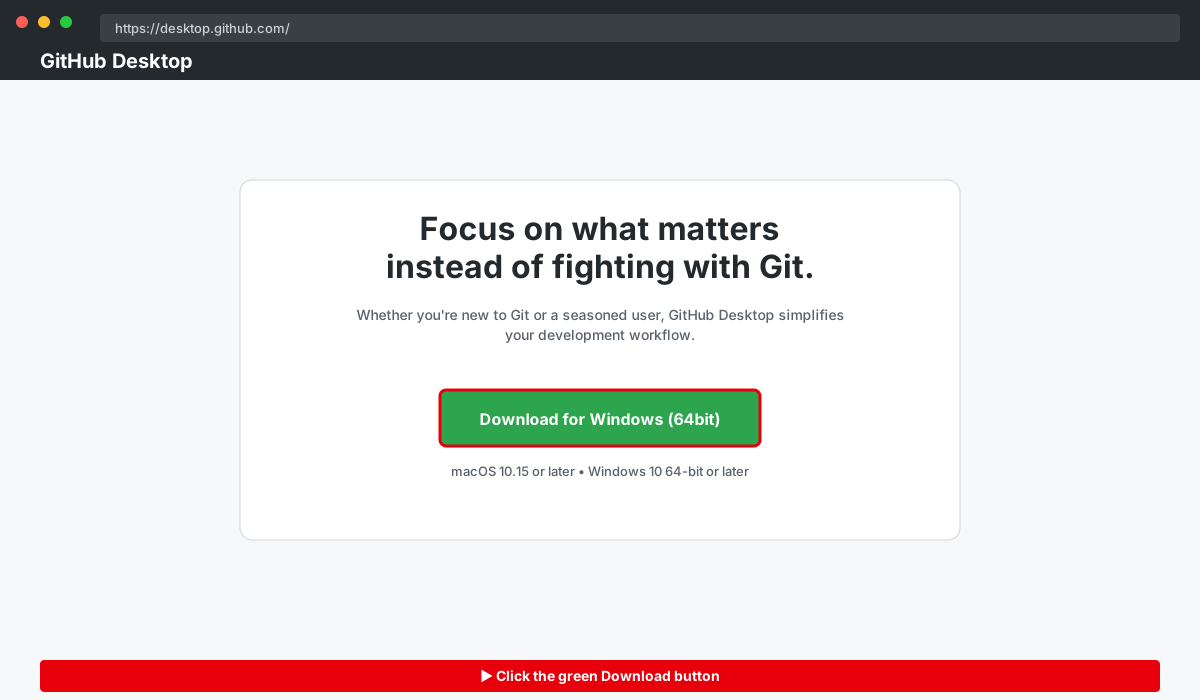
Step 1 — Download and install GitHub Desktop
- Open https://desktop.github.com/ and download the installer for your OS (Windows or macOS).
- Run the installer and complete the standard setup.
- Launch GitHub Desktop.
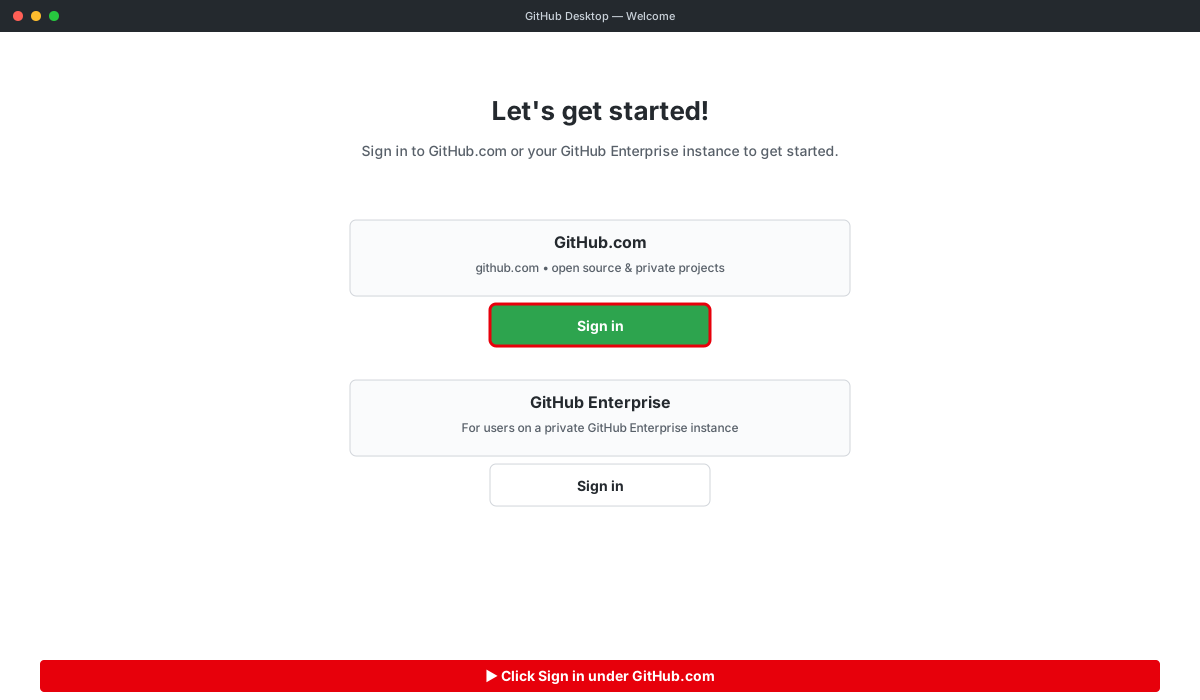
Step 2 — Sign in to GitHub
- On first launch GitHub Desktop prompts you to sign in. Click Sign in to GitHub.com.
- Complete the browser-based sign-in flow and return to GitHub Desktop. Confirm your name and email on the configure-git screen and click Finish.
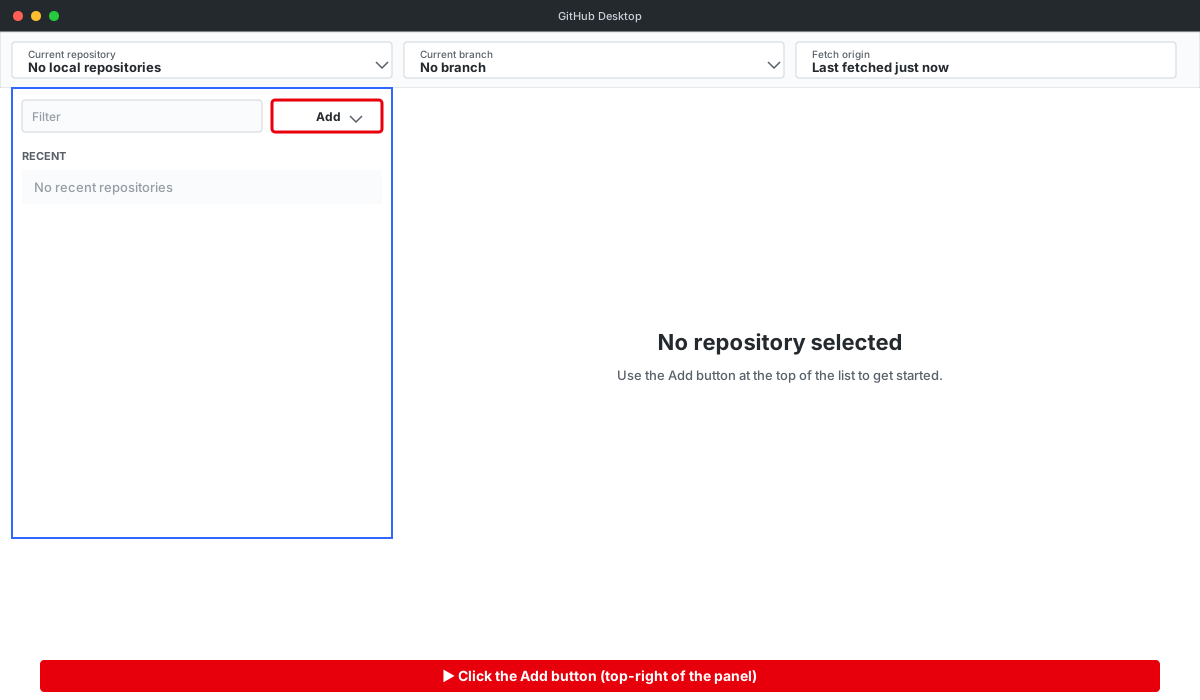
Step 3 — Open the “Add” menu
- Click the Current repository dropdown at the top-left.
- In the panel that opens, click the Add dropdown at the top-right.
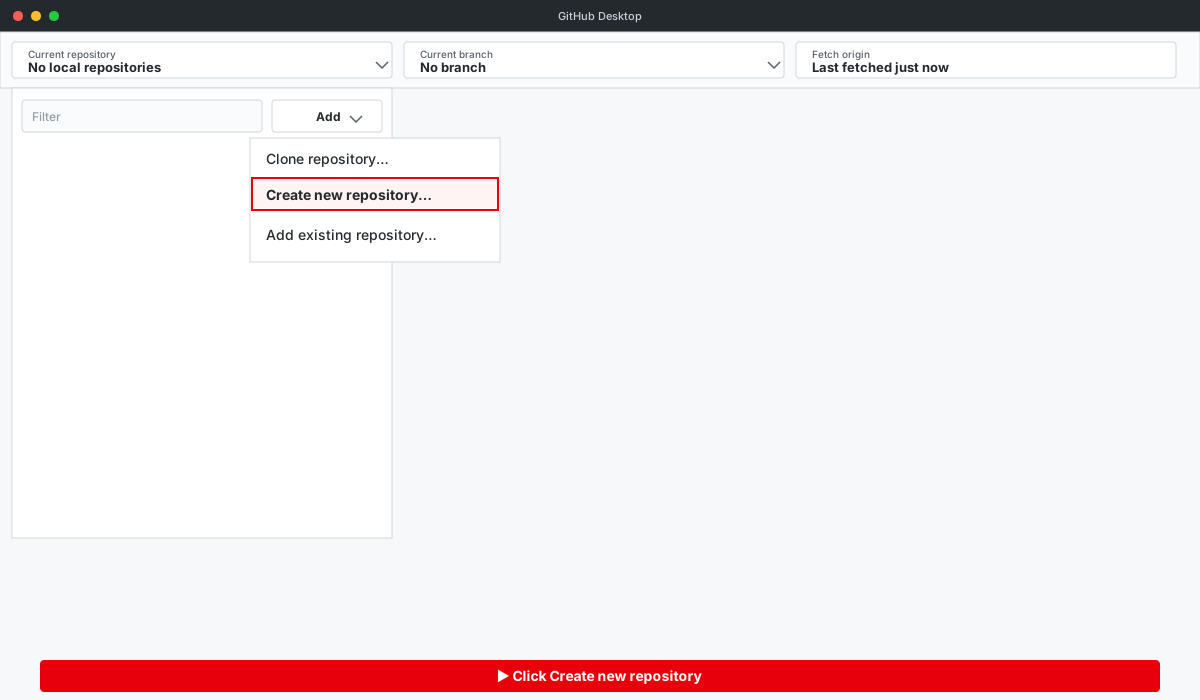
Step 4 — Create a new repository
- From the Add dropdown, choose Create new repository…
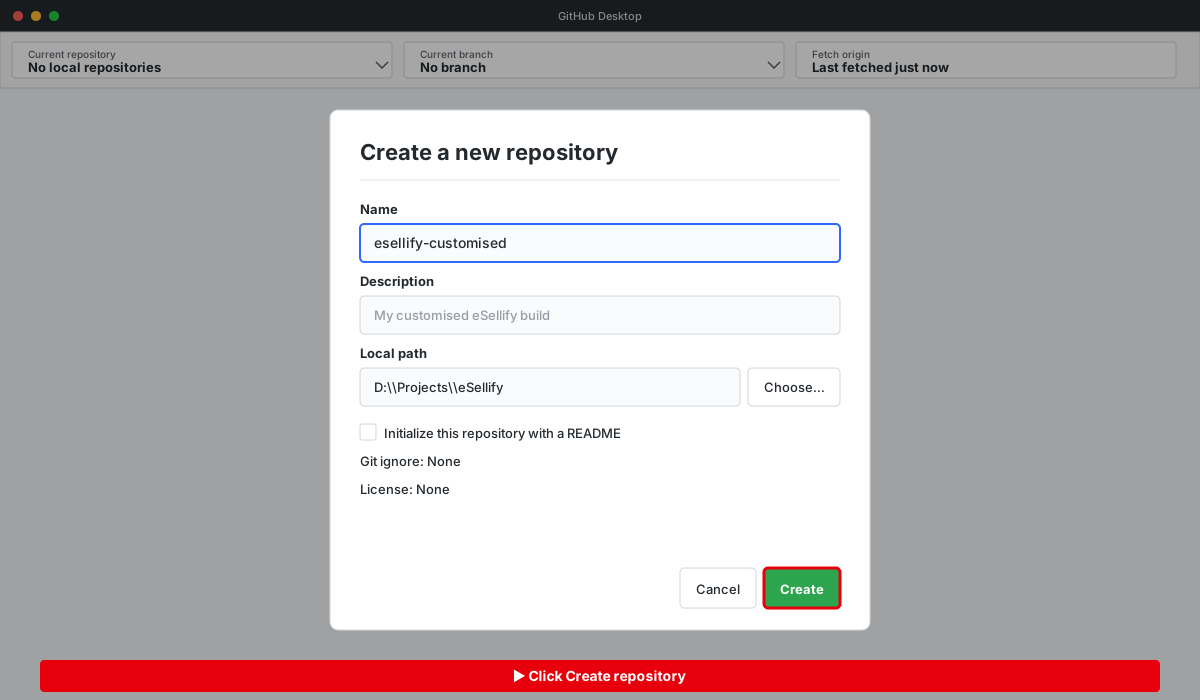
Step 5 — Fill in the repository form
- Name: e.g. esellify-customised.
- Local path: browse to the folder that contains your existing eSellify project.
- Leave the other options at their defaults and click Create repository.
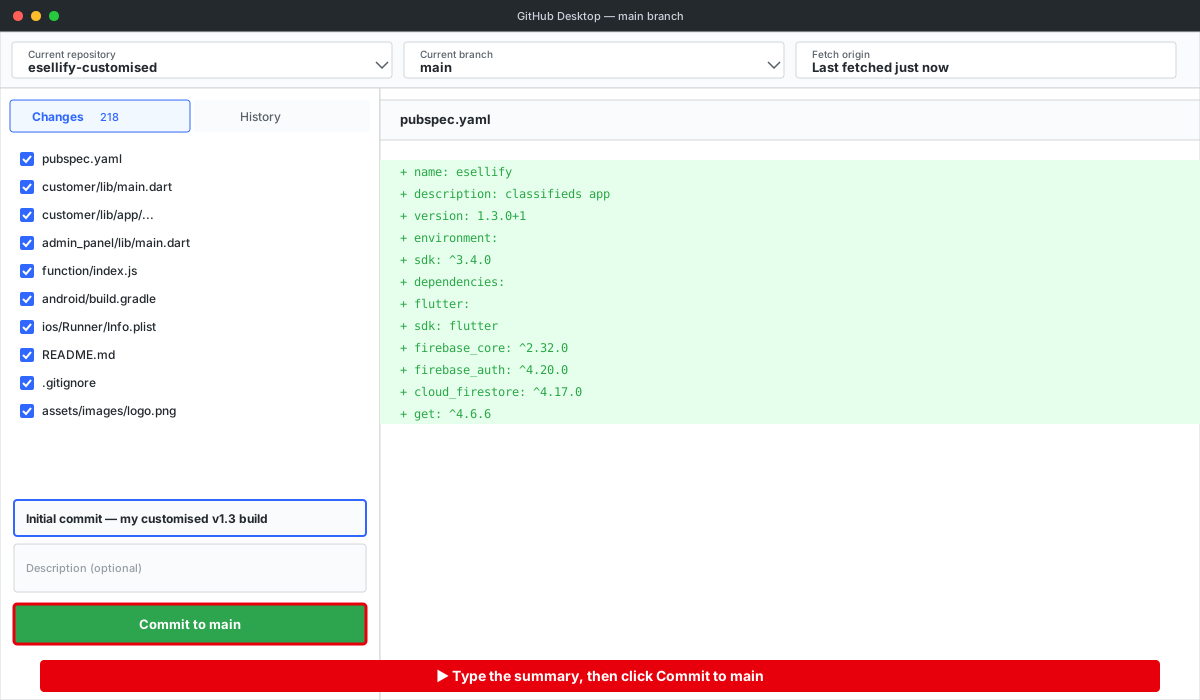
Step 6 — Commit your existing project as the baseline
- GitHub Desktop lists every file in your project under Changes.
- Type a commit summary — for example Initial commit — my customised v1.3 build.
- Click Commit to main.
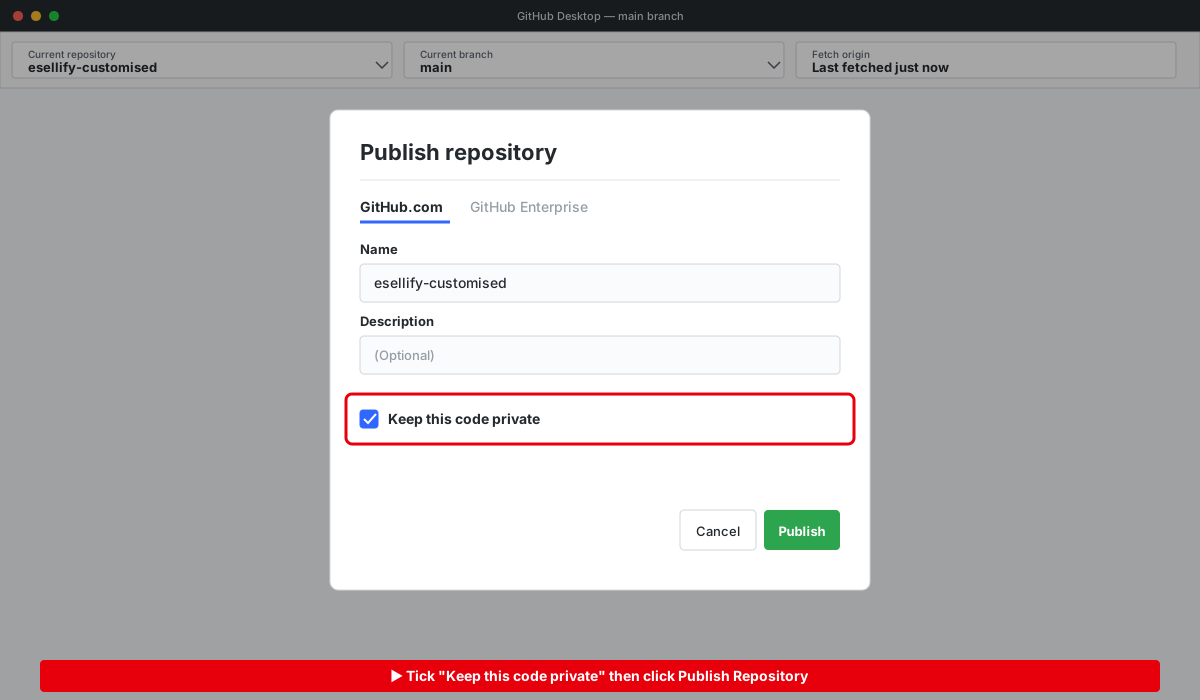
Step 7 — Publish the repository to GitHub
- Click Publish repository at the top of the window.
- Tick Keep this code private.
- Click Publish Repository.
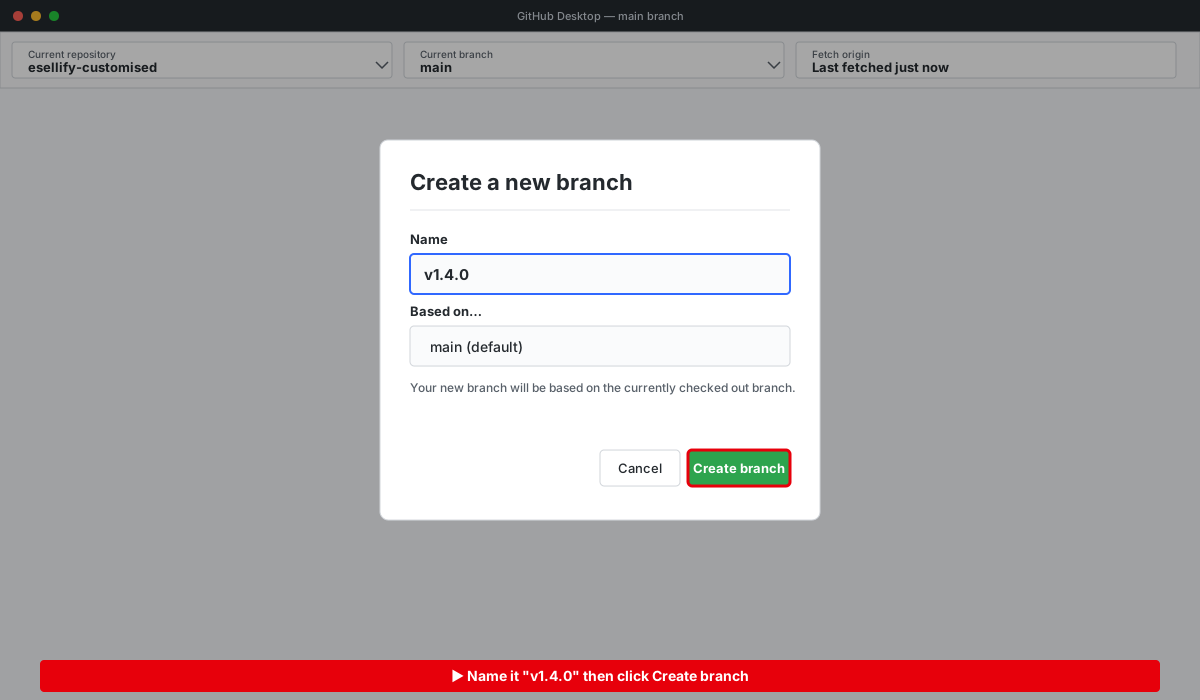
Step 8 — Create a v1.4.0 branch
- Click Current branch → New branch.
- Name it v1.4.0 and click Create branch.
- Confirm you are now on the v1.4.0 branch (shown in the top bar).
Step 9 — Download the latest eSellify release
- Open your CodeCanyon Downloads page.
- Download the eSellify v1.4.0 package and extract it to a temporary folder — do not extract it over your existing project.
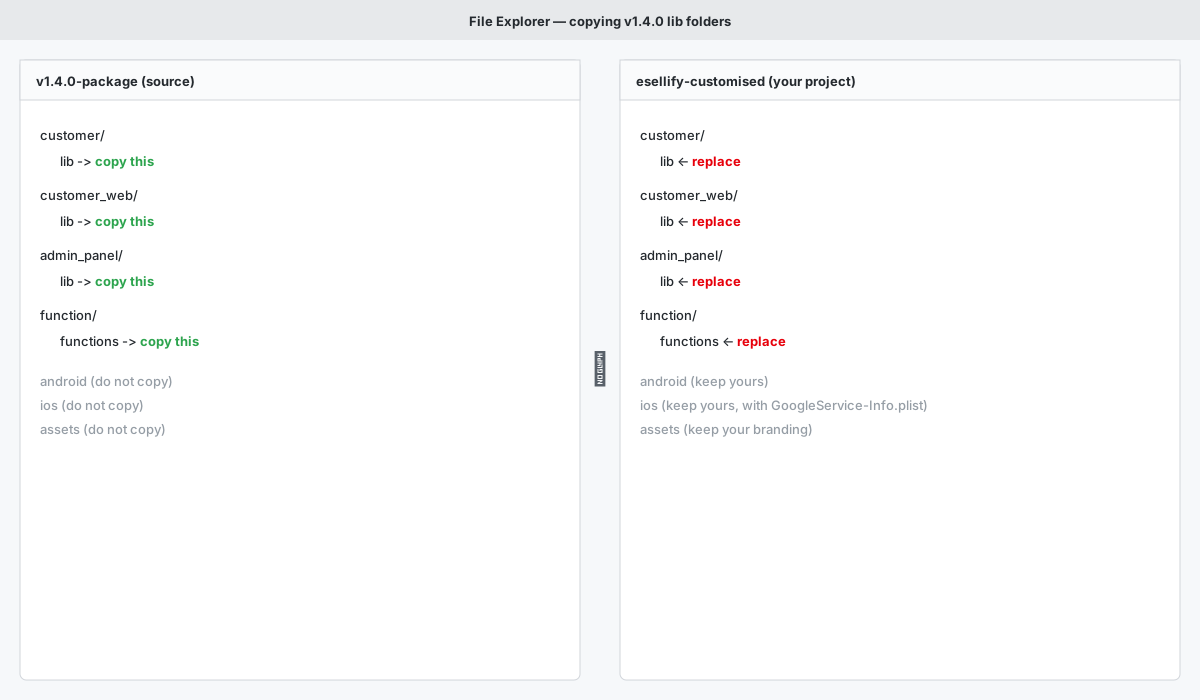
Step 10 — Replace the code folders on the v1.4.0 branch
- Make sure the v1.4.0 branch is still active in GitHub Desktop.
- From the extracted v1.4.0 package, copy these folders into your project, replacing the existing ones:
- customer/lib/
- customer_web/lib/
- admin_panel/lib/
- function/functions/
- Leave everything else untouched — branding, Firebase config files, signing keystore, and platform projects.
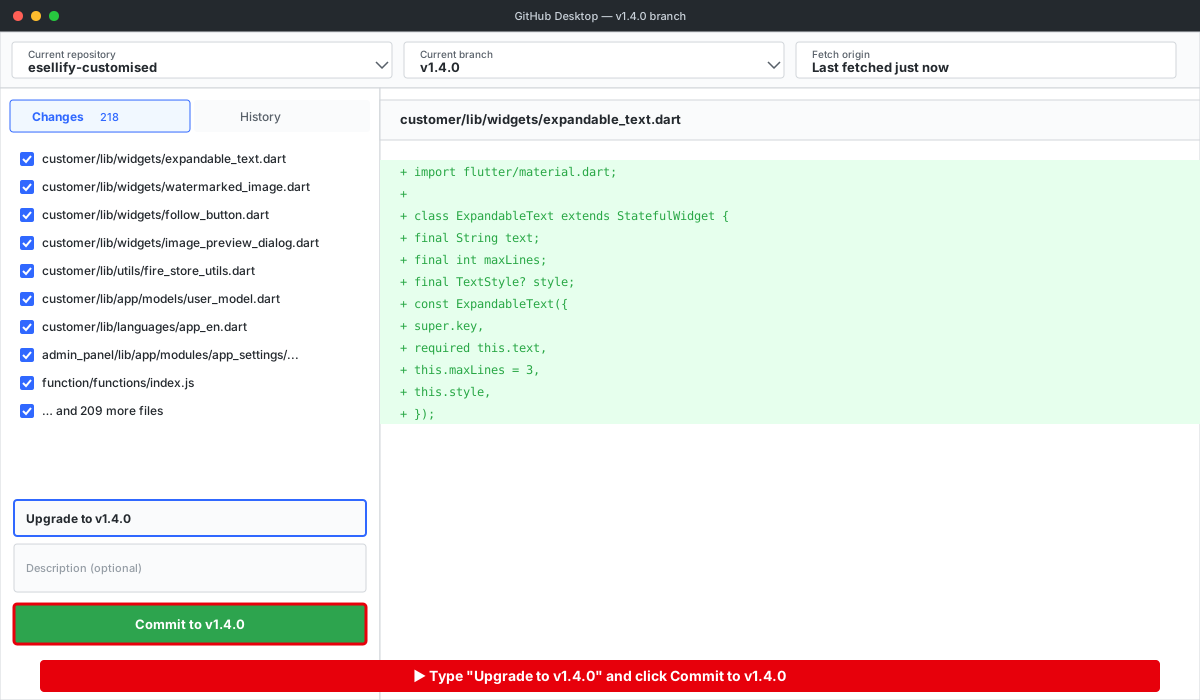
Step 11 — Commit the v1.4.0 changes
- Switch back to GitHub Desktop — the updated files appear under Changes.
- Enter the commit summary Upgrade to v1.4.0.
- Click Commit to v1.4.0.
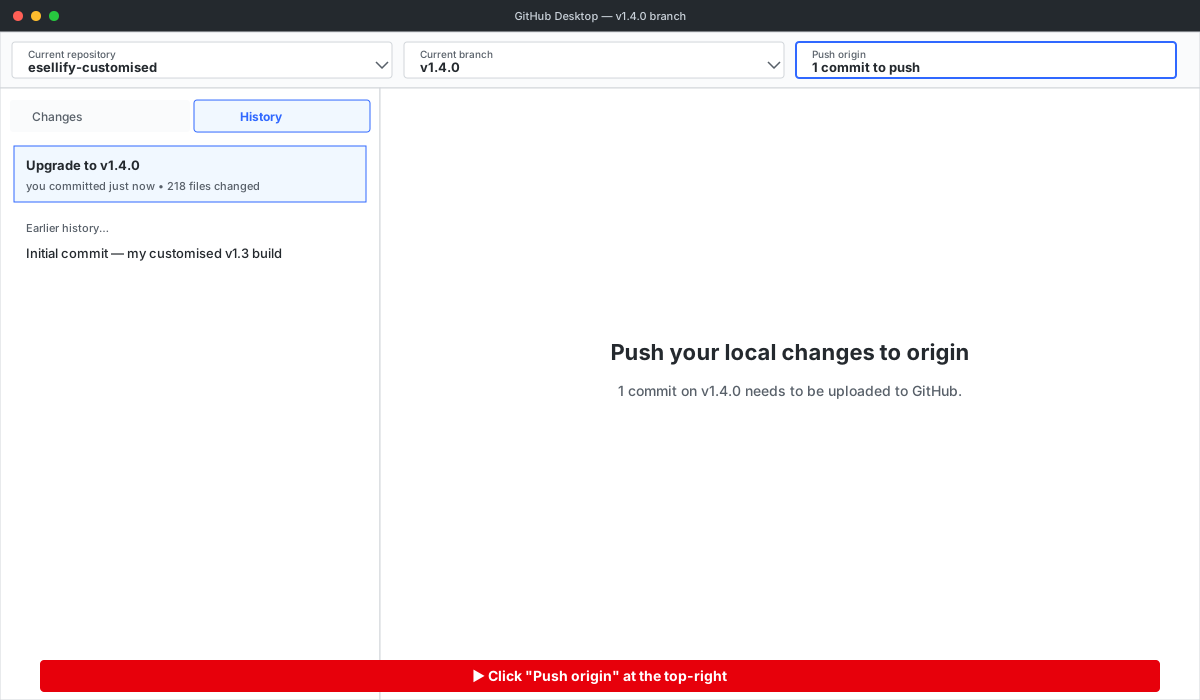
Step 12 — Push the v1.4.0 branch to GitHub
- Click Push origin at the top of the window.
- Wait for the push to complete.
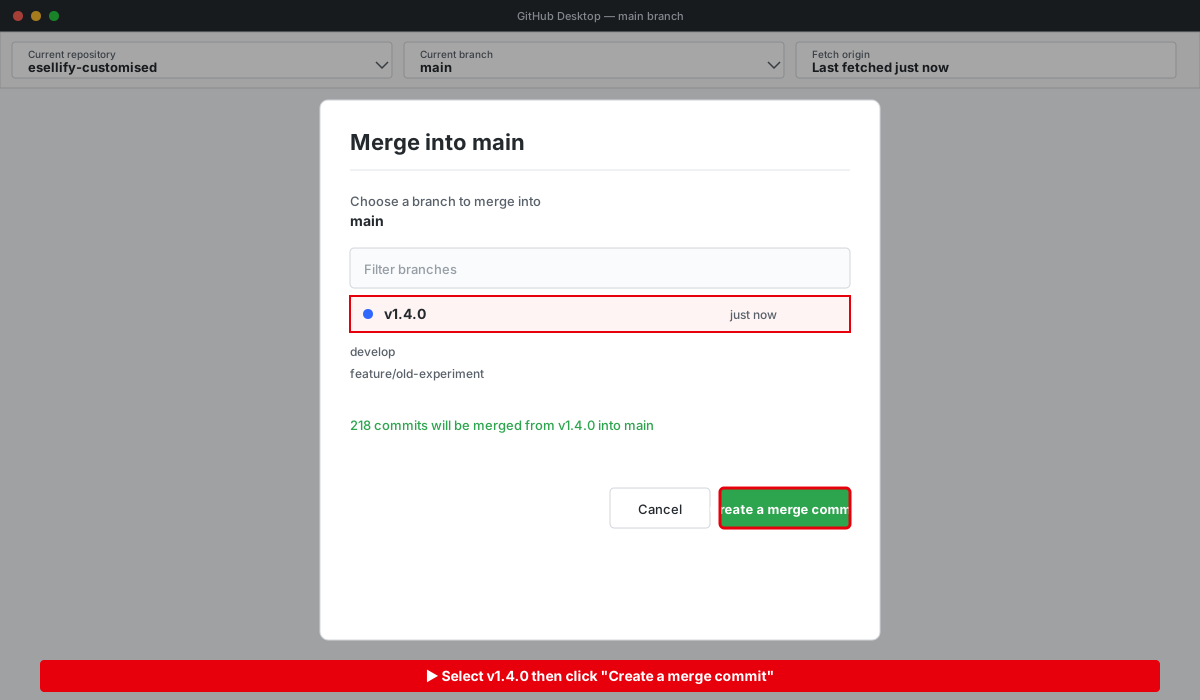
Step 13 — Merge v1.4.0 into main
- Switch Current branch back to main.
- From the top menu choose Branch → Merge into current branch…
- Select v1.4.0 and click Create a merge commit.
Step 14 — Resolve conflicts (if any)
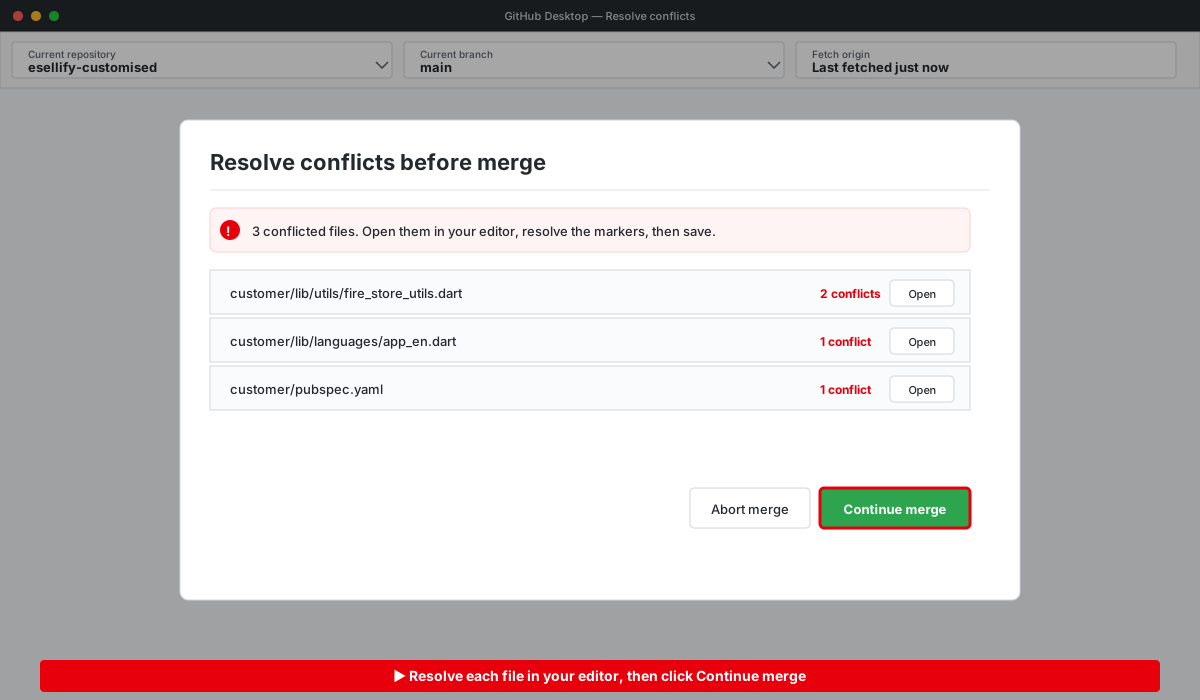
- If GitHub Desktop reports conflicts, click Open in your editor.
- In each conflicted file, look for the markers <<<<<<<, =======, >>>>>>> and keep the correct lines.
- Save each file and return to GitHub Desktop — the conflict count drops as files are resolved.
- When the count reaches zero, click Continue merge, then Push origin.
Step 15 — Apply the changes to your real project
- Open GitHub Desktop's History tab and review each commit from the v1.4.0 merge.
- For every change, open the file in your editor side-by-side with your real project.
- Copy the changes one by one and paste them into your real project.
Manual Upgrade — Replace the lib Folder
If you'd rather skip Git entirely, you can upgrade by replacing the lib/ folder of each app with the one from the new release. This is faster but loses any customisation you made inside lib/, so review the diff before overwriting.
Important note
While replacing the lib folder manually, do not overwrite firebase_options.dart. Keep your existing Firebase configuration file.
- Take a complete backup of your existing project folder (zip the whole thing).
- Open your CodeCanyon Downloads page and download the latest eSellify package. Extract it to a temporary folder — do not extract it over your existing project.
- In the extracted package, locate the lib/ folder inside each app:
- customer/lib/
- customer_web/lib/
- admin_panel/lib/
- In your existing project, delete the corresponding lib/ folder for the app you're upgrading — but first back up your existing lib/firebase_options.dart file (you'll restore it in the next step).
- Copy the new lib/ folder from the extracted package into the same location in your project.
- Restore your own lib/firebase_options.dart over the one shipped in the new release. This file is generated by flutterfire configure against your Firebase project — if you overwrite it with the sample one from the release, your apps will connect to the wrong Firebase.
- Re-apply any other customisations you previously made inside lib/ (branding constants, custom screens, etc.) on top of the new files.
- Open pubspec.yaml in each app and compare it with the new release. Add any new dependencies introduced in the latest version.
- From each app folder, refresh dependencies:
flutter clean
flutter pub get
On macOS, also run pod install --repo-update inside customer/ios.
- Build and run each app to confirm the upgrade works alongside your customisations.
Warning
The manual method overwrites every file inside lib/. Any changes you made there will be lost unless you re-apply them after the copy. If you've heavily customised lib/, prefer the GitHub Desktop method above — it merges your changes with the new release rather than replacing them.
Version 1.5.0
July 28, 2026
Latest
- Added dynamic localisation and multi-language support — content and field values update automatically based on the selected language.
- Added custom-field-based filtering.
- Improved sharing functionality to open the device’s native share sheet (WhatsApp, Messenger, Facebook and more) with deep-link support.
- Updated the Followers and Following lists so tapping a user opens their profile.
- Fixed an issue where phone number updates were not working in the Admin Panel.
- Fixed Customer Web sign-up mobile number validation to allow only the required number of digits.
- Fixed a blank page appearing between the details page and the upload flow in Customer Web.
Version 1.4.0
June 25, 2026
- Improved overall app performance and stability.
- Added “See More / See Less” functionality for long ad descriptions.
- Introduced dynamic watermark support with Admin Panel configuration and real-time sync across Customer App & Web.
- Added Follow / Unfollow functionality for sellers.
- Implemented image zoom in / zoom out for full-size image previews.
- Added option to enable or disable subscription plans from the Admin Panel.
- Fixed location permission handling and improved the location access flow in Customer Web.
- Fixed issue preventing users from deleting their own products in Customer Web and added a confirmation dialog.
- Fixed mobile number validation issues.
- Fixed Customer Web login issue.
- Resolved minor bugs and improved overall user experience.
Version 1.3
May 23, 2026
- Send Test Email — added functionality for SMTP/email configuration testing.
- Ad Details screen — created a dedicated Ad Details screen in the Admin Panel.
- Job Category flow — implemented the complete Job Category flow, including job applications visibility in the customer app.
- Job Applications in Admin — added functionality to view users' job applications in the Admin Panel.
- Dependency upgrades — upgraded project dependencies/packages to the latest compatible versions.
- Bug fixes & stability — fixed minor bugs and improved overall app performance and stability.
Version 1.2
May 12, 2026
- Google AdMob & AdX integration — banner, interstitial and native ads on mobile, GPT banner on web, configured from a new admin panel.
- Safety Tips feature — admin-managed buyer-safety reminders shown in a bottom sheet before contacting a seller.
- AI-generated ad content — OpenAI Vision auto-fills title, description, price, category and custom fields from uploaded product photos.
Version 1.1
April 18, 2026
- Completed full conversion of the mobile application into a high-performance web version.
- Introduced web-based paginated ad listings with precise distance-based filtering.
- Upgraded to Flutter 3.41.6 for improved compatibility.
- Updated all project dependencies to their latest stable versions.
- Refined the web platform with critical bug fixes and enhanced navigation performance.
- Optimized the web experience with proximity-sorted ads and smooth paginated browsing.
Version 1.0
April 11, 2026
 eSellify