HandyHive Documentation
Setup and deployment guide for your multi-platform home-services app.
v8.4 - Flutter + Firebase
💻
Platform
Android, iOS & Web
🔧
Framework
Flutter + Firebase
Key Features
📱
Multi-Platform
Build for Android, iOS, and Web from a single Flutter codebase.
🔐
Authentication
Phone, Google, and Apple sign-in powered by Firebase Authentication.
🗺
Location & Zones
Google Maps with admin-defined service zones, polygon area drawing, and Places autocomplete.
🔔
Push Notifications
Real-time FCM notifications for booking, status, and chat events on all platforms.
⚙
Admin Panel
Full-featured Flutter web dashboard for managing bookings, users, providers, workers, services, payouts, subscriptions, and the public landing page.
💰
Subscriptions & Payouts
Provider subscription plans with automated billing, plus a payout request workflow with admin approval and history.
🌐
Public Landing Page
Standalone HTML/CSS/JS marketing site; all content (hero, features, testimonials, FAQ, app links) is editable from the admin panel.
☁
Serverless Backend
Firebase Cloud Functions, Firestore, and Storage — scalable and serverless, with no servers to maintain.
What's Included
Everything you need to launch your home-services platform:
- Customer App — Flutter mobile app (Android & iOS) where end users browse and book services
(folder: handyhive_customer/).
- Partner App — Flutter mobile app for service providers / business owners to manage their team, services and earnings
(folder: handyhive_partner/).
- Worker App — Flutter mobile app for field workers / handymen to accept jobs, track location and chat with customers
(folder: handyhive_worker/).
- Admin Panel — Flutter web dashboard for the platform owner. Modules include Dashboard, Users, Providers, Workers, Order History, Order Detail, Services, Categories, Subcategories, Coupons, Subscription Plans & History, Payout Requests, Verify Documents, Support Tickets, Banners, Reviews, Zones, Currencies, Tax, Languages, Payment Gateways, Onboarding Slides, Landing Page, Status, Privacy / Terms / About settings & more
(folder: admin_panel/).
- Landing Page — Static HTML / CSS / JS marketing site that reads its content from Firestore in realtime, fully editable from the admin
(folder: landing_page/).
- Cloud Functions — Firebase Functions for FCM push, auto-cancel of unaccepted bookings, automatic refund-to-wallet on cancellation, scheduled tasks and more
(folder: function/).
- Firestore Data — Pre-built collections (firestore.indexes.json) and security rules (firestore.rules) for a one-click setup.
- Documentation — This guide, inside documentation/.
Make sure you have these tools and accounts ready before you start.
Required Software
| Software |
Version |
Purpose |
| Flutter SDK |
Latest Stable |
Framework for building the app |
| Dart SDK |
Bundled with Flutter |
Programming language for Flutter |
| Android Studio |
Latest |
IDE & Android SDK/Emulator |
| Xcode (macOS only) |
Latest |
iOS development & simulator |
| Node.js & npm |
LTS version |
Firebase CLI & Cloud Functions |
| Firebase CLI |
Latest |
Deploy and manage Firebase services |
| Git |
Latest |
Version control |
| VS Code / Android Studio |
Latest |
Code editor with Flutter/Dart plugins |
Required Accounts
- Google Account - For Firebase Console & Google Cloud
- Firebase Account - Project hosting, database, authentication, and functions
- Google Cloud Console - For Google Maps API keys
- Apple Developer Account (optional) - Required for iOS deployment & Apple Sign-In
- Google Play Console (optional) - For publishing to Google Play Store
Important:
- Some Firebase features (Cloud Functions, phone authentication, etc.) require the Blaze plan (pay-as-you-go). The free Spark plan has limitations.
- Ensure your system meets Flutter's minimum system requirements for your OS.
Follow these steps in order. Each one links to its detailed section below.
Estimated Setup Time
The full setup usually takes 1-2 hours, depending on your Flutter and Firebase experience.
Follow these steps to set up Flutter on Windows or macOS.
Setting Up Flutter on Windows
System Requirements
- Operating System: Windows 10 or later (64-bit)
- Disk Space: At least 2.8 GB (excluding IDE and tools)
- Required Tool: Git for Windows
Download Flutter SDK
- Visit the official Flutter installation page.
- Download the latest stable version of the Flutter SDK (ZIP file).
- Extract the ZIP and move the flutter folder to a preferred location, e.g., C:\src\flutter.
Add Flutter to System Path
- Open the Start Menu, search for "Environment Variables", and click "Edit the system environment variables".
- In the System Properties window, click Environment Variables.
- Under User variables, locate the Path variable.
- If it exists, click Edit and append the path to flutter\bin (e.g., C:\src\flutter\bin) at the end, separated by a semicolon.
- If it doesn't exist, click New, name it Path, and enter the path to flutter\bin.
Verify Installation
- Open Command Prompt and run:
flutter doctor
- This checks your environment and reports any missing dependencies (e.g., Android Studio or toolchains).
Install Android Studio
- Download Android Studio from developer.android.com.
- Launch the installer and complete the setup wizard, which installs:
- Android SDK
- Android SDK Command-line Tools
- Android SDK Build-Tools
- After installation, go to Android Studio > Settings > Plugins and install both Flutter and Dart plugins.
Set Up an Android Emulator
- Open Android Studio.
- Go to Tools > AVD Manager.
- Follow the prompts to create and configure a new Android Virtual Device (AVD).
Final Setup Check
- Run the following again to ensure everything is configured:
flutter doctor
- Resolve any remaining issues shown in the output.
Setting Up Flutter on macOS
System Requirements
- Operating System: macOS 10.15 (Catalina) or later
- Disk Space: At least 2.8 GB (excluding IDE and tools)
- Required Tools: Git, Xcode (for iOS development)
Download Flutter SDK
Add Flutter to PATH
- Open your shell profile file (.zshrc or .bashrc) and add:
export PATH="$PATH:$HOME/development/flutter/bin"
- Then run source ~/.zshrc (or restart your terminal) to apply the changes.
Install Xcode
- Install Xcode from the Mac App Store.
- After installation, run the following commands to configure Xcode CLI tools:
sudo xcode-select --switch /Applications/Xcode.app/Contents/Developer
sudo xcodebuild -runFirstLaunch
Install CocoaPods
- CocoaPods is required for iOS dependency management:
sudo gem install cocoapods
Verify Installation
flutter doctor
- Resolve any issues reported by Flutter Doctor before proceeding.
HandyHive supports three authentication methods. Enable each one in the Firebase Console.
📱
1. Phone Authentication
- Open the Firebase Console and select your project.
- In the sidebar, click "Authentication".
- Open the "Sign-in method" tab.
- Find "Phone", click the edit icon, toggle it on, and click Save.
👤
2. Google Sign-In
- In the same Sign-in method tab, click the edit icon next to "Google".
- Toggle Enable on.
- If asked, fill in the OAuth consent screen:
- App name
- Support email
- Developer contact details
- Save.
3. Apple Sign-In
- In Authentication > Sign-in method, click the edit icon next to Apple.
- Enable it and add your Apple Developer credentials:
- Team ID
- Service ID
- Key ID
- Private Key (.p8 file)
- Save.
Note:
Apple Sign-In needs an active Apple Developer account ($99/year). It's mandatory for iOS apps that offer third-party login.
Import the pre-built collections to set up your Firestore database structure quickly.
1. Install Node.js and npm
- Visit the official Node.js website: https://nodejs.org
- Download and install the LTS version compatible with your operating system.
- After installation, verify the setup using:
node -v
npm -v
2. Extract Database Files
- Locate your database.zip file from the project package.
- Extract it to a folder using your OS's zip utility, WinRAR, or 7-Zip.
3. Open Terminal or Command Prompt
- Navigate into the extracted folder using your terminal:
cd path/to/extracted/folder
4. Generate Firebase Service Account Key
- Go to the Firebase Console.
- Select your project. Click the gear icon (⚙) next to "Project Overview" in the top-left sidebar.
- Select "Project settings" from the dropdown menu.
- In the Project Settings page, click the "Service accounts" tab at the top (next to General, Cloud Messaging, Integrations, etc.).
- In the Firebase Admin SDK section, make sure "Node.js" is selected (it usually is by default).
- Click the Generate new private key button at the bottom of the page.
- In the confirmation dialog, click "Generate key".
- A JSON key file downloads automatically.
- Replace the existing config.json in your project folder with this newly downloaded file (rename it to config.json if needed).
🔎
Navigation Path: Firebase Console → ⚙ (Gear Icon) → Project Settings → Service accounts tab → Firebase Admin SDK → Node.js → Generate new private key
5. Prepare config.json
- If config.json is not pre-existing:
- In Firebase Console, go to Project Settings > General.
- Scroll down to Your Apps > Firebase SDK snippet > Config.
- Copy the config object (not the script tag).
- Create a file named config.json in your project folder and paste the config content inside.
6. Run Import Command
- Inside the extracted database folder, run:
npm install firestore-export-import
node import
Success:
Once the import completes, your Firestore database will have all the required collections and documents.
Important Notes:
- Ensure you are inside the correct project directory before running any Firebase CLI commands.
- You must have sufficient permissions (e.g., Editor or Owner role) in your Firebase project to deploy indexes.
- Once deployed, your Firestore queries run faster using the optimized indexes.
1. Navigate to Your Firebase Project Folder
- Open your terminal or command prompt.
- Use the cd command to move into your Firestore index project folder:
cd path/to/firestore_index
- Replace path/to/firestore_index with your actual project folder path.
Step A: Run firebase init
- Inside your project directory, initialize Firebase:
firebase init
- The terminal will display the Firebase ASCII logo and the message:
Terminal Output:
You're about to initialize a Firebase project in this directory:
  C:\path\to\your\firestore_index

? Are you ready to proceed? (Y/n)
- Type y and press Enter to proceed.
Step B: Select Firebase Features
- You will see a list of Firebase features. Use the arrow keys to navigate and press Space to select:
Select this option:
(*) Firestore: Configure security rules and indexes files for Firestore
Use arrow keys to move, Space to select, Enter to confirm.
Step C: Choose Firebase Project
- Select Use an existing project when prompted.
- From the project list, highlight your HandyHive project with the arrow keys and press Enter.
Step D: Set Up Firestore Rules and Indexes
- When prompted for the Firestore rules file (firestore.rules), press Enter to accept the default.
- If the file already exists, type y to overwrite.
- When prompted for the Firestore indexes file (firestore.indexes.json), press Enter to accept the default. Overwrite if asked.
- You will see the message: Firebase initialization complete!
Step E: Deploy Firestore Indexes
- Now deploy the indexes defined in firestore.indexes.json:
firebase deploy --only firestore:indexes
Deployment Complete
- You should see the following output in your terminal:
Expected Terminal Output:
=== Deploying to 'your-project-id'...

i  firestore: reading indexes from firestore.indexes.json...
i  cloud.firestore: checking firestore.rules for compilation errors...
+  cloud.firestore: rules file firestore.rules compiled successfully
i  firestore: deploying indexes...
+  firestore: deployed indexes in firestore.indexes.json successfully

+  Deploy complete!

Project Console: https://console.firebase.google.com/project/your-project-id/overview
1. Install Firebase CLI Tools
- Ensure the Firebase CLI is installed globally:
npm install -g firebase-tools
- Verify the installation by checking the version:
firebase --version
2. Firebase Project Setup
Log in to Firebase:
- Authenticate your CLI session:
firebase login
Important:
- Run all commands below from your Cloud Functions project directory (e.g., your-project/functions/).
Initialize Firebase (if not already initialized):
- Navigate to your project root and initialize Firebase:
firebase init
During this process, follow these prompts:
Firebase Init Prompts for Cloud Functions:
? Are you ready to proceed? Yes
? Which Firebase features do you want to set up?
  (*) Functions: Configure a Cloud Functions directory and its files

=== Project Setup
? Please select an option: Use an existing project
? Select a default Firebase project: your-project-id

=== Functions Setup
? What language would you like to use? JavaScript
? Do you want to use ESLint? No
? Do you want to install dependencies with npm now? Yes
- Wait for npm to install all dependencies. You should see:
+  Wrote functions/package.json
+  Wrote functions/index.js
+  Wrote functions/.gitignore
+  Wrote configuration info to firebase.json
+  Wrote project information to .firebaserc

+  Firebase initialization complete!
3. Install Function Dependencies
- Navigate to the functions/ directory and install all required Node.js packages:
cd functions
npm install
4. Deploy Your Functions
- Once everything is set up, deploy your functions to Firebase:
firebase deploy --only functions
- You should see the following output:
Expected Terminal Output:
=== Deploying to 'your-project-id'...

i  deploying functions
i  functions: preparing codebase default for deployment...
i  functions: ensuring required API cloudfunctions.googleapis.com is enabled...
+  functions: required API cloudfunctions.googleapis.com is enabled
i  functions: Loading and analyzing source code...

+  Deploy complete!

Project Console: https://console.firebase.google.com/project/your-project-id/overview
- This deploys only the functions, leaving other Firebase services untouched.
Tip:
If deployment fails, check your function files for syntax errors, confirm all dependencies are installed, and verify you're on the Blaze plan.
Setup guides for configuring the Admin Panel.
Important Notes:
- Some Firebase features require the Blaze plan.
- On the free Spark plan, upgrade to Blaze for full functionality.
Update HTML Title
- Open: web/index.html
- Inside the <head> section, update the content of the <title> tag:
<head>
  ...
  <title>Your New App Name</title>
  ...
</head>
1. Install Firebase CLI Tools
npm install -g firebase-tools
2. Authenticate Firebase CLI
firebase login
- A browser window opens to sign in with your Google account.
3. Create a Firebase Project
- Create a project directly from the terminal:
firebase projects:create
OR
- Create one via the Firebase Console.
- Enter a name and press Continue, then click Create Project.
- Now add an app in Firebase:
1
Add Firebase to your Flutter App:
- On the Firebase Project Overview page, find "Get started by adding Firebase to your app" with platform icons (iOS, Android, Web, Unity, Flutter).
- Click the Flutter icon (the last icon, looks like a diamond shape).
- Firebase opens the "Add Firebase to your Flutter app" wizard with two commands.
2
Run the FlutterFire CLI commands shown in the wizard:
$ dart pub global activate flutterfire_cli
$ flutterfire configure --project=YOUR_PROJECT_ID
This registers your per-platform apps with Firebase and adds a lib/firebase_options.dart file to your project.
- After running both commands, click Next in the Firebase wizard.
- Then click Continue to console.
4. Initialize Firebase in Your Flutter App
- Open Android Studio and go to the Terminal tab.
- Run the initialization commands:
dart pub global activate flutterfire_cli
flutterfire configure --project=YOUR_PROJECT_ID
- The CLI asks which platforms to configure. For the Admin Panel:
Platform Selection (Admin Panel = Web only):
? Which platforms should your configuration support?
  ( ) android
  ( ) ios
  ( ) macos
  (*) web        <-- Select ONLY this
  ( ) windows
Use arrow keys and Space to select web only. Press Enter to confirm.
- When asked "firebase_options.dart already exists. Do you want to override it?", type yes and press Enter.
- Setup is complete when you see: Firebase configuration file lib/firebase_options.dart generated successfully.
1. Generate a Google Maps API Key
- Go to the Google Cloud Console.
- Create a new project or select an existing one.
- Enable the following APIs for your project:
- Maps SDK for Android
- Maps SDK for iOS
- Maps JavaScript API
- Go to APIs & Services > Credentials.
- Click "Create Credentials" > "API key".
- Copy the newly generated API key.
2. Add API Key to Flutter Web
- Open: web/index.html
- Inside the <head> section, add:
<script src="https://maps.googleapis.com/maps/api/js?key=YOUR_API_KEY&libraries=places"></script>
Flutter Web
On Flutter web, the favicon represents your app in the browser tab.
Replace Favicon:
- Design your favicon in the proper size and format (typically favicon.ico or PNG, 32x32 or 16x16 pixels).
- Go to your Flutter project's web/ directory.
- Replace the existing favicon.png or favicon.ico with your own, keeping the same filename.
Tip:
Use tools like favicon.io or realfavicongenerator.net to generate favicons from your logo in all sizes.
Configure CORS (Cross-Origin Resource Sharing) on your Firebase Storage bucket so the web panel can load images and files.
1. Open the Google Cloud Console
2. Select Your Project
- At the top-left, click your project name to confirm you're in the correct project.
3. Activate Google Cloud Shell
- In the top-right corner of the Google Cloud Console, look for the Activate Cloud Shell icon (it looks like a terminal/command prompt icon: □>_).
- Click it; a Cloud Shell terminal opens at the bottom of the screen.
- Wait for it to initialize. You'll see a message like:
Welcome to Cloud Shell! Type "help" to get started.
Your Cloud Platform project in this session is set to your-project-id.
Use 'gcloud config set project [PROJECT_ID]' to change to a different project.
4. Create a CORS Configuration File
- In the Cloud Shell terminal, run the following command:
echo '[{ "origin": ["*"], "method": ["GET"], "maxAgeSeconds": 3600, "responseHeader": ["Content-Type"] }]' > cors-config.json
- Press Enter. This creates cors-config.json in Cloud Shell.
5. Get Your Storage Bucket Name
- To find your bucket name: Go to Firebase Console → Storage (in the left sidebar).
- At the top of the Storage page, copy your bucket URL (e.g., gs://your-project-id.appspot.com).
6. Apply the CORS Configuration to Your Bucket
- Back in the Google Cloud Shell, run:
gsutil cors set cors-config.json gs://YOUR_BUCKET_NAME
- Replace YOUR_BUCKET_NAME with your actual bucket name (e.g., handyhive-3d7fa.appspot.com).
- Press Enter to apply the CORS configuration.
Security Note:
- The "origin": ["*"] setting allows requests from any domain. For production, restrict it to your own domain for better security.
Note:
Run all commands below from the project folder in your terminal (Android Studio or system).
1. Create the Build for Server Upload
- Run the following commands in order:
flutter clean
flutter pub get
flutter build web --release
- You will see output like:
Compiling lib/main.dart for the Web...
✓ Built build\web                                          19.5s
- Flutter generates the optimized build in:
build/web/
- Upload the contents of the build/web/ folder to your server or hosting provider (via FTP, cPanel, or SSH).
Note:
Run all commands below from the project folder in your terminal.
1. Build and Deploy Using Firebase Hosting
- Install Firebase CLI (if not already installed):
npm install -g firebase-tools
firebase login
- Initialize Firebase inside your project folder:
firebase init
Follow the Firebase Init prompts:
? Are you ready to proceed? (Y/n) y

? Which Firebase features do you want to set up?
  (*) Hosting: Configure files for Firebase Hosting
      and (optionally) set up GitHub Action deploys

=== Project Setup
? Please select an option: Use an existing project
i  Using project your-project-id

=== Hosting Setup
? What do you want to use as your public directory? build/web
? Configure as a single-page app (rewrite all urls to /index.html)? Yes
? Set up automatic builds and deploys with GitHub? No
- You should see: + Firebase initialization complete!
- Now build the release version:
flutter build web --release
- Then deploy to Firebase Hosting:
firebase deploy
Expected Deployment Output:
=== Deploying to 'handyhive-3d7fa'...

i  deploying firestore, hosting
i  hosting[handyhive-3d7fa]: beginning deploy...
i  hosting[handyhive-3d7fa]: found 516 files in build/web
+  hosting[handyhive-3d7fa]: file upload complete
+  hosting[handyhive-3d7fa]: version finalized
+  hosting[handyhive-3d7fa]: release complete

+  Deploy complete!

Project Console: https://console.firebase.google.com/project/handyhive-3d7fa/overview
Hosting URL: https://handyhive-3d7fa.web.app
Success:
Your Admin Panel is live! Open the Hosting URL from the output (e.g., https://handyhive-3d7fa.web.app) to access it.
These steps apply to all three Flutter mobile apps — Customer
(handyhive_customer/), Partner
(handyhive_partner/), and Worker
(handyhive_worker/) — on both Android and iOS.
Changing the package name means updating several files on both Android and iOS.
Android
Update the applicationId in build.gradle:
- Open: android/app/build.gradle
- Inside the defaultConfig block, find and replace the applicationId:
defaultConfig {
    applicationId "com.new.package.name"
}
Rename Java Package Directories:
- Go to: android/app/src/main/java/
- Rename the directory folders to match your new package structure (e.g., com/new/package/name).
- Make sure the new folder path matches the applicationId you set above.
Update AndroidManifest.xml:
- Open: android/app/src/main/AndroidManifest.xml
- Update the package attribute in the root <manifest> tag:
<manifest xmlns:android="http://schemas.android.com/apk/res/android"
    package="com.new.package.name">
</manifest>
Update Other Manifest Files:
- Also update the package attribute in:
- android/app/src/debug/AndroidManifest.xml
- android/app/src/profile/AndroidManifest.xml
iOS
Update PRODUCT_BUNDLE_IDENTIFIER in Xcode:
- Open the iOS project in Xcode: ios/Runner.xcworkspace
- Select the Runner target, then go to the Build Settings tab.
- Search for PRODUCT_BUNDLE_IDENTIFIER.
- Replace it with your new bundle identifier (e.g., com.new.package.name).
Update Bundle Identifier in Info.plist:
- Open: ios/Runner/Info.plist
- Locate the CFBundleIdentifier key and update its value.
Prerequisites
- Flutter SDK is installed
- A Flutter project is already created
- Basic familiarity with the Flutter project structure
Android
Update AndroidManifest.xml:
- Navigate to: android/app/src/main/AndroidManifest.xml
- Find the application tag and modify the android:label attribute:
<application
    android:name="${applicationName}"
    android:icon="@mipmap/ic_launcher"
    android:label="Your App Name"
    ...>
</application>
Update strings.xml:
- Open: android/app/src/main/res/values/strings.xml
- Update the app_name string:
<string name="app_name">Your New App Name</string>
iOS
Update Info.plist:
- Go to: ios/Runner/Info.plist
- Locate the key for CFBundleName and change its value:
<key>CFBundleName</key>
<string>Your New App Name</string>
Update Display Name in Xcode:
- Open your project in Xcode: ios/Runner.xcworkspace
- Select the Runner target, click the General tab.
- Find the Display Name field and update it to your desired app name.
Android
Replace Default Icons:
- Create custom app icons in each density, then go to: android/app/src/main/res/
- Replace ic_launcher.png in each of these folders with your custom icon:
- mipmap-mdpi (48x48 px)
- mipmap-hdpi (72x72 px)
- mipmap-xhdpi (96x96 px)
- mipmap-xxhdpi (144x144 px)
- mipmap-xxxhdpi (192x192 px)
Update Icon Reference in AndroidManifest.xml:
- Open: android/app/src/main/AndroidManifest.xml
- Ensure the android:icon points to your custom icon:
<application
    android:icon="@mipmap/ic_launcher"
    ...>
</application>
iOS
Replace AppIcon Set:
- Prepare your custom icons in iOS-specific sizes and formats.
- Replace the contents of: ios/Runner/Assets.xcassets/AppIcon.appiconset/
- Ensure your icon set follows Apple's size and naming requirements.
Tip:
Use tools like appicon.co or the flutter_launcher_icons package to automatically generate all required icon sizes from a single source image.
Note:
This setup applies to all four Flutter projects — the Admin Panel
(web) and the three mobile apps (Customer, Partner, Worker). The steps are identical —
just run them once inside each project folder, picking the appropriate platforms in step 4.
1. Install Firebase CLI Tools
npm install -g firebase-tools
2. Authenticate Firebase CLI
firebase login
- A browser window opens to sign in with your Google account.
3. Create a Firebase Project
firebase projects:create
OR
- Create one via the Firebase Console.
- Enter a name and press Continue, then click Create Project.
- Add your app in Firebase:
➤
On the Project Overview page, click the Flutter icon under "Get started by adding Firebase to your app". The wizard will show two commands to run:
$ dart pub global activate flutterfire_cli
$ flutterfire configure --project=YOUR_PROJECT_ID
Run both in your project terminal. Then click Next → Continue to console.
4. Initialize Firebase in Your Flutter App
- Open Android Studio and go to the Terminal tab. Run:
dart pub global activate flutterfire_cli
flutterfire configure --project=YOUR_PROJECT_ID
- The CLI asks which platforms to configure. Pick the ones for the
project you're in:
Platform Selection — pick per project:
? Which platforms should your configuration support?
  (*) android      <-- Customer / Partner / Worker apps
  (*) ios          <-- Customer / Partner / Worker apps
  ( ) macos
  (*) web          <-- Admin Panel only
  ( ) windows
Mobile apps (handyhive_customer,
handyhive_partner, handyhive_worker):
select android + ios.
Admin panel (admin_panel): select web
only.
- If prompted "firebase_options.dart already exists. Do you want to override it?", type yes.
- Setup is complete when you see:
Firebase configuration file lib/firebase_options.dart generated successfully
with the following Firebase apps:

Platform  Firebase App Id
android   1:XXXXXXXXX:android:XXXXXXXXX
ios       1:XXXXXXXXX:ios:XXXXXXXXX
1. Create a Firebase Project
- Go to the Firebase Console.
- Click "Add project" and follow the guided steps.
- After setup, you'll be redirected to the Firebase project dashboard.
2. Add Your Flutter App to Firebase
Android Setup:
- Click on the Android icon to register an Android app.
- Enter your Android package name (found in android/app/src/main/AndroidManifest.xml).
- Download the google-services.json file.
- Place it in: android/app/
iOS Setup:
- Click on the iOS icon to register your iOS app.
- Enter your iOS bundle ID (found in Xcode project settings).
- Download the GoogleService-Info.plist file.
- In Xcode:
- Open ios/Runner.xcworkspace.
- Drag and drop GoogleService-Info.plist into the Runner project (check "Copy items if needed").
3. Add Firebase Packages
- Add the necessary Firebase packages to pubspec.yaml:
dependencies:
  firebase_core: ^latest
  firebase_auth: ^latest
  cloud_firestore: ^latest
flutter pub get
4. Configure DefaultFirebaseOptions
- Use the FlutterFire CLI to auto-generate the configuration file:
flutterfire configure
- This creates lib/firebase_options.dart with platform-specific configurations.
5. Initialize Firebase in main.dart
void main() async {
  WidgetsFlutterBinding.ensureInitialized();
  await Firebase.initializeApp(
    options: DefaultFirebaseOptions.currentPlatform,
  );
  runApp(MyApp());
}
1. Generate a Google Maps API Key
- Go to the Google Cloud Console.
- Create a new project or select an existing one.
- Enable the following APIs:
- Maps SDK for Android
- Maps SDK for iOS
- Maps JavaScript API
- Places API
- Geocoding API
- Directions API
- Go to APIs & Services > Credentials.
- Click "Create Credentials" > "API key".
- Copy the generated API key.
2. Add API Key - Android
- Open: android/app/src/main/AndroidManifest.xml
- Inside the <application> tag, add:
<meta-data
    android:name="com.google.android.geo.API_KEY"
    android:value="YOUR_API_KEY"/>
3. Add API Key - iOS
- Open: ios/Runner/AppDelegate.swift
- In the application(_:didFinishLaunchingWithOptions:) method, add:
import GoogleMaps
GMSServices.provideAPIKey("YOUR_API_KEY")
Security Tip:
- In the Google Cloud Console, restrict your API key to specific apps (by package name/bundle ID) and APIs to prevent misuse.
SHA keys are required for Firebase services like Google Sign-In and Phone Authentication on Android.
1. Generate SHA Keys
For Windows (Debug Keystore):
keytool -list -v -keystore "%USERPROFILE%\.android\debug.keystore" -alias androiddebugkey -storepass android -keypass android
For macOS/Linux (Debug Keystore):
keytool -list -v -keystore ~/.android/debug.keystore -alias androiddebugkey -storepass android -keypass android
- Look for the SHA1 and SHA256 values in the output and copy them.
2. Add SHA Keys to Firebase Console
- Open the Firebase Console and select your project.
- Click the gear icon (⚙) next to "Project Overview" and select "Project settings".
- Go to the "General" tab (first tab at the top).
- Scroll down to the "Your apps" section. Find your Android app.
- Under your Android app, find the SHA certificate fingerprints section (SHA-1 and SHA-256).
- Click the "Add Fingerprint" button.
- A dialog appears with a "Certificate fingerprint" field and SHA1/SHA256 toggles.
- Paste your SHA-1 key, select SHA1, and click Save.
- Repeat for the SHA-256 key: click "Add Fingerprint" again, paste the SHA-256 key, select SHA256, and click Save.
🔎
Navigation Path: Firebase Console → ⚙ Gear Icon → Project Settings → General tab → Your apps → Android app → Add Fingerprint
Important Notes:
- For release builds, use your custom release keystore (not the default debug one).
- Keep your keystore file secure and never expose it publicly.
- Regenerate SHA keys whenever you change your signing config or keystore.
A JKS (Java KeyStore) file holds the private key used to digitally sign your Android
release builds. Google Play requires every APK/AAB to be signed, and all future updates must use the
same key — so create this keystore once and keep it safe.
Note:
You need the keytool command, which ships with the JDK (already
installed with Android Studio / Flutter). Run all commands from your terminal.
1. Generate the Keystore with keytool
Run the command below in your terminal to generate the JKS file used for
Android app signing only. Replace (Project_name) with your
own project name — the file is created in the current folder.
keytool -genkey -v -keystore (Project_name).jks -keyalg RSA -keysize 2048 -validity 10000 -alias (Project_name)
- -keystore (Project_name).jks — the output JKS file name, created in the current folder.
- -alias (Project_name) — a name for the key inside the keystore (remember it; you'll need it later).
- -validity 10000 — validity in days (~27 years; Play recommends a long validity).
2. Answer the Prompts
- The tool first asks you to create a keystore password, then to confirm it.
- It then asks for your name, organization, city, state, and country code — you can fill these
in or leave them blank and press Enter.
- When asked "Is CN=... correct?", type yes and press Enter.
- Finally, press Enter to use the same password for the key as the keystore (recommended).
Example prompts:
Enter keystore password:  ********
Re-enter new password:    ********
What is your first and last name?
  [Unknown]:  Your Name
What is the name of your organizational unit?
  [Unknown]:  HandyHive
...
Is CN=Your Name, OU=HandyHive, ... correct?
  [no]:  yes

Enter key password for <(Project_name)>
        (RETURN if same as keystore password):
- Once finished, your keystore file (e.g. (Project_name).jks) is created
in the current folder.
3. Move the Keystore into Your Project
- Copy the generated .jks file into the app's android folder, e.g.
android/app/(Project_name).jks.
Important:
- Add the keystore and its passwords to .gitignore —
never commit them to version control.
4. Create a key.properties File
- Create a file at android/key.properties with your keystore details:
# android/key.properties
storePassword=YOUR_KEYSTORE_PASSWORD
keyPassword=YOUR_KEY_PASSWORD
keyAlias=(Project_name)
storeFile=(Project_name).jks
- storeFile is the path to the .jks file
relative to the android/app/ folder.
- Add key.properties to your .gitignore too.
5. Reference the Keystore in build.gradle
- Open android/app/build.gradle.
- Above the android { } block, load the properties file:
def keystoreProperties = new Properties()
def keystorePropertiesFile = rootProject.file('key.properties')
if (keystorePropertiesFile.exists()) {
    keystoreProperties.load(new FileInputStream(keystorePropertiesFile))
}
- Inside the android { } block, add a
signingConfigs block and use it in the
release build type:
android {
    signingConfigs {
        release {
            keyAlias keystoreProperties['keyAlias']
            keyPassword keystoreProperties['keyPassword']
            storeFile keystoreProperties['storeFile'] ? file(keystoreProperties['storeFile']) : null
            storePassword keystoreProperties['storePassword']
        }
    }
    buildTypes {
        release {
            signingConfig signingConfigs.release
        }
    }
}
6. Build the Signed Release
- Build a signed APK or AAB — it is now signed with your JKS key automatically:
flutter build apk --release
# or
flutter build appbundle --release
Important Notes:
- Back up your JKS file and passwords in a secure place. If you lose them, you
cannot publish updates to your existing app on Google Play.
- Use the same keystore for every release of the same app — a new key
creates a different app identity.
- Keep the keystore and key.properties out of Git and away from
public sharing.
Note:
Run all commands from your project folder in the terminal.
1. Generate APK (for direct installation)
flutter clean
flutter pub get
flutter build apk --release
- The release APK will be generated at:
build/app/outputs/flutter-apk/app-release.apk
2. Generate AAB (for Google Play Store)
flutter clean
flutter pub get
flutter build appbundle --release
- The release AAB file will be generated at:
build/app/outputs/bundle/release/app-release.aab
Difference between APK and AAB:
- APK: Universal package for direct installation or testing on devices.
- AAB: Optimized format required by Google Play. It auto-generates smaller, device-specific APKs.
Using Command-Line Interface (CLI)
Open Terminal and navigate to your project:
cd path/to/your_flutter_project
Run the Flutter App:
flutter run
- This builds and runs your app on a connected device or emulator.
Using Android Studio
- Launch Android Studio and open your Flutter project.
- Click the green Run button in the toolbar.
- Choose your emulator or physical device from the device dropdown.
- Android Studio builds and launches your app automatically.
Using Visual Studio Code
- Launch VS Code and use File > Open Folder to open your Flutter project.
- Press Ctrl + Shift + P (or Cmd + Shift + P on macOS) to open the Command Palette.
- Search for and select Flutter: Run.
- Choose your emulator or connected device from the list.
Useful Flutter Commands:
- flutter devices - List all connected devices
- flutter run -d chrome - Run on Chrome (web)
- flutter run -d <device_id> - Run on a specific device
- flutter run --release - Run in release mode
1. Get the FCM Sender ID
- Open the Firebase Console.
- Click the gear icon (⚙) next to "Project Overview" → "Project settings".
- Click the "Cloud Messaging" tab at the top.
- Under "Firebase Cloud Messaging API (V1)" (shown as Enabled), find the "Sender ID" field.
- Copy the Sender ID (a numeric string). It goes into the FCM Server Key field in the Admin Panel; the apps read it from Firestore as both notification_server_key and senderId.
🔎
Navigation Path: ⚙ Gear Icon → Project Settings → Cloud Messaging tab → Sender ID
2. Get the Web Client ID (for Google Sign-In)
- In the Firebase Console left sidebar, go to Authentication.
- Click the "Sign-in method" tab.
- Find "Google" in the providers list and click the edit (pencil) icon.
- In the Google provider settings, expand "Web SDK configuration". You'll see two fields:
- Web client ID — copy this value
- Web client secret — not needed
- This Web client ID goes into the Google Client ID field in the Admin Panel; the mobile apps read it from Firestore as googleClientId.
🔎
Navigation Path: Authentication → Sign-in method → Google (edit) → Web SDK configuration → Web client ID
3. Get the Firebase Service Account JSON File
- Go to Project Settings (gear icon) → "Service accounts" tab.
- Find the Firebase Admin SDK section with a code snippet.
- Click the Generate new private key button at the bottom.
- A JSON file downloads automatically. Keep it safe — you'll upload it to the Admin Panel, which stores it in Firebase Storage and saves the download URL on the settings doc as jsonFileURL.
🔎
Navigation Path: ⚙ Gear Icon → Project Settings → Service accounts tab → Generate new private key
4. Add All Keys in the Admin Panel
- Open your Admin Panel (the deployed web app).
- In the left sidebar, expand Settings and click "Notification Settings".
- Fill the three fields below and click Save.
Admin Panel → Settings → Notification Settings:
| Field |
What to Enter |
Stored in Firestore as |
| FCM Server Key |
The Sender ID from Cloud Messaging tab (Step 1) |
notification_server_key |
| Google Client ID |
The Web client ID from Authentication → Google (Step 2) |
googleClientId |
| Service Account JSON |
Upload the JSON file generated in Step 3 |
jsonFileURL |
- All three values are saved to one Firestore document, settings/constant, so each app reads every notification and login setting in a single startup query.
Note — where each setting lives in the Admin Panel:
Settings → Notification Settings: FCM Server Key, Service Account JSON, Google Client ID (this page).
Settings → General Settings: Google Maps key, Support URL, App version — configured separately.
HandyHive includes a standalone marketing site in the
landing_page/ folder (next to
admin_panel/). All text and images are editable from the
admin panel under Content → Landing Page and render from Firestore at
runtime — no redeploy needed when content changes.
Folder Structure
HandyHive/
  admin_panel/                 Flutter web admin (the "Landing Page" editor lives here)
  landing_page/                Plain HTML/CSS/JS marketing site (this section)
    index.html                 Markup skeleton with data-bind attributes
    styles.css                 Theme tokens (purple #AD5CFF) + responsive layout
    config.js                  Firebase Web config (edit this for your project)
    app.js                     Listens to settings/landing_page and renders the page
    README.md                  Quick start notes
1. Update Firebase Credentials
- Open landing_page/config.js in your editor.
- Replace the window.HH_FIREBASE_CONFIG values with your own
project's Web SDK credentials (same project that the admin panel and mobile apps use):
// landing_page/config.js
window.HH_FIREBASE_CONFIG = {
  apiKey: "YOUR_API_KEY",
  authDomain: "YOUR_AUTH_DOMAIN",
  projectId: "YOUR_PROJECT_ID",
  storageBucket: "YOUR_STORAGE_BUCKET",
  messagingSenderId: "YOUR_MESSAGING_SENDER_ID",
  appId: "YOUR_APP_ID",
  measurementId: "YOUR_MEASUREMENT_ID",
};
- Save the file. That's the only file you need to change — everything
else is loaded dynamically from Firestore.
- Note: The page uses the Firebase compat SDK via plain
<script> tags. This is intentional so it works when served
over plain HTTP and does not need a build step.
- Firebase web API keys are not secret — they identify the project, not
the user. Real access control is enforced by Firestore security rules.
2. Get Firebase Credentials
- Go to the Firebase Console.
- Select your project → click the gear icon (⚙) next to "Project Overview".
- Select "Project settings" → "General" tab → scroll to "Your apps".
- Under Web apps, copy the firebaseConfig object.
- Paste the values into landing_page/config.js and save.
No Web App shown?
If no Web App is listed, click "Add app" → select the Web icon (</>) → enter a nickname → click "Register app". The firebaseConfig will then appear.
3. Firestore Security Rule
The landing page reads settings/landing_page without authentication, so
that document needs to be publicly readable. Add this rule to your
firestore.rules (write access stays admin-only):
match /databases/{database}/documents {
  match /settings/landing_page {
    allow read: if true;                       // public can read
    allow write: if request.auth != null;      // only authenticated admins write
  }
}
4. Edit Content from Admin Panel
Sign in to the admin panel and navigate to Content → Landing Page. The editor
is split into nine sections:
- Brand — brand name, tagline, site title (browser tab),
logo (image upload), favicon (image upload).
- Hero — headline, subheadline, primary CTA label + URL, secondary CTA
label + URL, hero background image (image upload — gradient illustration is used if empty).
- Features — repeatable list. Each row picks an icon from the built-in
set (bolt, shield,
price, clock,
star, heart,
check, home,
phone, chat,
tool) plus title and description.
- How it works — repeatable numbered steps with step number, title and
description.
- Stats — repeatable KPI strip (up to 4 looks best). Each item has a
value (e.g. 50k+) and a label.
- Testimonials — repeatable. Each row has name, role, quote and an
optional avatar image (initials are shown when no avatar is uploaded).
- App download — section title, subtitle, Play Store URL, App Store URL,
optional preview image (replaces the built-in phone mock-up).
- FAQ — repeatable Q&A pairs rendered as an accordion.
- Footer — tagline, copyright, social URLs (Twitter / X, Facebook,
Instagram, LinkedIn). Empty social URLs are hidden.
Click Save. The landing page subscribes to Firestore via
onSnapshot, so any open tab updates live —
visitors don't even need to reload.
5. Image Uploads
The Logo, Favicon, Hero background, App preview, and Testimonial avatars are real image
pickers. Picking a file uploads it to Firebase Storage and saves the download URL on
the Firestore document. Files go to these folders:
- landing/logo/
- landing/favicon/
- landing/hero/
- landing/app-preview/
- landing/testimonials/
Make sure your storage.rules allows authenticated admins to write to
these paths.
6. Running Locally
The landing_page/ folder is a plain static site — no build step.
-
Double-click index.html — the browser opens
via file://. The page renders with its built-in default copy if
the browser blocks file:// network requests.
-
Serve it over HTTP (recommended — required for Firebase to load):
cd landing_page
python3 -m http.server 8080
# or
npx serve .
Then open http://localhost:8080/.
Open DevTools → Console. Any errors from the Firestore listener appear
tagged [LandingPage] — use them to debug missing fields or
permission denied errors.
7. Deploying to Production
Deploy the folder to any static host:
Option A — Firebase Hosting (recommended)
npm install -g firebase-tools
cd landing_page
firebase login
firebase init hosting
# - Use an existing project → your HandyHive Firebase project
# - Public directory: .  (this current folder)
# - Configure as SPA? → No
# - Set up automatic builds? → No
# - Overwrite index.html? → No

firebase deploy --only hosting
You'll receive a live URL like https://your-project.web.app.
Option B — Any other static host
Upload the whole landing_page/ folder to Netlify, Vercel, GitHub Pages,
AWS S3 + CloudFront, or your own server. No build step required.
8. Troubleshooting
Page shows the default copy instead of my admin-panel content
- Confirm landing_page/config.js contains your own Firebase
project values (not the placeholders).
- Open the admin panel → Content → Landing Page, fill in any field
and click Save at least once so the
settings/landing_page document exists.
- Confirm your firestore.rules allow public reads on that document
(see step 3).
- Hard-refresh with Ctrl + Shift + R (or Cmd + Shift + R) to
bypass any cached HTML.
Image uploads show "Upload failed"
- The admin panel's toast displays the specific Firebase Storage error code (e.g.
storage/unauthorized) — use it to pinpoint the cause.
- Make sure you are still signed in to the admin panel; expired sessions cause uploads to
fail.
- Verify storage.rules permits the
landing/… paths for authenticated users.
Logo or favicon doesn't update on the live site
- The browser caches favicons aggressively — close the tab and reopen, or do a hard
refresh.
- The admin panel's Site title field controls the browser-tab title; leave it
blank to fall back to "Brand — Tagline".
Play Store / App Store buttons go nowhere
- Both buttons are always rendered for layout consistency. When the corresponding URL is empty
they render in a disabled state with a "Coming soon" tooltip.
- Paste the full URL (with or without https:// — the page
auto-prefixes it) under Content → Landing Page → App download and
save.
✅
Setup Complete: edit
landing_page/config.js → save content from
Content → Landing Page → deploy. Your landing page is live and fully
admin-driven.
HandyHive's multi-language support spans the whole system. The Admin Panel is where
you register and manage the available languages, and all three
mobile apps (Customer, Partner,
Worker) show their UI in the language each user picks. Localization uses
GetX and has three roles you must keep in sync:
- Admin Panel — under
Global Settings → Languages you add/edit/enable each language as
metadata (name + code), stored in the Firestore languages
collection. This makes a language appear as a selectable option on the apps' Language
screen.
Note: the Admin Panel's own UI is English-only — it controls which languages the
apps offer, not its own text.
- App strings files — each mobile app holds the actual translated strings in
lib/lang/ map files (one per language). This is what makes the UI text
actually change when that language is selected.
- App locale switch — each app reads the language list from Firestore, lets
the user pick one, and applies it at runtime via GetX.
Important — how the parts relate:
Adding a language in the Admin Panel only adds the option to the language list.
The strings do not download from Firestore. If you add a language code (e.g.
pt) in the panel but there is no matching
app_pt.dart strings file registered in the app, selecting that
language will show the raw English keys (untranslated). Both steps are required.
1. Add a Language in the Admin Panel
- Open the Admin Panel → left sidebar → expand
Global Settings → click Languages.
- Click Add language. A small dialog appears with two fields:
Admin Panel → Global Settings → Languages → Add language:
| Field |
What to Enter |
Example |
| Language name |
Display name shown in the app's language list |
English / हिंदी / العربية |
| Code |
The ISO language code — must exactly match the key used in
the app's strings file and translation map |
en / hi / ar |
- Toggle the Active status on and click Save.
- This writes a document to the Firestore languages collection with the
shape:
// Firestore: languages/{autoId}
{
  "id":     "Xy12Ab34Cd56Ef78Gh90",
  "name":   "Hindi",
  "code":   "hi",
  "active": true
}
🔎
Navigation Path: Admin Panel → Global Settings → Languages →
Add language → enter Name + Code → Save
2. App-Side Files You Need
Every app keeps its translations under lib/lang/ and registers them in one
LocalizationService. The structure is identical
across all three apps:
handyhive_customer/   (also handyhive_partner/ and handyhive_worker/)
  lib/
    lang/
      app_en.dart                  English strings   -> const Map enUS
      app_hi.dart                  Hindi strings     -> const Map hiIN
      app_ar.dart                  Arabic strings    -> const Map lnAr
    services/
      localization_service.dart    Registers the maps with GetX
- To add a new language you create one new file per app (e.g.
app_pt.dart for Portuguese) and register it — see Step 4.
- The Worker app intentionally contains fewer keys than Customer/Partner (it has
fewer screens), but the file structure and process are the same.
3. How Strings Are Stored in Those Files
Each file is a plain Dart const Map<String, String> of
key → translated value. The key is the English source text;
the value is the translation for that language.
// lib/lang/app_en.dart
const Map<String, String> enUS = {
  "Home": "Home",
  "Bookings": "Bookings",
  "Save": "Save",
  "Welcome": "Welcome",
  // Parameterized strings use the @placeholder syntax:
  "minimum_amount": "Minimum amount @amount required",
  "discount_off": "Discount (@discount% off)",
};
// lib/lang/app_hi.dart  -> SAME keys, translated values
const Map<String, String> hiIN = {
  "Home": "होम",
  "Bookings": "बुकिंग",
  "Save": "सहेजें",
  "Welcome": "स्वागत है",
  "minimum_amount": "न्यूनतम राशि @amount आवश्यक है",
  "discount_off": "छूट (@discount% छूट)",
};
Golden rule — keep the keys identical:
Every language map must use the exact same keys. The key (the left-hand string)
is what the UI looks up. If a key is missing from a language's map, GetX falls back and shows
the raw key text for that one string. Add the key to every
app_xx.dart file whenever you add a new string.
4. Register the Maps in LocalizationService
lib/services/localization_service.dart extends GetX's
Translations class and maps each code to its imported
strings map. The code here must match the Code you entered in the Admin Panel
(Step 1).
// lib/services/localization_service.dart
import 'package:get/get.dart';
import 'package:flutter/material.dart';
import '../lang/app_en.dart';
import '../lang/app_hi.dart';
import '../lang/app_ar.dart';

class LocalizationService extends Translations {
  static const locale = Locale('en', 'US');      // default locale
  static final locales = [
    const Locale('en'),
    const Locale('hi'),
    const Locale('ar'),
  ];

  @override
  Map<String, Map<String, String>> get keys => {
    'en': enUS,   // from app_en.dart
    'hi': hiIN,   // from app_hi.dart
    'ar': lnAr,   // from app_ar.dart
  };

  void changeLocale(String lang) {
    Get.updateLocale(Locale(lang));  // switches the active language at runtime
  }
}
- To add Portuguese: create app_pt.dart (with the same keys), import
it, add const Locale('pt') to locales,
and add 'pt': ptPT to the keys map.
5. Wire It Into the App (main.dart)
In each app's main.dart, GetMaterialApp is
told about the translations and the default/fallback locale:
GetMaterialApp(
  translations: LocalizationService(),         // the maps from Step 4
  locale: LocalizationService.locale,          // Locale('en', 'US')
  fallbackLocale: LocalizationService.locale,  // used if a key/locale is missing
  // ...
);
6. Using a String in the UI
Anywhere in the app, call .tr on the key. GetX looks the
key up in the currently active language map and returns the translated value.
// Simple string
Text("Home".tr)
AppButton(text: "Save".tr)

// Parameterized string -> .trParams replaces @placeholders
Text("minimum_amount".trParams({ "amount": "100" }))
// active locale = hi  ->  "न्यूनतम राशि 100 आवश्यक है"
- The string you pass to .tr is the key — it must
exist in the language maps. Convention in this project is to use the English text itself as the
key (e.g. "Save".tr).
- .trParams({...}) swaps each @name
placeholder in the translated value with the value you pass.
7. How the User Selects a Language
- The app opens its Language screen and calls
FireStoreUtils.getLanguage(), which reads the
languages collection — the same list you manage in the Admin
Panel (Step 1).
- The user taps a language and presses Save. The app then:
// 1) switch the active language immediately
LocalizationService().changeLocale(selectedLanguage.code);   // Get.updateLocale(...)

// 2) remember the choice for next launch (SharedPreferences)
Preferences.setString(
  Preferences.languageCodeKey,
  jsonEncode(selectedLanguage.toJson()),
);
- On the next launch the saved languageCodeKey is read back and the
app re-applies that locale automatically, so the choice persists.
The Complete Flow (Admin → App UI)
End-to-end:
- Admin adds a language (Name + Code) under Admin Panel →
Global Settings → Languages → saved to the
languages collection.
- Developer creates lib/lang/app_<code>.dart
in each app with the translated key/value map (same keys as English).
- Developer registers that map in
localization_service.dart under the matching
code.
- App starts → fetches the language list from Firestore → the new language now
appears on the Language screen.
- User selects it → Get.updateLocale() switches the active map
→ choice saved to SharedPreferences.
- Every "key".tr / .trParams() in the UI
instantly resolves against the new language map → the whole app re-renders translated.
Quick checklist when adding a new language:
☐ Add the language (Name + Code) in Admin Panel → Global Settings →
Languages.
☐ Create app_<code>.dart in all three apps
with every key translated.
☐ Import it + add the Locale and keys
entry in each app's localization_service.dart.
☐ Make sure the Code in the panel === the code key in
LocalizationService (e.g. hi).
☐ Rebuild and run — the new language appears and translates the UI.
Common issues and their solutions.
Flutter Issues
"flutter" is not recognized as a command
- Ensure Flutter is added to your system PATH. Restart your terminal after making changes.
- On Windows, verify via System Properties > Environment Variables.
- On macOS/Linux, check your .zshrc or .bashrc file.
flutter doctor shows issues
- Run flutter doctor -v for detailed output.
- Install missing components as indicated by the output.
- Accept Android licenses with: flutter doctor --android-licenses
Firebase Issues
Firebase CLI not found
- Install globally: npm install -g firebase-tools
- Verify with: firebase --version
Permission denied during firebase deploy
- Ensure you're logged in: firebase login
- Check that you have Editor or Owner role in the Firebase project.
Cloud Functions deployment fails
- Check you're on the Blaze plan (Cloud Functions require it).
- Run npm install inside the functions/ directory.
- Ensure Node.js version matches Firebase's requirements (check engines in functions/package.json).
Google Maps Issues
Map shows grey/blank
- Verify your API key is correct and not restricted to a different app.
- Ensure the required Google Maps APIs are enabled in the Google Cloud Console.
- Check that billing is enabled on your Google Cloud project.
Build Issues
Build fails with Gradle errors
- Run flutter clean followed by flutter pub get.
- Check that your minSdkVersion in android/app/build.gradle is compatible with all dependencies.
iOS build fails
- Run cd ios && pod install && cd .. to reinstall iOS dependencies.
- Open ios/Runner.xcworkspace in Xcode and check for signing/provisioning issues.
Q: Do I need a Mac to build the iOS app?
Yes. Xcode is required to build iOS apps, and it only runs on macOS. Android and Web can be built on Windows or Linux.
Q: Which Firebase plan do I need?
The Blaze plan (pay-as-you-go) is recommended — Cloud Functions, phone auth, and some other features aren't available on the free Spark plan. Blaze still includes a free usage tier.
Q: Can I use my own backend instead of Firebase?
HandyHive is built for Firebase. A different backend would require major code changes.
Q: How do I update the app after making changes?
After making code changes, rebuild the app using the appropriate build commands (flutter build apk, flutter build web, etc.) and redeploy.
Q: The app crashes on startup. What should I check?
- Ensure google-services.json (Android) and GoogleService-Info.plist (iOS) are correctly placed.
- Verify Firebase is properly initialized in main.dart.
- Check the console logs for error messages using flutter run --verbose.
Q: How do I contact support?
Want to pull future HandyHive releases into your own customised project without losing the changes you've made? The cleanest path is to keep your project under Git and treat each new release as another branch you merge in. The notes below cover what to prepare, what to expect, and where our support scope ends.
Note
- Take a complete backup of your project before applying any update — we cannot recover changes lost during a merge.
- Apply the same procedure separately for each application folder shipped in the package: handyhive_customer/, handyhive_partner/, handyhive_worker/, admin_panel/, and function/.
- Don't edit your application package name, bundle ID, or version metadata directly during the merge — these are tied to your release builds on Play Store / App Store and changing them will break in-place updates for existing users.
Warning
Manual updates to HandyHive require working knowledge of Flutter and Firebase. Always back up your project and validate every change in a staging Firebase environment before deploying to production. We can't be held responsible for issues or data loss caused by manual updates — refer to the official Flutter and Firebase documentation when in doubt.
Note — Support Scope
Per Envato's standard support policy, installation, configuration, customisation, and upgrade work are not included in free item support. Free support covers only bugs or errors in the originally delivered code.
The steps on this page are provided as informational guidelines to help you self-serve when bringing a customised project up to the latest release.
Please don't open support tickets for issues encountered during the upgrade process — these fall outside the scope of free item support.
Upgrade via GitHub Desktop — Step by Step
Use GitHub Desktop to keep your customised project on a private branch and merge each new HandyHive release into it without losing your changes. Follow the steps below in order.
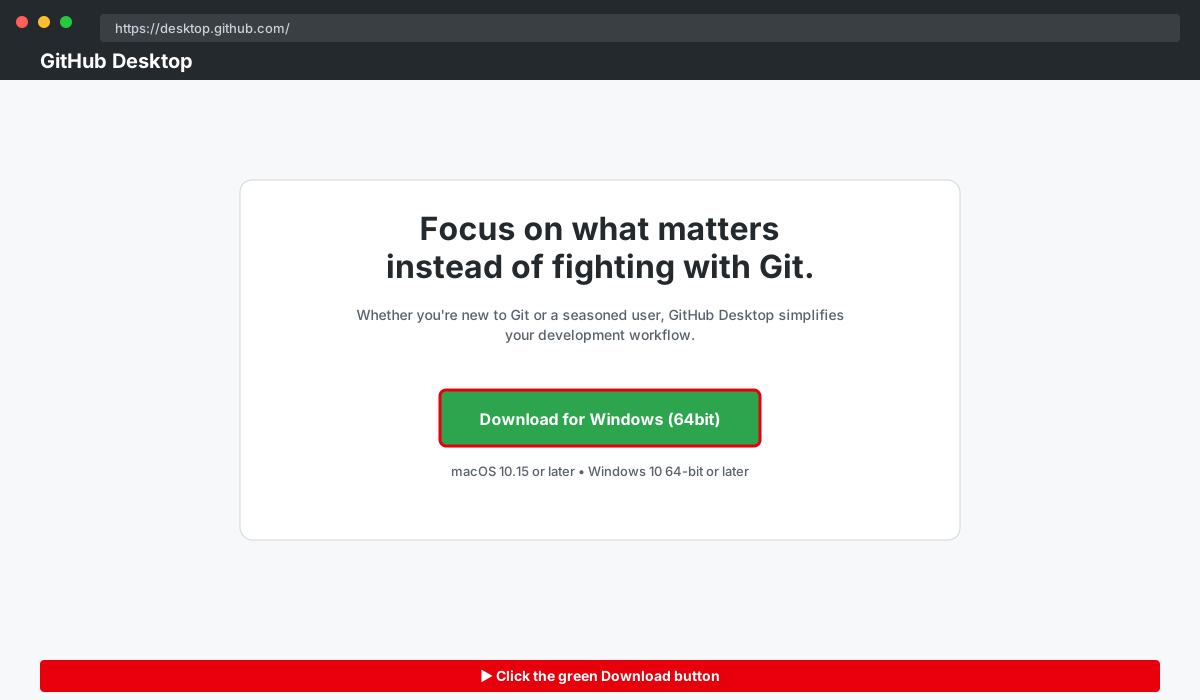
Step 1 — Download and install GitHub Desktop
- Open https://desktop.github.com/ and download the installer for your OS (Windows or macOS).
- Run the installer and complete the standard setup.
- Launch GitHub Desktop.
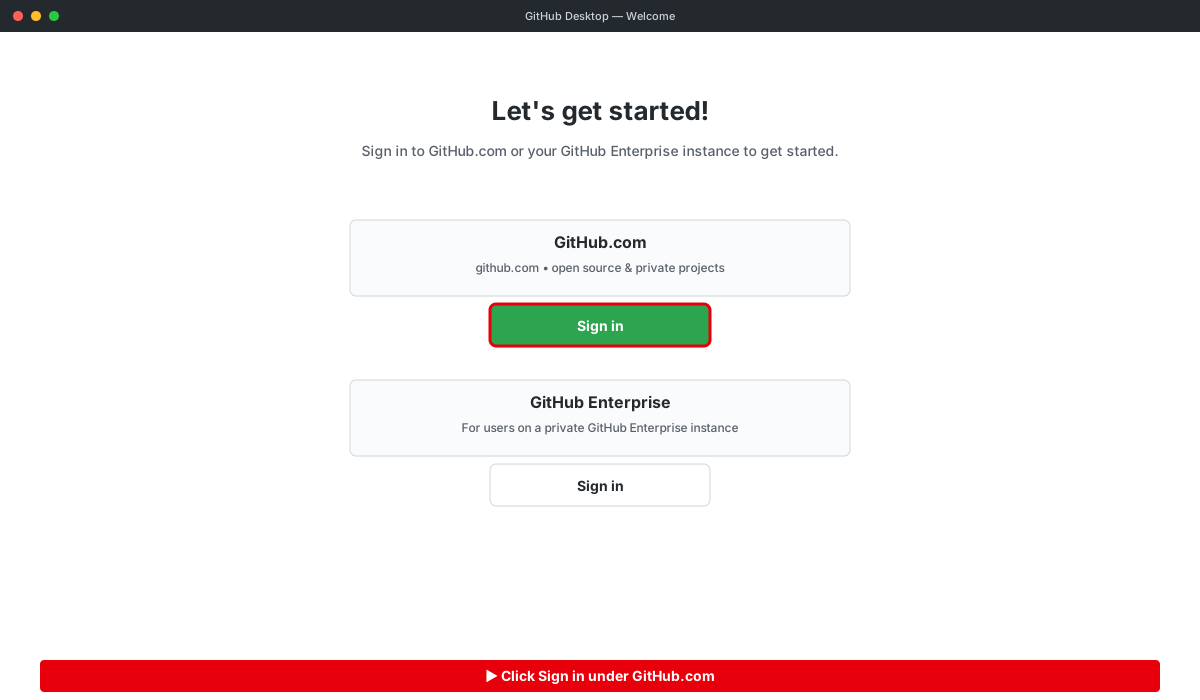
Step 2 — Sign in to GitHub
- On first launch GitHub Desktop prompts you to sign in. Click Sign in to GitHub.com.
- Complete the browser-based sign-in flow and return to GitHub Desktop. Confirm your name and email on the configure-git screen and click Finish.
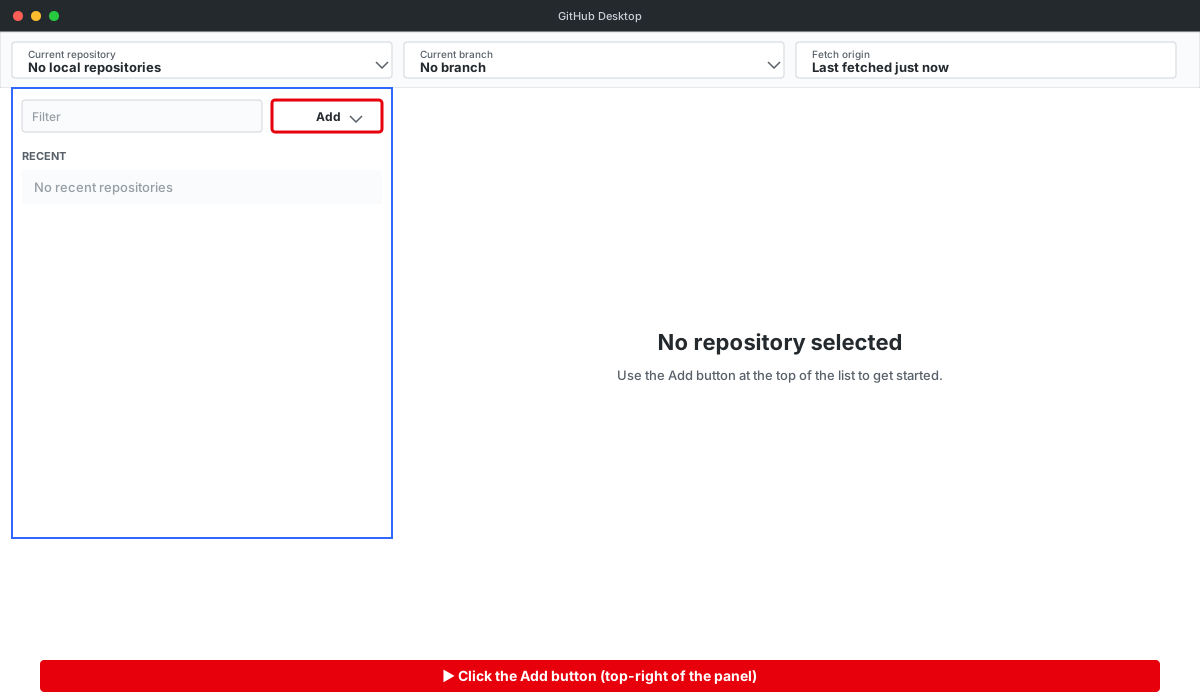
Step 3 — Open the “Add” menu
- Click the Current repository dropdown at the top-left.
- In the panel that opens, click the Add dropdown at the top-right.
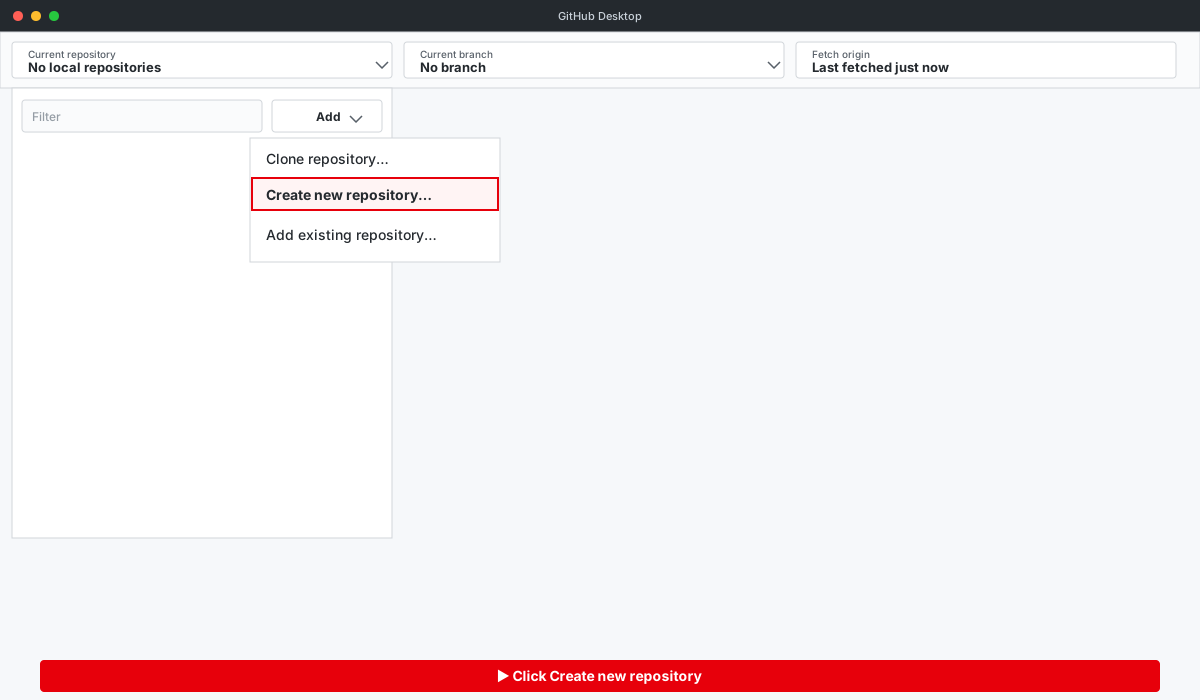
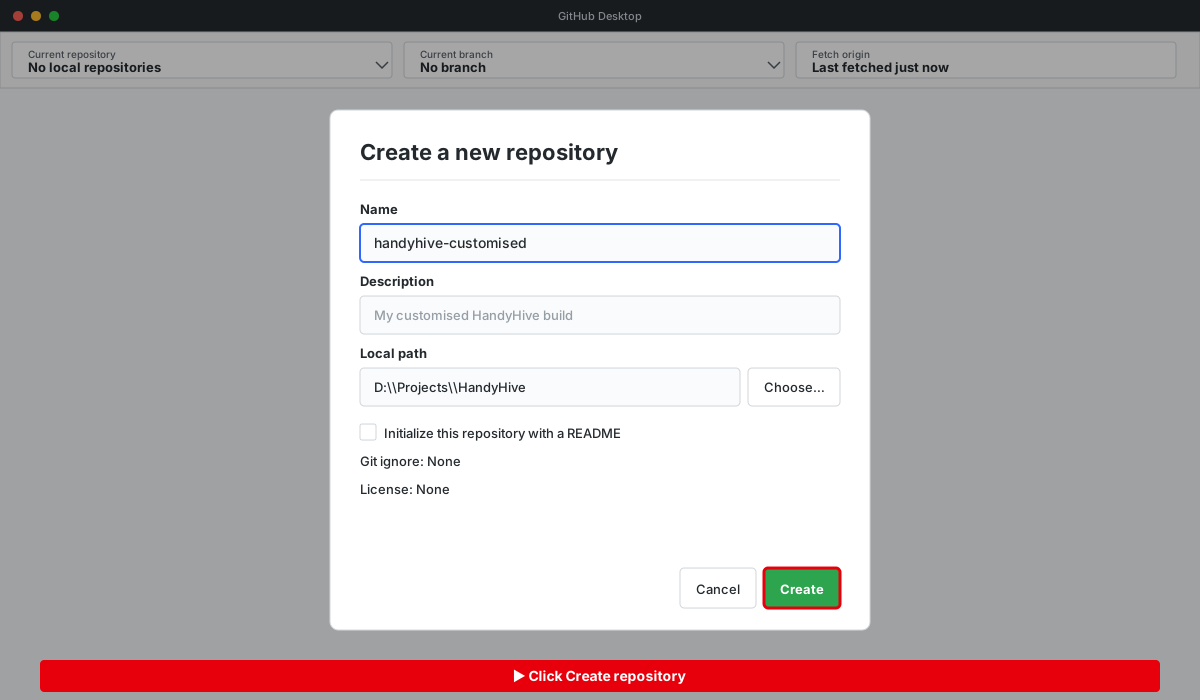
Step 4 — Create a new repository
- From the Add dropdown, choose Create new repository…
Step 5 — Fill in the repository form
- Name: e.g. handyhive-customised.
- Local path: browse to the folder that contains your existing HandyHive project.
- Leave the other options at their defaults and click Create repository.
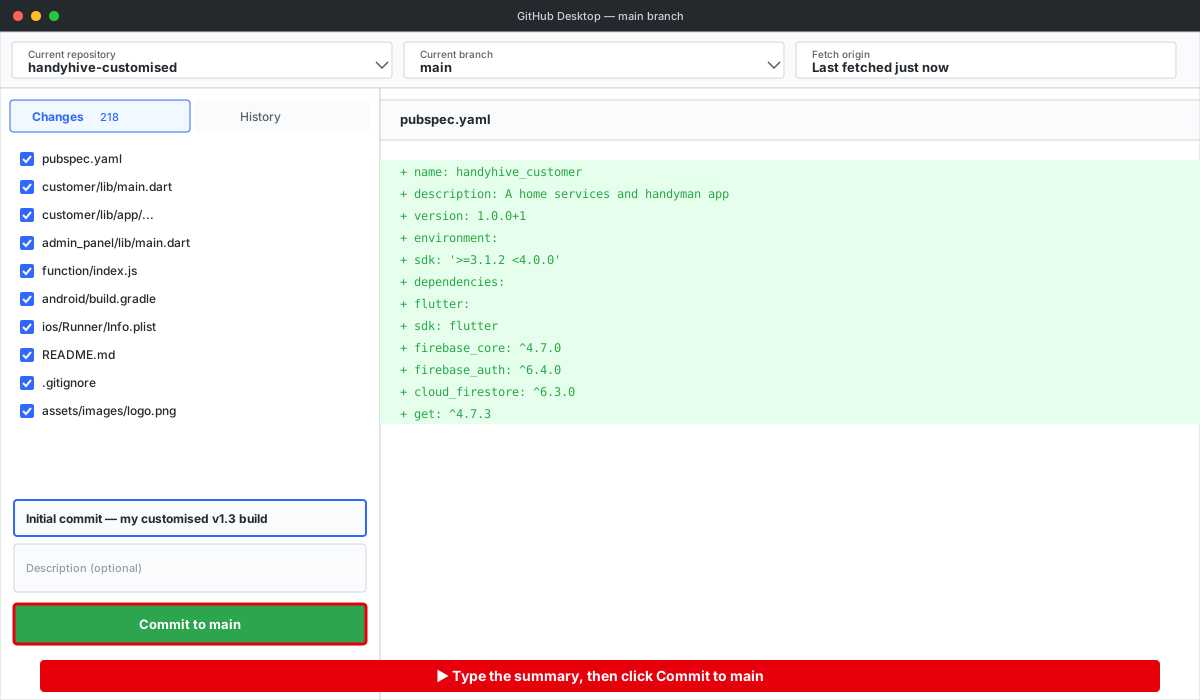
Step 6 — Commit your existing project as the baseline
- GitHub Desktop lists every file in your project under Changes.
- Type a commit summary — for example Initial commit — my customised v8.4 build.
- Click Commit to main.
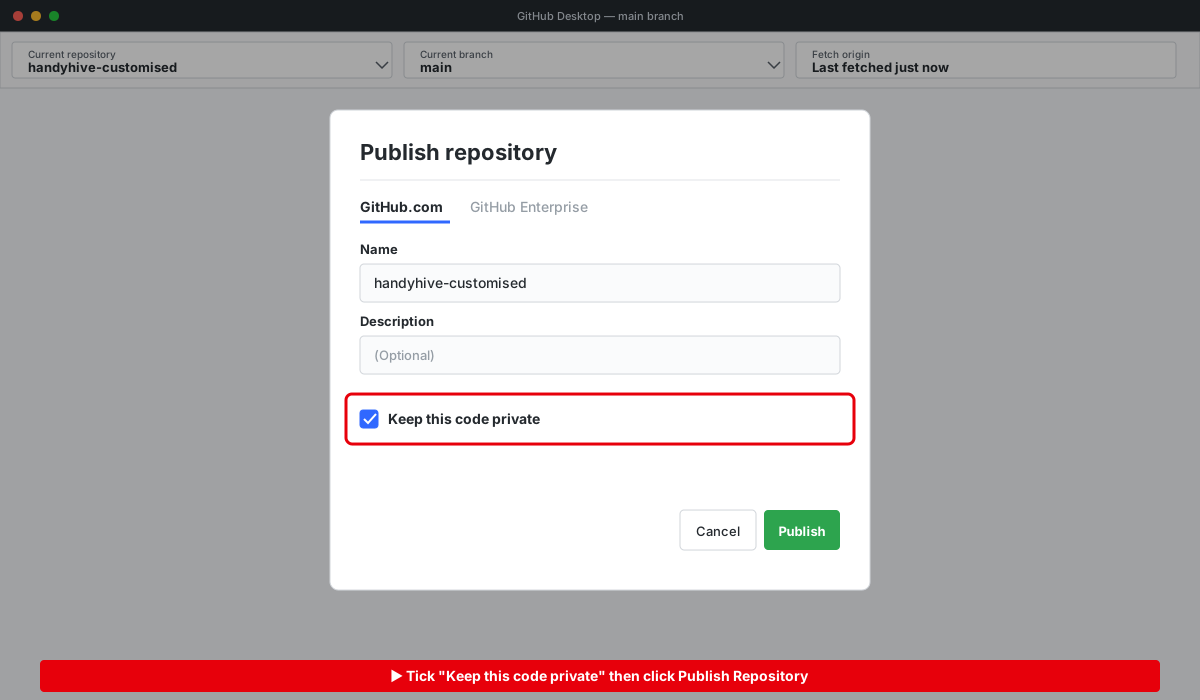
Step 7 — Publish the repository to GitHub
- Click Publish repository at the top of the window.
- Tick Keep this code private.
- Click Publish Repository.
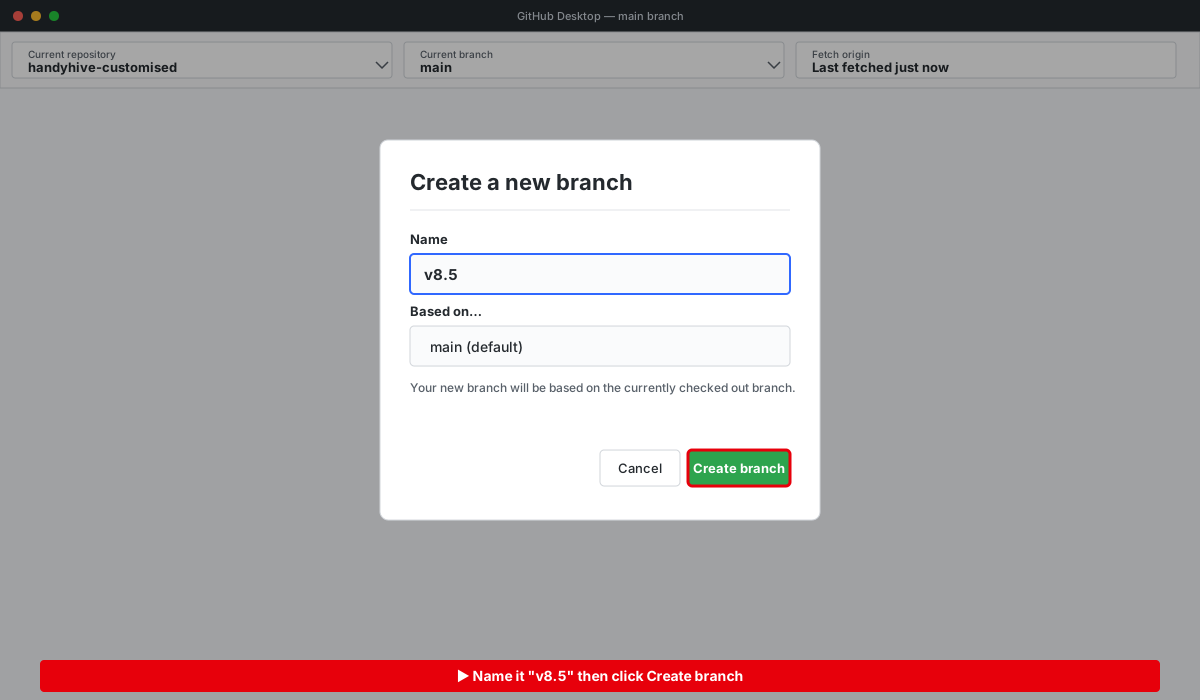
Step 8 — Create a v8.5 branch
- Click Current branch → New branch.
- Name it v8.5 and click Create branch.
- Confirm you are now on the v8.5 branch (shown in the top bar).
Step 9 — Download the latest HandyHive release
- Open your CodeCanyon Downloads page.
- Download the HandyHive v8.5 package and extract it to a temporary folder — do not extract it over your existing project.
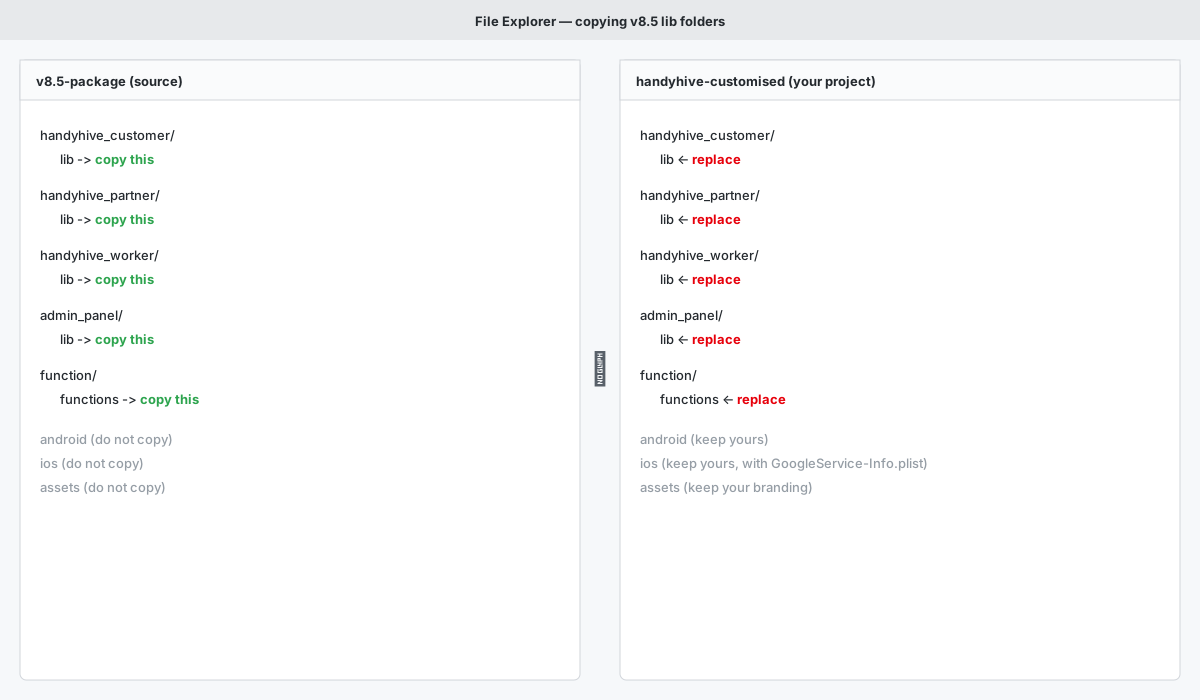
Step 10 — Replace the code folders on the v8.5 branch
- Make sure the v8.5 branch is still active in GitHub Desktop.
- From the extracted v8.5 package, copy these folders into your project, replacing the existing ones:
- handyhive_customer/lib/
- handyhive_partner/lib/
- handyhive_worker/lib/
- admin_panel/lib/
- function/functions/
- Leave everything else untouched — branding, Firebase config files, signing keystore, and platform projects.
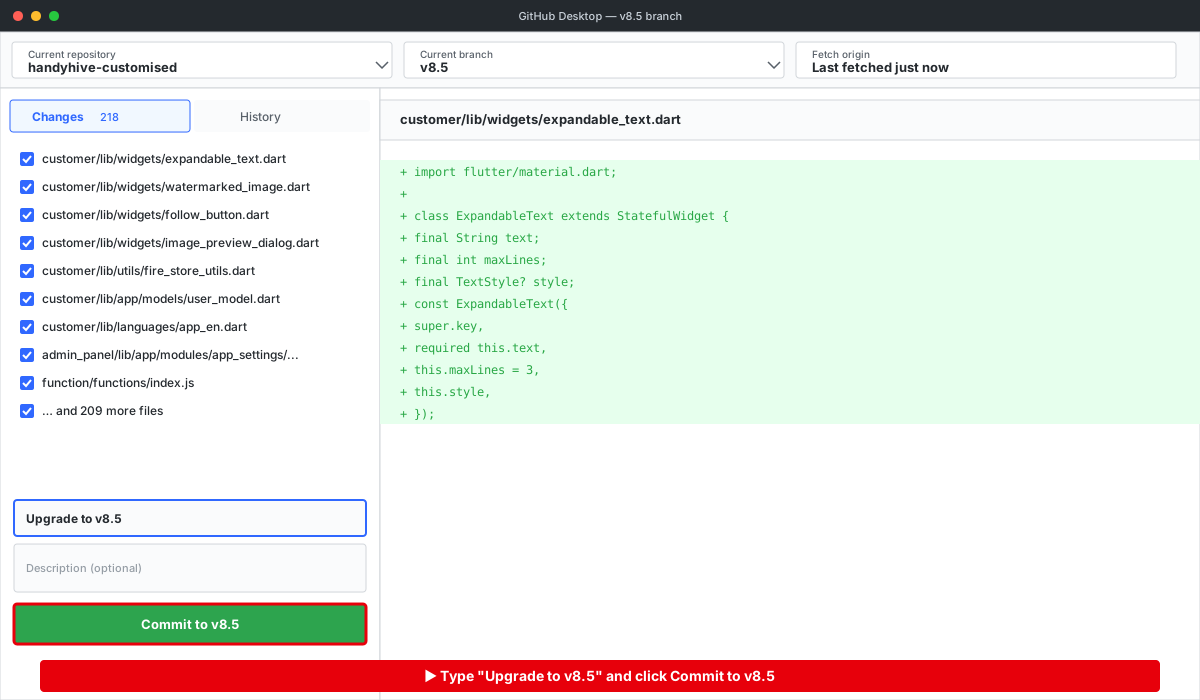
Step 11 — Commit the v8.5 changes
- Switch back to GitHub Desktop — the updated files appear under Changes.
- Enter the commit summary Upgrade to v8.5.
- Click Commit to v8.5.
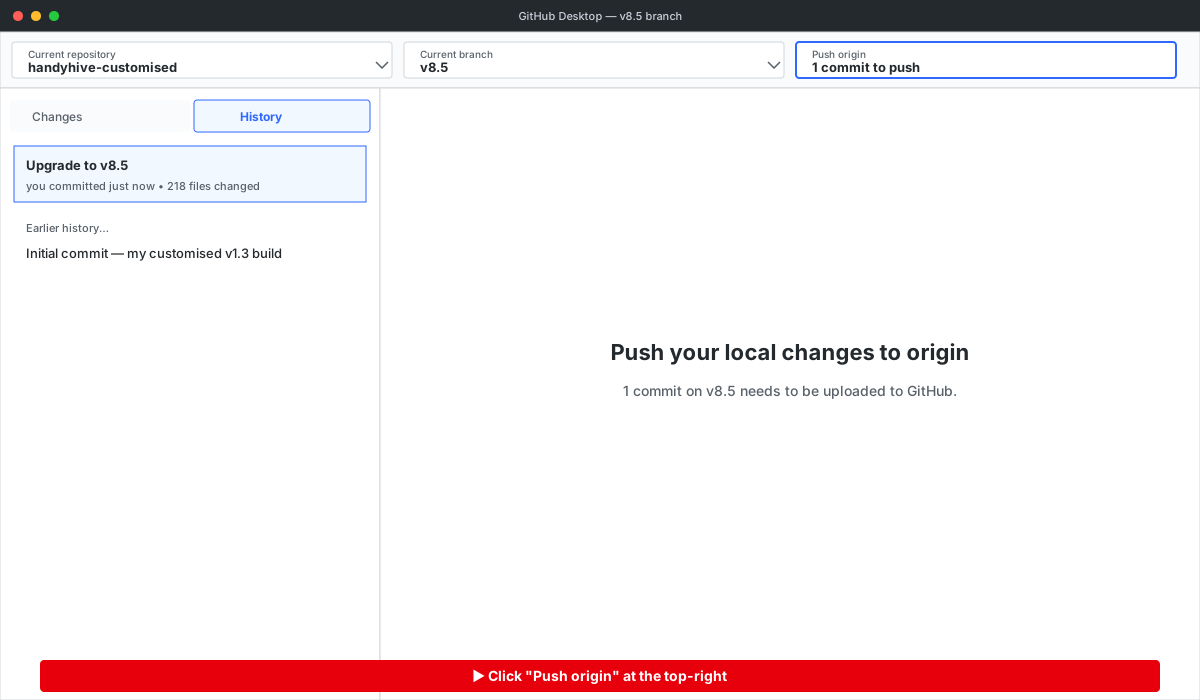
Step 12 — Push the v8.5 branch to GitHub
- Click Push origin at the top of the window.
- Wait for the push to complete.
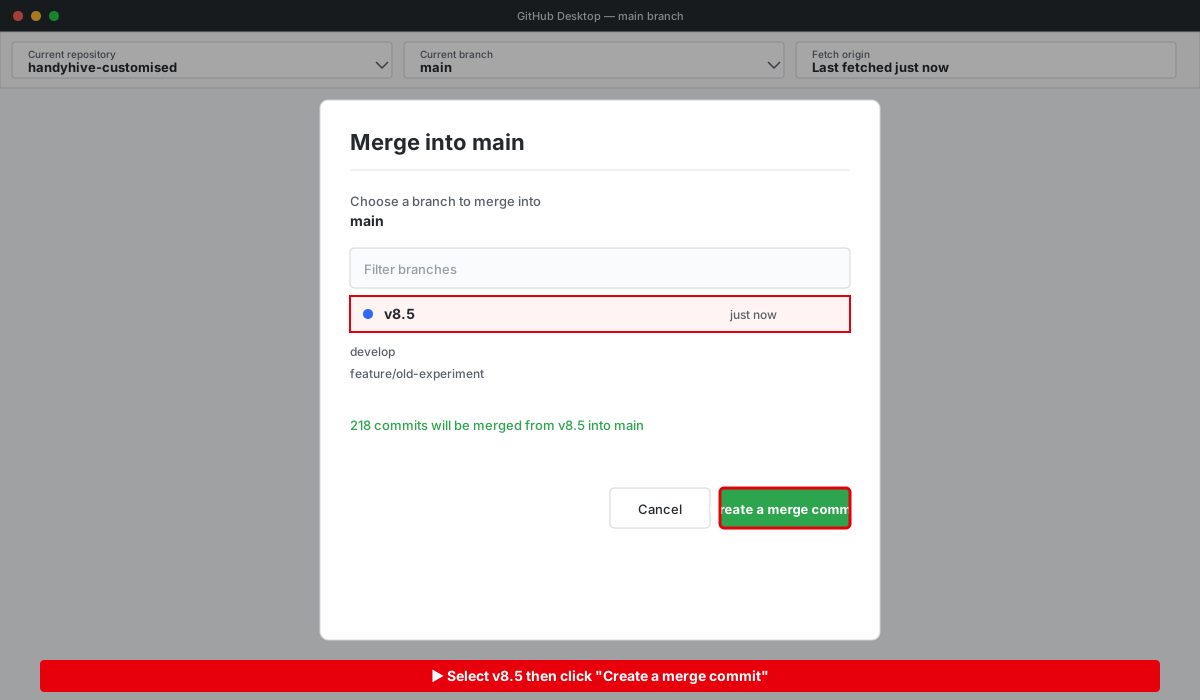
Step 13 — Merge v8.5 into main
- Switch Current branch back to main.
- From the top menu choose Branch → Merge into current branch…
- Select v8.5 and click Create a merge commit.
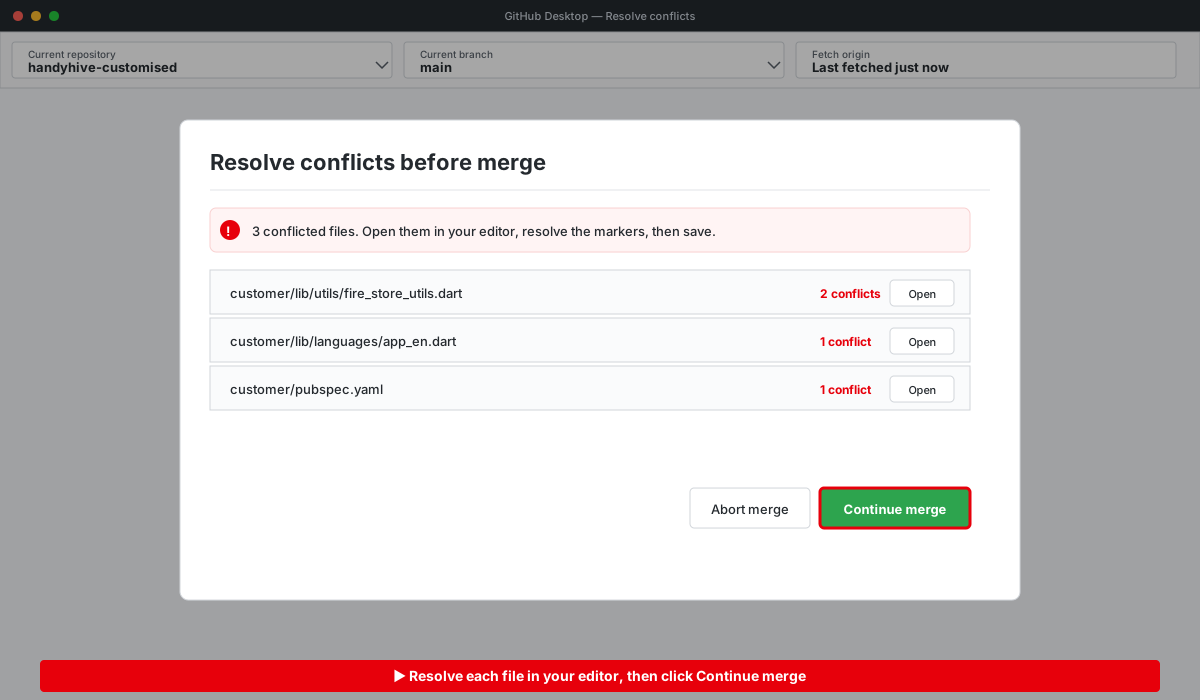
Step 14 — Resolve conflicts (if any)
- If GitHub Desktop reports conflicts, click Open in your editor.
- In each conflicted file, look for the markers <<<<<<<, =======, >>>>>>> and keep the correct lines.
- Save each file and return to GitHub Desktop — the conflict count drops as files are resolved.
- When the count reaches zero, click Continue merge, then Push origin.
Step 15 — Apply the changes to your real project
- Open GitHub Desktop's History tab and review each commit from the v8.5 merge.
- For every change, open the file in your editor side-by-side with your real project.
- Copy the changes one by one and paste them into your real project.
Manual Upgrade — Replace the lib Folder
If you'd rather skip Git entirely, you can upgrade by replacing the lib/ folder of each app with the one from the new release. This is faster but loses any customisation you made inside lib/, so review the diff before overwriting.
Important note
While replacing the lib folder manually, do not overwrite firebase_options.dart. Keep your existing Firebase configuration file.
- Take a complete backup of your existing project folder (zip the whole thing).
- Open your CodeCanyon Downloads page and download the latest HandyHive package. Extract it to a temporary folder — do not extract it over your existing project.
- In the extracted package, locate the lib/ folder inside each app:
- handyhive_customer/lib/
- handyhive_partner/lib/
- handyhive_worker/lib/
- admin_panel/lib/
- In your existing project, delete the corresponding lib/ folder for the app you're upgrading — but first back up your existing lib/firebase_options.dart file (you'll restore it in the next step).
- Copy the new lib/ folder from the extracted package into the same location in your project.
- Restore your own lib/firebase_options.dart over the one shipped in the new release. This file is generated by flutterfire configure against your Firebase project — if you overwrite it with the sample one from the release, your apps will connect to the wrong Firebase.
- Re-apply any other customisations you previously made inside lib/ (branding constants, custom screens, etc.) on top of the new files.
- Open pubspec.yaml in each app and compare it with the new release. Add any new dependencies introduced in the latest version.
- From each app folder, refresh dependencies:
flutter clean
flutter pub get
On macOS, also run pod install --repo-update inside handyhive_customer/ios.
- Build and run each app to confirm the upgrade works alongside your customisations.
Warning
The manual method overwrites every file inside lib/. Any changes you made there will be lost unless you re-apply them after the copy. If you've heavily customised lib/, prefer the GitHub Desktop method above — it merges your changes with the new release rather than replacing them.
Version 8.4
11 June 2026
Latest
- Mobile Number Validation — Added proper validation for mobile number fields across the apps.
- Chat Seen Status Fixed — Corrected the "seen" indicator behaviour in chat conversations.
- Language Selection Fixed — Resolved the first-time language selection not applying correctly.
- App Theme Selection Fixed — Fixed the app theme not being applied/selected properly.
- Booking Details Phone Format — Corrected the customer phone number format to include the country code on the booking details screen.
- Dynamic Booking OTP Verification — Made the booking OTP verification flow admin-configurable; when disabled, Start and Complete actions run directly without an OTP dialog.
- Extra Charge Payment Fixed — Resolved the payment issue that occurred when an extra charge amount was applied to a booking.
- UI Improvements — Fixed various UI-related issues for a more polished experience.
Version 8.3
26 April 2026
- Revamped Admin Panel with a more modern and attractive UI design.
- Updated project to support the latest Flutter version (Flutter 3.41.0).
- Fixed known bugs to improve overall stability.
- Enhanced app performance and responsiveness.
- Upgraded dependencies to the latest compatible versions.
Version 8.2
28 January 2026
- Minor Issue Fixes — Resolved several UI and functional bugs for improved stability.
Version 8.1
08 November 2025
- Zone Feature Implemented — Added zone-based operations for better location handling.
- Minor Issue Fixes — Resolved several UI and functional bugs for improved stability.
- Enhanced Searching — Improved search functionality for faster and more accurate results.
- Subscription Issue Fixed — Corrected issues with subscription plan handling and validation.
- Flutter Updated — Upgraded project to support the latest Flutter version for better performance and compatibility.
Version 8.0
14 April 2025
- Implemented automatic cancellation for unaccepted service requests after a set duration. If the order was paid online, the amount is refunded automatically upon cancellation.
- Added report generation functionality for the following modules: Orders, Workers, Job Requests, Users, Subscriptions, Services, Providers, and Payouts.
- Integrated Subscription module for Providers, enabling subscription-based access and management.
Version 7.0
12 September 2024
- Added a new feature allowing users to provide services at the store.
- Implemented a robust support system for users, enabling easy issue reporting and faster response times.
- Updated all Flutter dependencies to the latest compatible versions.
- Application now supports and is fully compatible with Flutter version 3.22.3.
- Resolved various minor bugs and performance issues for a smoother user experience.
Version 6.0
29 June 2024
- Added animations.
- Implemented pagination.
- Integrated search functionality in the admin panel.
- Added new payment gateways: Paystack, Flutterwave, MercadoPago and PayFast.
- Updated UI.
- Fixed minor bugs.
- Dependencies set to their latest versions.
- Updated to support the latest Flutter version 3.22.2.
Version 5.0
14 April 2024
- Added OTP feature for enhanced security.
- Implemented hourly-based service options.
- Introduced a “Hold Reason” feature for better transaction tracking.
- Conducted minor bug fixes and optimizations.
Version 4.0
08 April 2024
- Implemented dynamic color scheme functionality.
- Enabled the ability to save multiple addresses within the customer application.
- Updated the user interface of the admin panel for enhanced usability.
- Implemented automatic refund to the user's wallet in case of booking cancellation.
- Enabled access to certain features for customers without requiring them to log in.
- Conducted minor bug fixes to enhance the overall stability and performance of the application.
Version 3.0
22 February 2024
- Monthly earnings cap — all applications and admin sites can change their currency symbol.
- Added search capabilities to the admin sites for VerifyDocuments, Users, Providers, Workers, OrderHistory and JobRequest History.
- Changed the dependency of flutter_html to flutter_widget_from_html for all applications.
- Set up partner account deletion and partner data deletion.
- Added the ability to filter by date on order histories, job requests and history admin sites.
- Added a partner application with date filter capabilities.
- Created a job request information page.
Version 2.0
25 January 2024
- Fixed document verification issue.
- Resolved home screen load issue.
- Fixed location permission issue.
- Upgraded to the latest Flutter version.
- Updated project dependencies.
- Minor bug fixes.
Version 1.0
17 January 2024
 HandyHive