

Offers, Banners & Onboarding
Create coupon codes, show promotional banners in the customer app, and set the welcome slides people see the first time they open an app.
These three screens control what customers see before and while they book: discount coupons, the banners on the home screen and the onboarding slides shown when an app is opened for the first time.
Offers (coupon codes)#
Open Offers (under Content & Payouts in the menu).
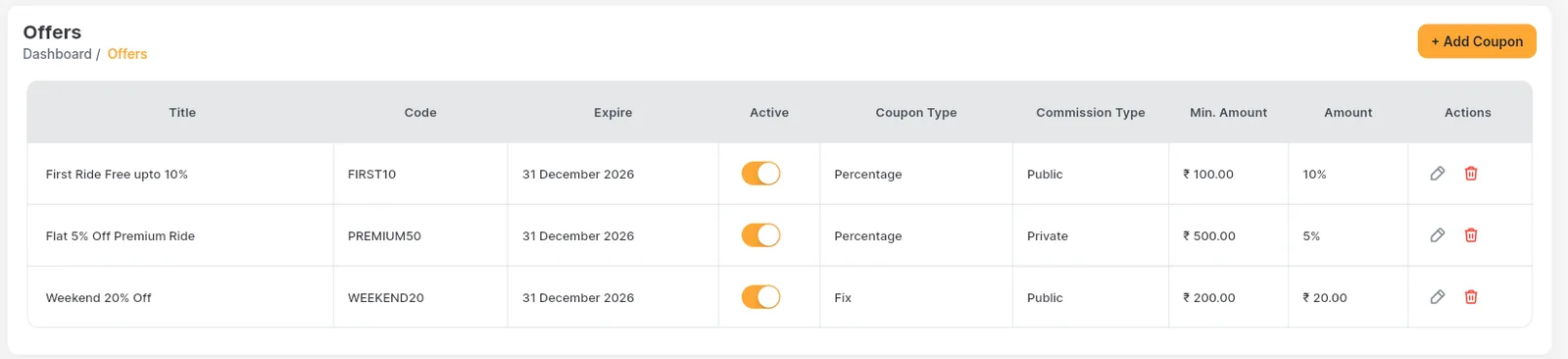
- 1Add a new coupon.
- 2The code customers type or pick.
- 3Active switch.
- 4Discount type: Percentage or Fix (a fixed amount).
- 5Public (listed in the app) or Private (works only when typed).
- 6Min. Amount the ride must reach.
- 7Edit or delete.
Add a coupon#
Click + Add Coupon#
Or the pencil on a row to change one.
Title#
A short title such as "Weekend 20% Off". The default language is required; other languages are optional.
Code#
What customers type, for example WEEKEND20.
Minimum Amount and Amount#
Minimum Amount: the ride subtotal must be at least this much, otherwise the app says "Subtotal must be at least … for this coupon". Amount: the discount, a percentage or a fixed amount depending on the next field.
Commission Type (Fix or Percentage)#
In the form this field is called Commission Type; it decides whether the Amount is a fixed amount (Fix) or a Percentage of the subtotal.
Coupon Type (Public or Private)#
Public coupons are listed for every customer on the coupon screen. Private coupons are not listed; they only work when a customer types the code, which is handy for codes you share with a few people.
Coupon Expire Date and Status#
Pick the last day the coupon works and switch Status on. Click Save.
Column names in the table
The table's Coupon Type column shows the discount type (Percentage / Fix) and its Commission Type column shows Public / Private: the opposite of the field names in the form. The data is the same; only the headings differ.
Where coupons are used#
Customers can apply a coupon when they choose how to pay for a cab, intercity, parcel or rental ride. The app lists Public coupons that are active and not expired, and also accepts a typed code. The discount is taken off the ride subtotal before taxes.
Banners#
Banners are the sliding promotion cards on the customer app's home screen. Open Banner.

- 1Add a banner.
- 2The banner picture.
- 3Offer text, shown only on offer banners.
- 4Status: only enabled banners appear in the app.
- 5Edit or delete.
Click + Add Banner#
The banner form opens.
Upload the image#
Click the upload area and choose a picture. A wide image works best because the card is wider than it is tall. Keep important text away from the edges.
Title and Description#
Fill in the banner Title (shown as Banner Name) and Description, with translations if you use more than one language.
Offer banner (optional)#
Switch on OfferBanner to show an extra Offer Text line, for example "Valid on weekdays only". The Offer Text field only appears when this switch is on.
Status and Save#
Switch Status on and click Save. The customer app shows enabled banners the next time the home screen loads.
Pair a banner with a coupon
Banners are only pictures and text; tapping one does not apply a discount. To run a promotion, create the coupon in Offers and print its code on the banner.
Onboarding screens#
Onboarding screens are the welcome slides shown when someone opens the app for the first time, before they sign in. Open On Boarding (under Onboarding Management).

- 1Add a slide.
- 2Slide picture.
- 3Type: which app shows the slide, Customer or Driver.
- 4Status: only enabled slides are shown.
- 5Edit or delete.
Click + Add OnBoarding#
The form opens.
Upload the image#
Choose a .jpg, .jpeg or .png picture. Other file types are refused.
Title and Description#
One short headline and one or two sentences, for example "Fast and Reliable". Add translations for other languages if you use them.
OnBoarding Type#
Pick Customer for the customer app or Driver for the driver app. Each app only shows its own slides.
Status and Save#
Switch Status on and click Save.
Three slides per app is a good number
The starter data comes with three slides for each app ("Welcome to MyTaxi", "Seamless User Experience", "Fast and Reliable"). Replace the pictures and words with your own brand; switch a slide off rather than deleting it if you may want it back.
Who can manage coupons, banners and onboarding?
Admins and employees whose role has the Offers, Banners or OnBoarding Screens permission. See Roles & employees.
My new banner does not appear in the app.
Check its Status is on, then close and reopen the customer app so the home screen loads the banners again.