

Download the Service Account Key
This one file lets the setup tool sign in to your project. It is the only credential the tool needs.
A service account key is a small .json file that works like a master password for your Firebase project. The setup tool reads it to know which project to deploy to and to sign in to it.
Open Project settings#
In the left menu, click Settings, then General.

Service accounts#
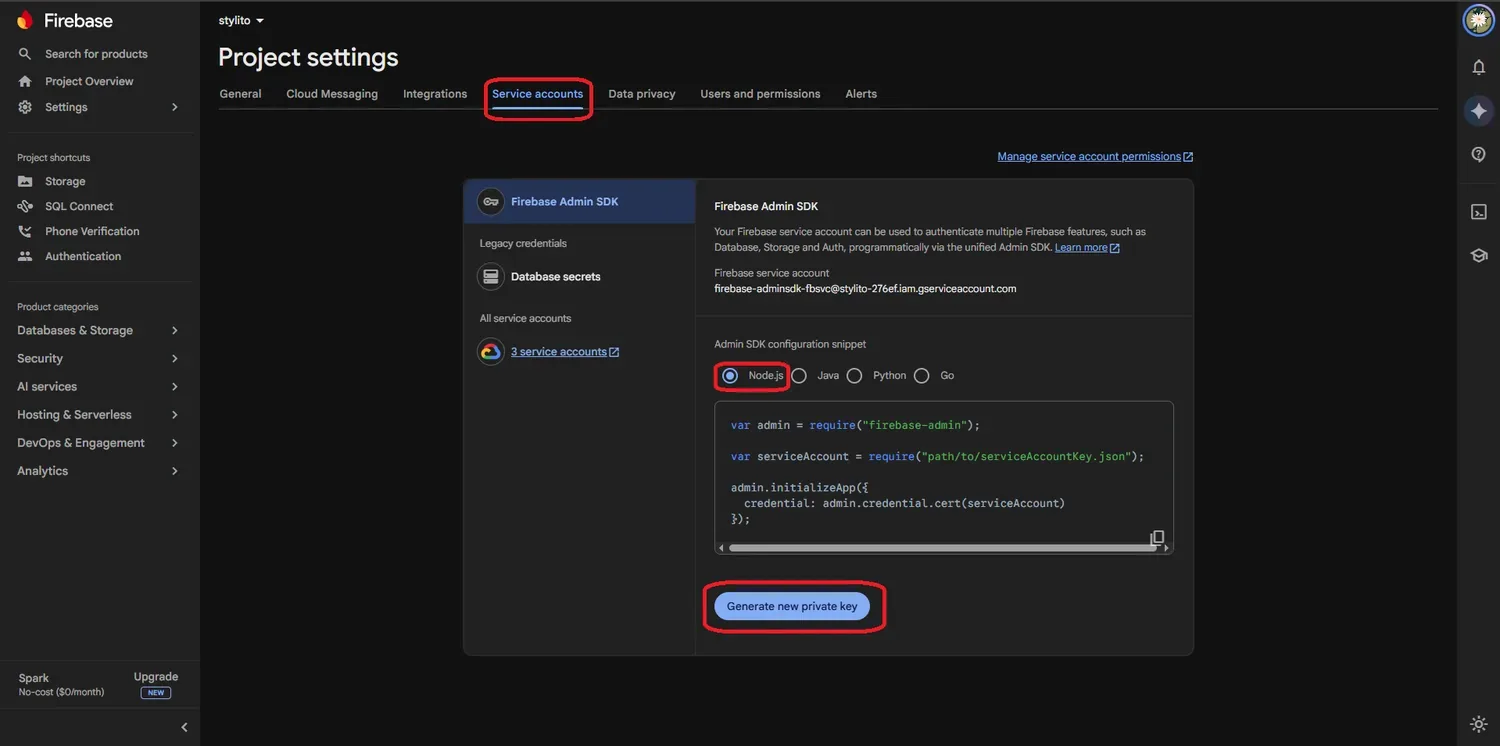
Open the Service accounts tab at the top of Project settings. Under Firebase Admin SDK, make sure Node.js is selected, then click Generate new private key and confirm with Generate key.
Note where it saved#
A file named like my-city-taxi-a1b2c-firebase-adminsdk-xxxxx.json downloads, usually into your Downloads folder. You choose it in the setup tool in the next step. You do not need to open or rename it.
Treat this file like a password
It gives full control of your Firebase project. Never send it by email, never upload it to a website and never put it in Git. The setup tool only runs on your own computer: it copies the key to a temporary folder while a deploy runs and deletes that copy afterwards. You can delete the downloaded file after setup, and revoke old keys under Google Cloud consoleIAM & AdminService accounts.
What this key can and cannot deploy
The key Firebase gives you may publish the security rules and import the starter data, but Google does not let it create indexes or deploy Cloud Functions. That is normal. The setup tool shows this right after you choose the key and fixes it with one click: you sign in with the Google account that owns the project. See Run the setup tool.
Done
You have the key. Now run the setup tool.