

Driver Subscriptions
Create the plans drivers buy to accept rides, and see every plan a driver has bought or been given.
Subscriptions are one of MyTaxi's two ways to earn from drivers. With the subscription model switched on, a driver needs an active plan to work: the plan sets how many rides they may accept and for how many days. You switch the model on in Commission & subscriptions; this page is about the plans themselves and the purchase history.
Plans only matter when the subscription model is on
If Enable Subscription Plan is off in SettingsBusiness Model Settings, drivers never see the plans and nothing on this page limits them. See Commission & subscriptions.
Subscription plans#
Open SubscriptionsSubscription Plans.
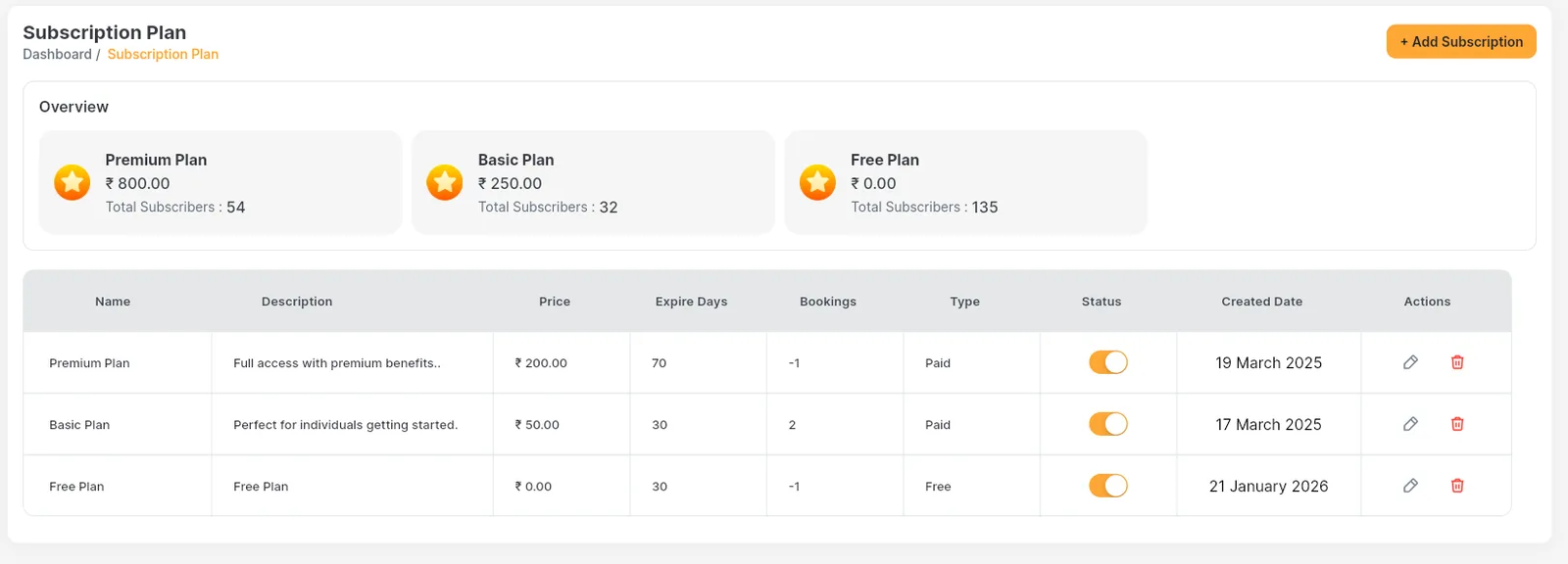
- 1Add a new plan.
- 2Overview: one card per plan with the money it has earned and its total subscribers.
- 3Bookings: how many rides the plan allows.
-1means unlimited. - 4Type: Free or Paid.
- 5Status: only enabled plans are offered to drivers.
- 6Edit or delete the plan.
The Overview cards#
Each card shows the plan's name, the revenue it has brought in so far (the sum of all paid purchases in the subscription history) and Total Subscribers, the number of drivers whose current plan is this one. Free plans always show zero revenue. That is why the card amount is usually higher than the plan price in the table below.
The table#
| Column | What it means |
|---|---|
| Name / Description | What drivers see on the plan card in the driver app, in their own language when you added a translation. |
| Price | What the driver pays. A Free plan normally has price 0. |
| Expire Days | How long the plan lasts after it is bought, in days. -1 = never expires (the driver app shows "Unlimited Days"). |
| Bookings | How many rides the driver can accept on this plan. -1 = unlimited. |
| Type | Free: the driver activates it without paying. Paid: the driver pays with a payment gateway or the wallet. |
| Status | Switch a plan on or off. Drivers only see enabled plans; drivers already on a disabled plan keep it until it runs out. |
| Created Date | When the plan was made. |
| Actions | Pencil to edit, bin to delete. Deleting asks you to confirm and cannot be undone. |
Add or edit a plan#
Click + Add Subscription#
Or click the pencil on a row to change an existing plan. The same form opens for both.
Name and description#
Type the plan Name and a short Description (for example "Weekly Basic", "50 rides for 7 days"). Only your default language is required; add other languages in the translation tabs if your apps use more than one language (see Languages).
Price and Expire Days#
Enter the Price and the Expire Days (for example 30). Enter -1 in Expire Days for a plan that never expires.
Type and Status#
Pick Free or Paid in Type, and switch Status on so drivers can choose the plan.
Features: Number of Bookings#
Enter how many rides the plan includes, or -1 for unlimited rides.
Save#
The plan appears in the table and in the driver app right away. All fields are required; the form tells you if a number is not valid.
-1 means unlimited
The form reminds you: "If -1 is added, the Bookings and Expiry Days will be set to unlimited." A typical setup is one Free trial plan (for example 30 days, 5 rides) plus one or two Paid plans with -1 bookings.
How a plan works for the driver#
- When the subscription model is on, a driver without a valid plan is sent to the Subscription Plan screen after signing in, and must choose a plan before using the app.
- A Free plan is activated straight away. A Paid plan is paid through one of your payment gateways or, once signed in, from the driver's wallet.
- Every ride the driver accepts takes one booking off the plan. With 0 bookings left the driver sees "You can't accept more Rides. Upgrade your Plan."
- When the plan's expiry date passes the driver sees "Your subscription has expired. Please renew your plan." and cannot accept rides until they renew.
- You can also change a driver's plan yourself from the driver's details page (see Drivers & verification). The driver gets a push notification, and the history shows the payment type Admin Assigned.
Subscription history#
Open SubscriptionsSubscription History. Every plan a driver has bought, activated or been given is listed here, newest first.

- 1Show one driver, or All Driver.
- 2Time filter: All, Last Month, Last 6 Months, Last Year or Custom dates.
- 3Download the history as an Excel file.
- 4Payment Type: the gateway used, Wallet, Free Plan or Admin Assigned.
- 5Status: Active until the expiry date, then Expired.
- 6Pages, with a box to jump to a page number.
| Column | What it means |
|---|---|
| Name | The driver. "User Deleted" means the driver account no longer exists. |
| Subscription Name / Price | The plan and the price at the time of purchase. |
| Payment Type | How it was paid: a gateway name (Razorpay, Midtrans, Xendit…), Wallet, Free Plan or Admin Assigned. |
| Status | Active (green) while the expiry date is in the future, Expired (red) after it. |
| Expiry Date / Created Date | When the plan ends ("Unlimited Days" for -1 plans) and when it was bought. |
Download a report#
Click the download button#
The orange button at the top right opens the Subscription History Download dialog.
Choose the time and the driver#
Pick a time range (Custom asks for a start and end date) and either all drivers or one driver.
Download#
An Excel file named like Subscription_History_1-10-2026_to_31-10-2026.xlsx is saved by your browser.
Good to know#
Editing a plan does not change plans already bought
A driver keeps the rides and expiry date they got when they bought the plan. A new price or number of bookings applies to the next purchase.
Deleting a plan
Deleting removes the plan from sale for good. Drivers already on it keep working until their rides or days run out. To stop selling a plan for a while, switch its Status off instead.
Can I use commission and subscriptions together?
Yes. Commission and the subscription model are separate switches in Commission & subscriptions. With both on, drivers need a plan and the commission is still taken from each ride.
Who can see and edit plans?
Admins, and employees whose role has the Subscription Plans permission. See Roles & employees.