

Step 3 · Admin Panel Setup
AI Menu Generation Settings
Connect your OpenAI account so restaurants can automatically generate appetizing food descriptions, title suggestions, and dietary notes with one click.
3 min
When AI Setting is active, restaurant managers see a magic wand AI button in the Restaurant Web Panel and Restaurant App when creating or editing food dishes. Clicking it generates compelling culinary descriptions, lists primary ingredients, and provides multi-language translations automatically. Open SettingsAI Setting.
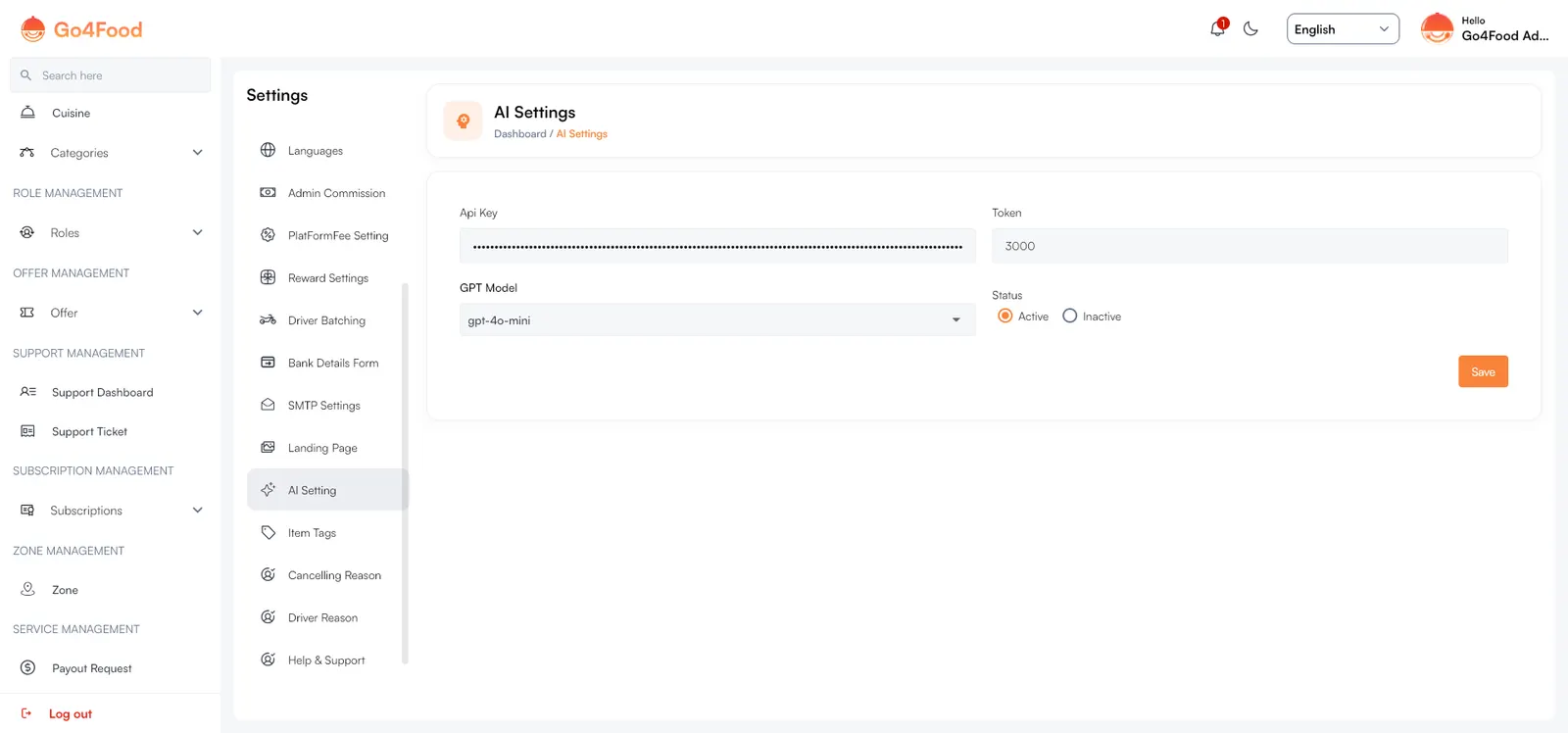
- 1Api Key input: your private OpenAI API secret key.
- 2Token limit: maximum token budget per generation request.
- 3GPT Model dropdown: gpt-4o-mini, gpt-4, or gpt-3.5-turbo.
- 4Status switch: Active or Inactive.
- 5Save button.
Configuration Fields#
| Field | Description | Recommended |
|---|---|---|
| Api Key | Your secret key from OpenAI Platform (starts with sk-...). | sk-... |
| Token | The response limit in tokens (roughly 1 token ≈ 0.75 words). 1500 is sufficient for detailed dish descriptions and ingredients. | 1500 - 3000 |
| GPT Model | The AI model powering prompts. gpt-4o-mini is lightning-fast, high quality, and extremely cost-effective. | gpt-4o-mini |
| Status | Set to Active to enable the AI assistant for restaurants; set to Inactive to hide the feature. | Active |
OpenAI billing controls
Each generation call consumes tokens on your OpenAI billing account. We recommend configuring a Monthly Usage Limit (e.g. $10 or $20/month) inside your OpenAI billing dashboard to prevent unexpected charges.