

Payment Keys, Taxes & Currency
Turn on the payment gateways you accept, set your primary operating currency, configure sales taxes, and manage payout procedures.
Money settings are spread over three places: Finance Settings (payment methods, taxes, currency) in the side menu under System Management, and Admin Commission and PlatFormFee Setting under Settings. Set all of them before your first test order: commission and fees are copied into each order when it is placed.
Payment methods#
Open Finance SettingsPayment Key.
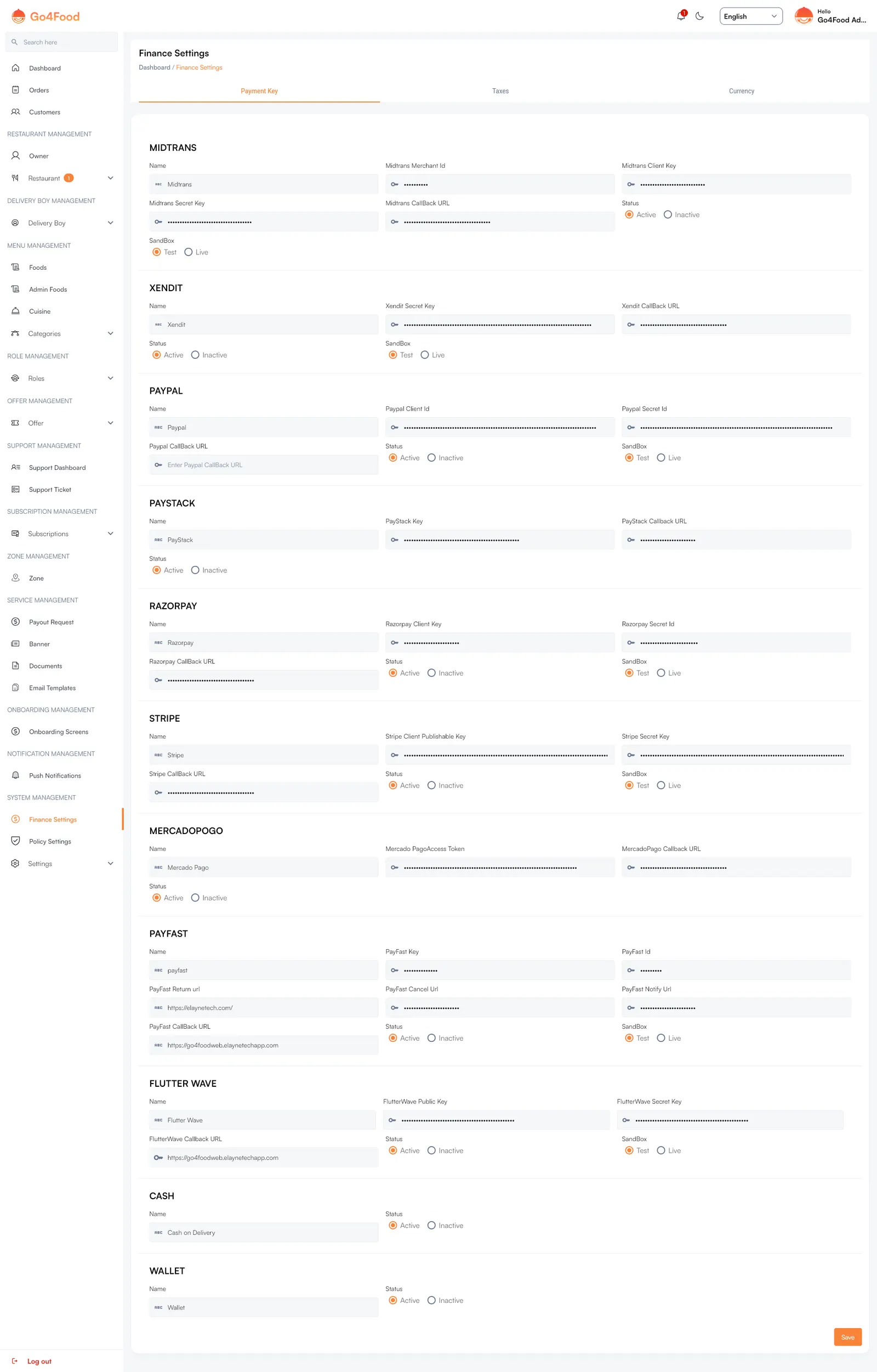
- 1Gateway card containing provider settings (Stripe, PayPal, Flutterwave, etc.).
- 2Status active/inactive switch and Sandbox testing toggle.
- 3Secret and publishable API keys inputs (stored securely in backend).
- 4Alternative online gateways and regional payment methods.
- 5In-app Wallet top-up options and Cash on Delivery (COD) controls.
- 6Save button: securely syncs public keys to Firestore for client apps.
Each payment method has its own block. The customer app and website only offer the methods you set to Active.
| Method | Fields |
|---|---|
| Midtrans | Midtrans Merchant Id, Midtrans Client Key, Midtrans Secret Key, Midtrans CallBack URL |
| Xendit | Xendit Secret Key, Xendit CallBack URL |
| PayPal | Paypal Client Id, Paypal Secret Id, Paypal CallBack URL |
| PayStack | PayStack Key, PayStack Callback URL |
| Razorpay | Razorpay Client Key, Razorpay Secret Id, Razorpay CallBack URL |
| Stripe | Stripe Client Publishable Key, Stripe Secret Key, Stripe CallBack URL |
| Mercado Pago | Mercado PagoAccess Token, MercadoPago Callback URL |
| PayFast | PayFast Key, PayFast Id, PayFast Return url, PayFast Cancel Url, PayFast Notify Url, PayFast CallBack URL |
| Flutter Wave | FlutterWave Public Key, FlutterWave Secret Key, FlutterWave Callback URL |
| Cash | Cash on delivery. Only a name and status. |
| Wallet | Pay from the in-app wallet balance. Only a name and status. |
For every method:
- Name is the label customers see. It is required, even for methods you leave off.
- Status: Active shows the method in the apps; Inactive hides it.
- SandBox: Test uses the gateway's test mode and test keys; Live takes real money. Paste the matching keys for the mode you pick.
- Callback URLs are the addresses the gateway returns to after payment. Use your customer website address unless your gateway account requires something else.
Click Save at the bottom of the page.
Click Save once after setup, or the apps show no payment methods
The setup tool does not create the copy of these settings that the apps read. It is created the first time you click Save on Finance SettingsPayment Key. Until then the Customer app shows no payment methods at checkout, not even cash. Open this tab and click Save once after setup, even if you changed nothing.
Your secret keys stay private
Saving writes the full settings, secrets included, to an admin-only record, and publishes a second copy with every secret key removed. The apps only ever read that public copy.
Test first
Keep each gateway on Test and place one order with it. When it works, paste the live keys, switch to Live, and save. Leave unused gateways Inactive.
Currency#
Open Finance SettingsCurrency.

Click + Add Currency and fill in Currency Name, Currency Symbol, Code (for example USD), Decimal Point (how many decimals to show) and Symbol At (Left or Right of the amount). Then switch Status on for the currency you trade in. Only one currency is active at a time: switching one on switches the others off.
Pick your currency before adding prices
Prices are stored as plain numbers. Changing the currency later does not convert existing prices. Also check that your payment gateways accept that currency code.
Taxes#
Open Finance SettingsTaxes.
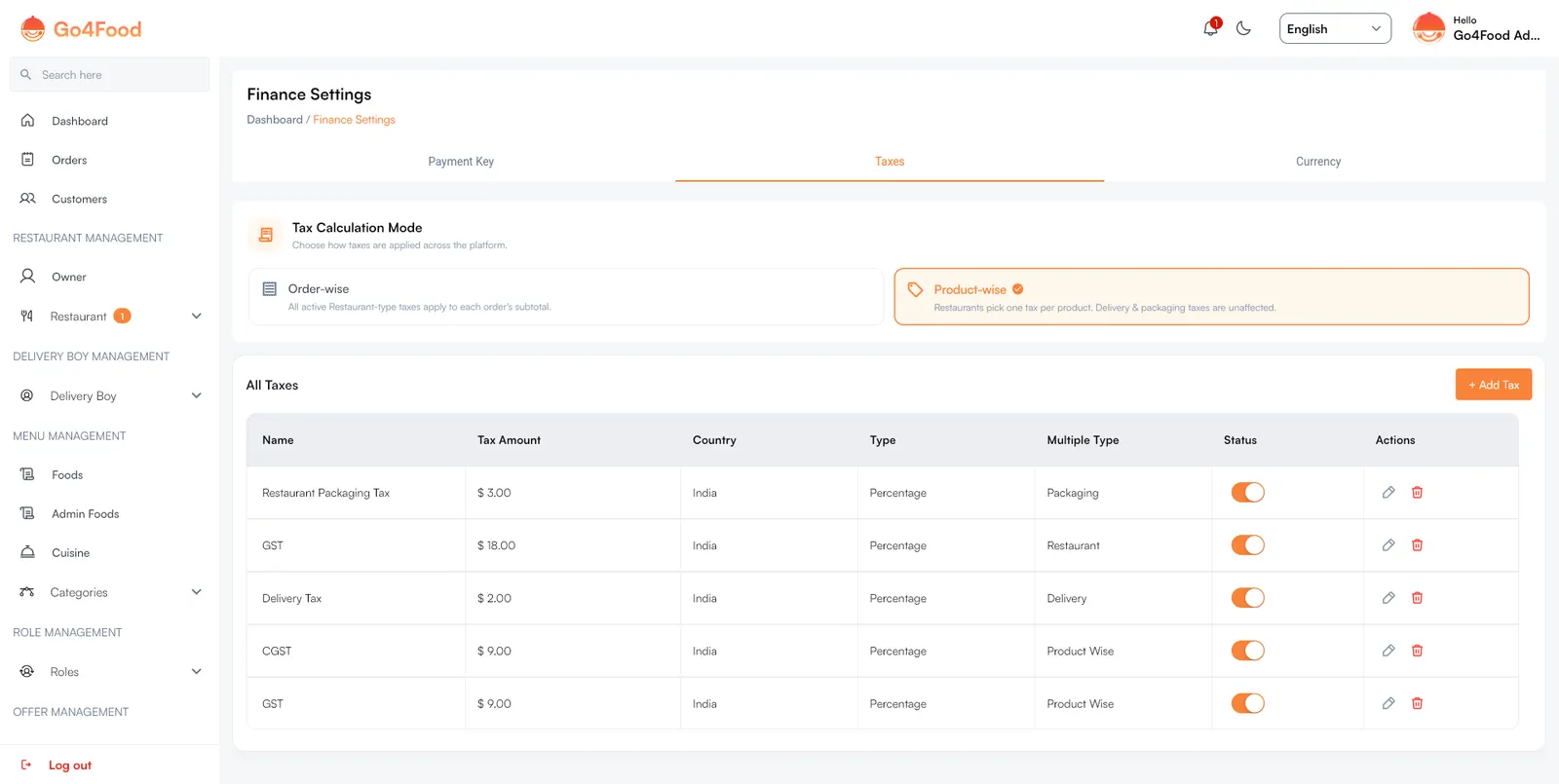
Tax Calculation Mode#
| Mode | How tax is charged |
|---|---|
| Order-wise | All active taxes of type Restaurant apply to each order's subtotal. |
| Product-wise | Restaurants pick one tax per menu item (from your Product Wise taxes) when they add or edit it. Delivery and packaging taxes work the same in both modes. |
Clicking a mode saves it immediately.
Add a tax#
Click + Add Tax and fill in:
| Field | What it means |
|---|---|
| Tax Name | Shown on the bill, for example "GST". Default tab required; translate in the language tabs. |
| Tax Amount | The rate or the fixed amount. |
| Tax Type | Percentage or Fix (a fixed amount). |
| Country | The country the tax belongs to. |
| Multiple Tax Type | What the tax is charged on: Restaurant (the food, in order-wise mode), Delivery (the delivery fee), Packaging (the packaging fee) or Product Wise (offered to restaurants per item, in product-wise mode). |
| Status | Only active taxes are charged. |
Admin Commission#
Open SettingsAdmin Commission.
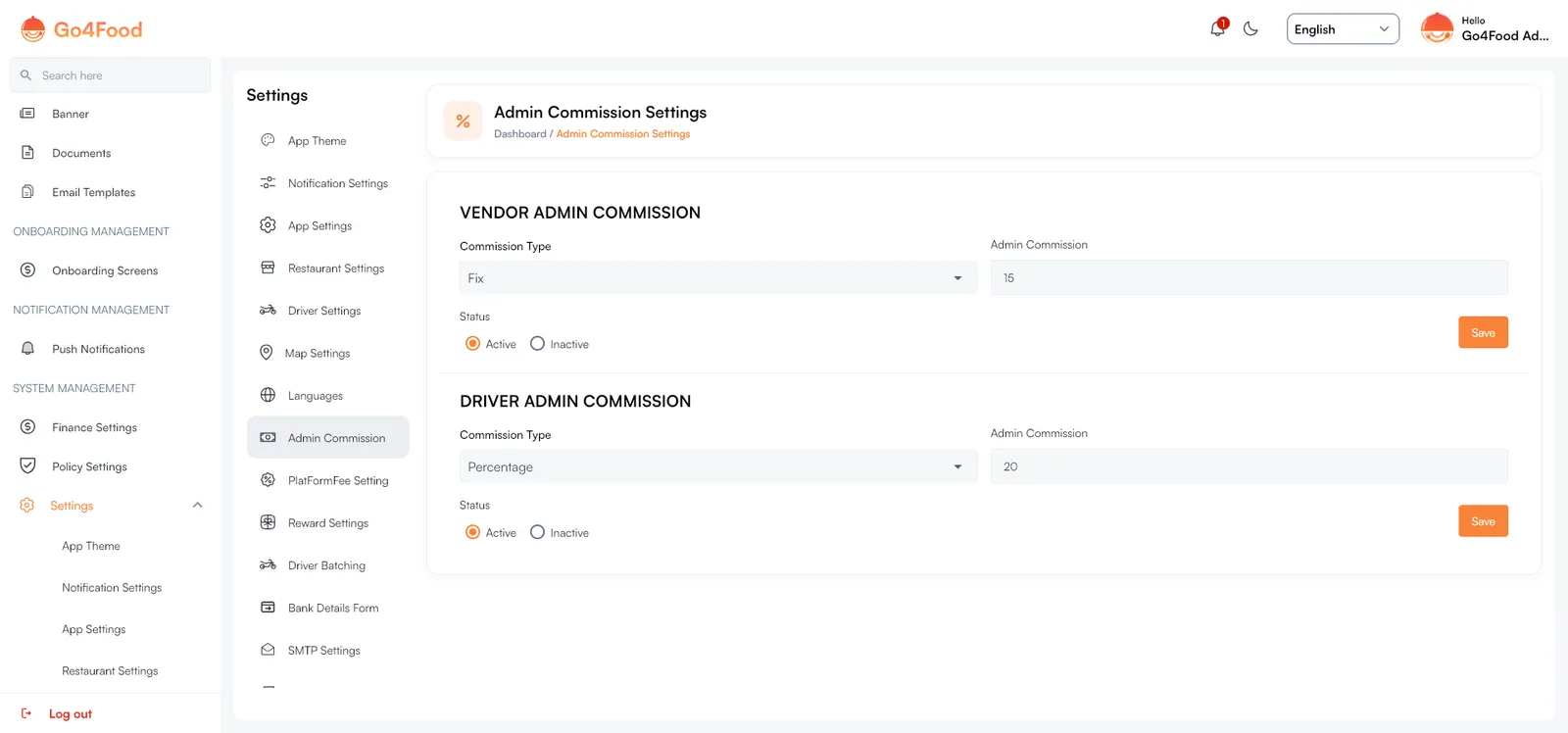
This is your platform's cut. Each section has its own Save button.
| Section | What it does |
|---|---|
| Vendor Admin Commission | Taken from the restaurant on every delivered order. Commission Type Fix takes a fixed amount per order; Percentage takes a percentage of the order subtotal after discount. The amount is debited from the restaurant owner's wallet. |
| Driver Admin Commission | Taken from the driver's delivery charge on every delivered order, as a fixed amount or a percentage. |
| Status | Inactive turns that commission off. |
Commission and subscription plans
When subscriptions are on (Restaurant settings), the vendor commission is only taken from restaurants whose plan has admin commission switched on. Plans are set up in Subscription plans.
Platform fee & packaging fee#
Open SettingsPlatFormFee Setting.
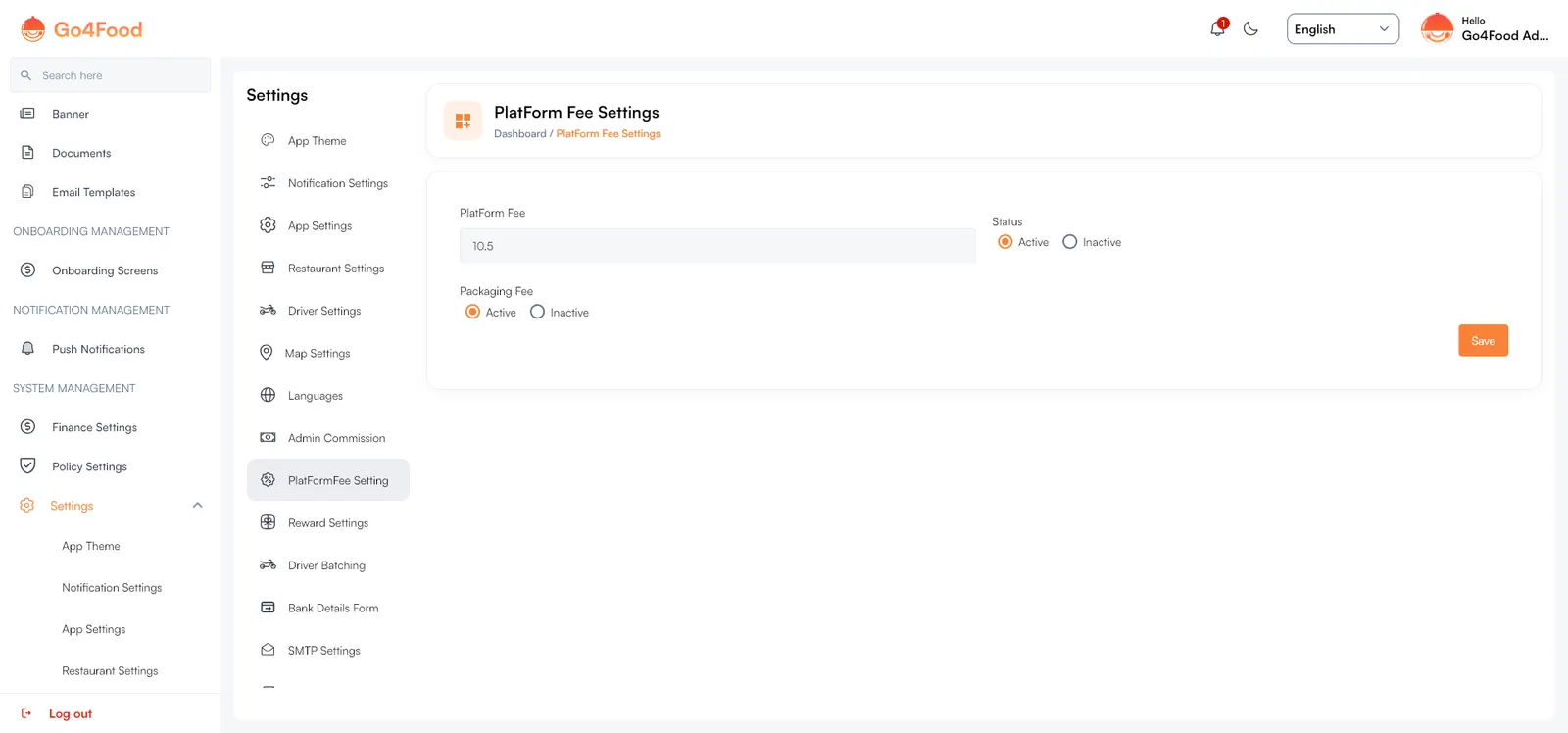
| Setting | What it does |
|---|---|
| PlatForm Fee + Status | A fixed amount added to every customer order as a separate line on the bill. Inactive removes it. |
| Packaging Fee | When Active, restaurants can charge their own packaging fee (they set the price in their app). Inactive hides packaging fees everywhere. |
Payouts and withdrawals#
Restaurant owners and drivers earn into their in-app wallet. To get paid they add their bank details (the form you design in Bank Details Form) and request a withdrawal of at least the Minimum Wallet Amount To Withdraw from App Settings.
Requests appear under Service ManagementPayout Request. You pay the person outside the platform (bank transfer), then mark the request Complete with the payment id, or Rejected with a note. You can filter by status and type and download a statement for a date range. Details: Delivery boys & payouts.