
Restaurant Settings
Choose whether restaurants pay a subscription, must have their documents checked, may use their own drivers, and how far away customers can see them.
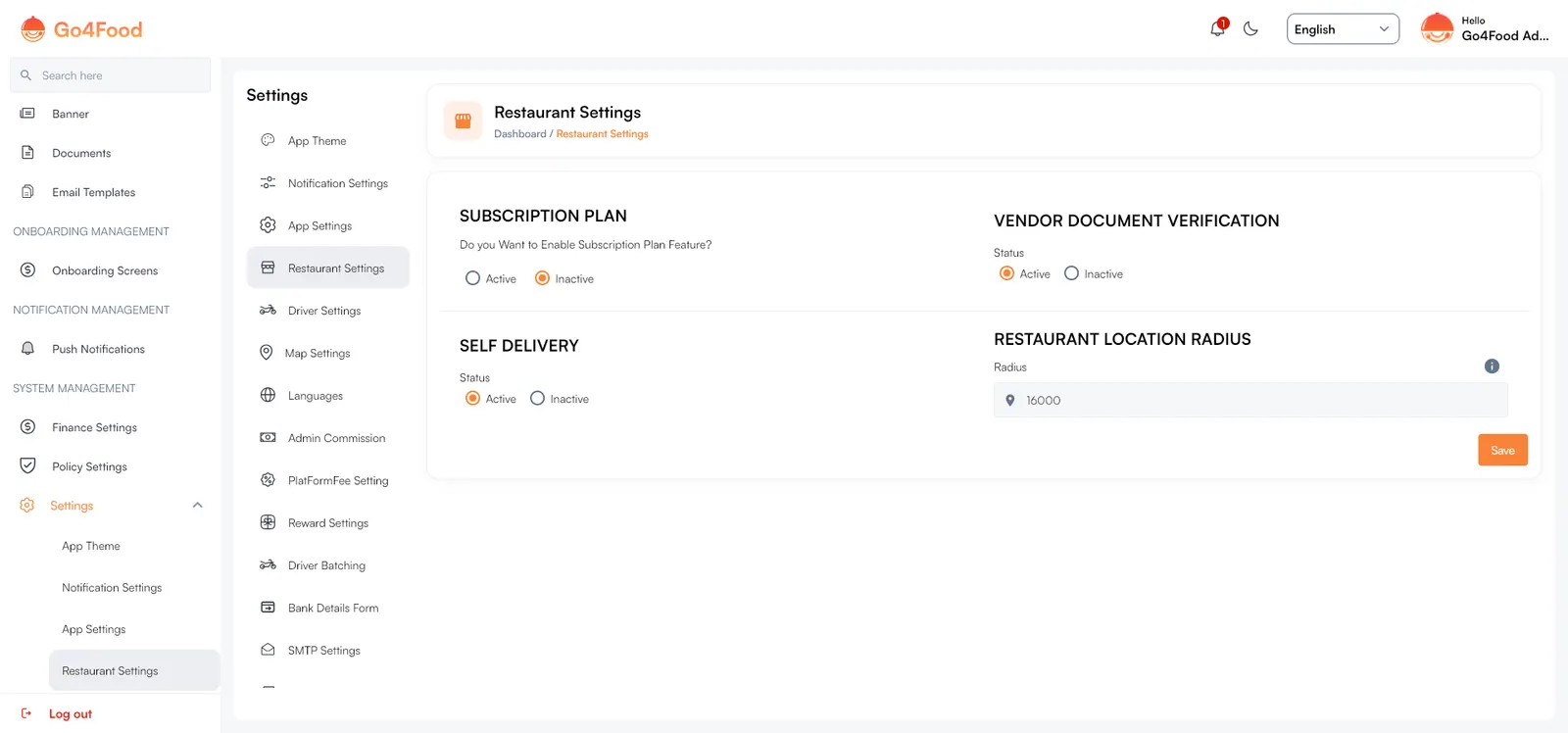
Open SettingsRestaurant Settings. The page has four switches and one number. Set them, then click Save.
| Setting | What it does |
|---|---|
| Subscription Plan Do you Want to Enable Subscription Plan Feature? | Active: restaurant owners must pick a subscription plan. The plan sets limits such as how many menu items and orders they get and for how long, and whether self delivery and admin commission apply to them. Inactive: no plans; every restaurant works without limits. |
| Vendor Document Verification | Active: new restaurant owners must submit the Vendor documents you defined, and stay unverified until you approve them. Inactive: owners are verified automatically when they sign up. |
| Self Delivery | Active: restaurants may deliver with their own drivers instead of your platform drivers. Inactive: every order goes to platform drivers. |
| Restaurant Location Radius | How far from the customer's address restaurants are shown, in the Distance Type unit from App Settings (km or miles). Restaurants farther away are hidden from the home screen, lists and search. |
Rules that block saving#
Two switches check your data first, so restaurants never get stuck:
- Subscription Plan cannot be set to Active until you have at least one active plan. Otherwise you see Please add at least one active subscription plan before enabling Subscription Plan. Create plans in Subscription ManagementSubscriptionsSubscription Plans (Subscription plans).
- Vendor Document Verification cannot be set to Active until you have at least one active document with User Type Vendor. Otherwise you see Please add at least one active Vendor document before enabling Document Verification. Add documents in Documents & verification.

Self delivery in detail#
A restaurant uses its own drivers only when all of these are true:
- Self Delivery is Active here.
- If subscriptions are on, the restaurant's plan includes self delivery.
- The restaurant has switched self delivery on in its own app and added its drivers.
Self-delivery orders skip the platform delivery charge and are never batched with other orders.
Turning Self Delivery off
When you save with Self Delivery set to Inactive, self delivery is also switched off inside every subscription plan. If you turn it back on later, edit the plans again to include it.
Choosing the radius#
The setup tool stores a very large radius (16000), so every restaurant is visible from anywhere while you test. Before launch, lower it to a real delivery distance, for example 10 to 20 km in a city.
Radius and zones work together
A customer sees a restaurant only if their address is in a served zone (Zones) and the restaurant is within this radius.