

Step 3 · Admin Panel Setup
Contact Us & Store Links
Publish support contact details and direct download URLs for the Customer, Restaurant, and Driver applications across iOS and Android.
4 min
The details configured here are rendered across the Contact screens of all three mobile apps and in the footer and download sections of the customer ordering website. Open SettingsContact us.
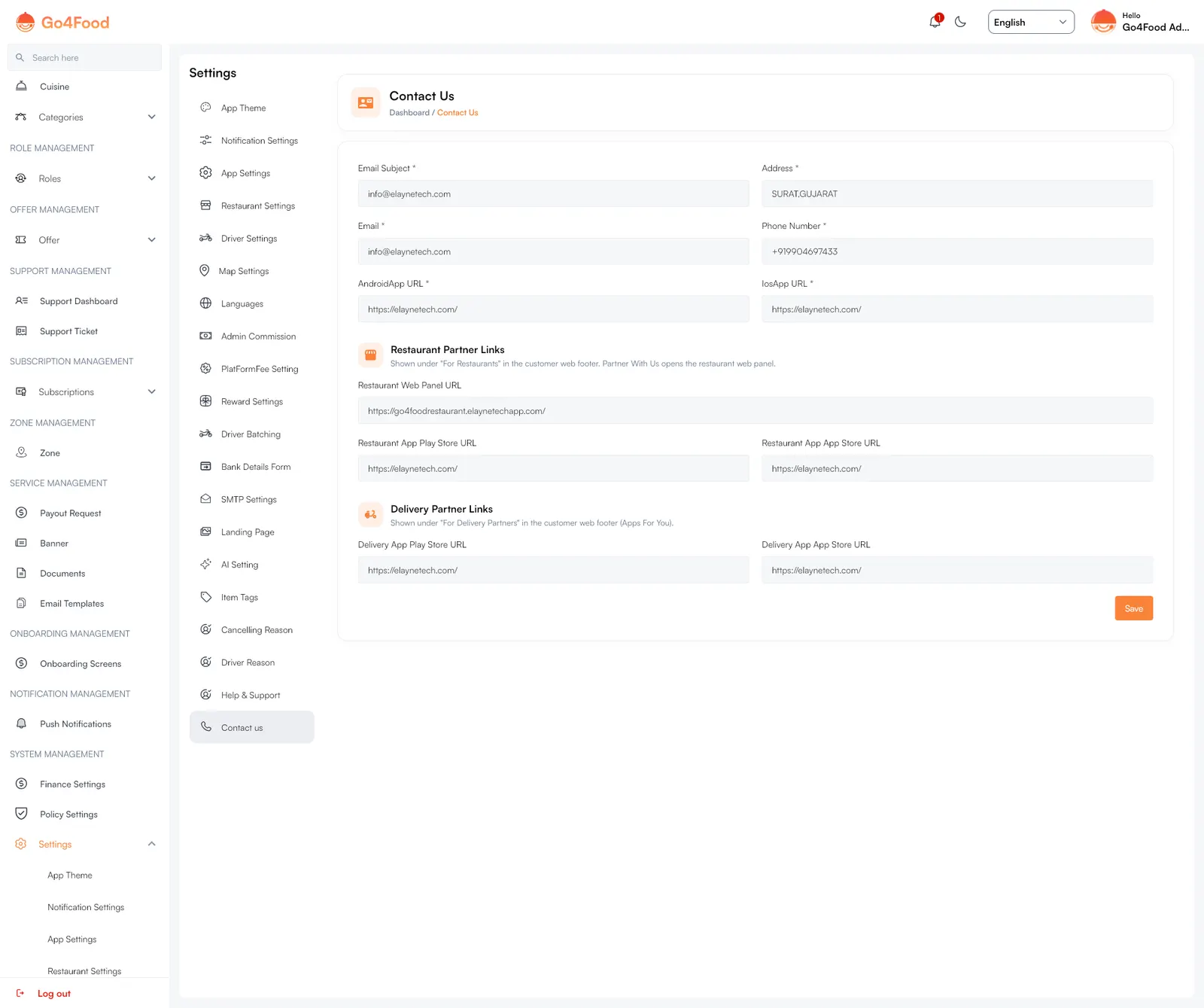
- 1Support Email & Phone Number: shown on the in-app Contact Us screens.
- 2Physical Headquarters Address: shown in website footer and terms.
- 3Customer App Store URLs: direct links to Google Play and Apple App Store.
- 4Partner URLs: Restaurant Web Panel URL, Restaurant app links, and Driver app store links.
- 5Save button.
Settings Breakdown#
| Field | Where It Appears | Example |
|---|---|---|
| Email Subject & Email | Pre-filled in customer support email buttons. | support@yourfooddomain.com |
| Phone Number | Dialer button inside mobile apps for direct telephone assistance. | +1 555-0199 |
| Address | Public business contact address in website footer and invoice receipts. | 100 Food Market St, Suite 200 |
| AndroidApp & IosApp URL | "Download our App" smart banners on the customer ordering website. | https://play.google.com/store/apps/details?id=... |
| Restaurant Web Panel URL | "Partner With Us" button on the customer website header and footer. | https://restaurant.yourdomain.com |
| Restaurant & Delivery App URLs | Onboarding links sent via SMS/Email to newly registered owners and drivers. | Official store links or APK direct download URL. |
Before store publishing
While your mobile apps are still in the Google Play Console and Apple App Store Review phase, you can temporarily enter your marketing website domain (https://yourdomain.com) into the store URL fields. Update them with true store links once your apps are live.