

Notifications & Email
Add the Firebase push keys and Google sign-in client id, connect an SMTP mailbox, and edit the emails Go4Food sends.
Notification Settings#
Open SettingsNotification Settings. You copy all three values from your Firebase project; Push keys & setup shows exactly where to find each one.

- 1Notification Sender Key: Firebase Cloud Messaging Sender ID.
- 2Web Notification Key: VAPID Key pair for web push.
- 3Client Id For Google LogIn: OAuth 2.0 Web Client ID.
- 4Save button to persist notification settings.
| Setting | Where it comes from | What it does |
|---|---|---|
| Notification Sender Key | Firebase console → Project settings → Cloud Messaging → Sender ID | Your Firebase Cloud Messaging sender id, loaded by the apps. Required. |
| Web Notification Key | Cloud Messaging → Web Push certificates → Key pair (VAPID key) | Lets the customer website receive push notifications in the browser. Required. |
| Client Id For Google LogIn | Authentication → Sign-in method → Google → Web SDK configuration → Web client ID | Used by the Customer, Restaurant and Driver apps for Sign in with Google. |
Click Save. If one of the first two fields is empty you see Missing information. Please complete all required fields.
Push sending needs no key here
Order notifications are sent by the Cloud Functions with your project's own service account, so there is no server key or JSON file to paste. To send your own message to all customers, drivers or restaurants, use Push Notifications (see below).
SMTP Settings#
Go4Food sends emails (order confirmed, welcome, wallet top-up, withdrawals and more) through your own mailbox. Open SettingsSMTP Settings.
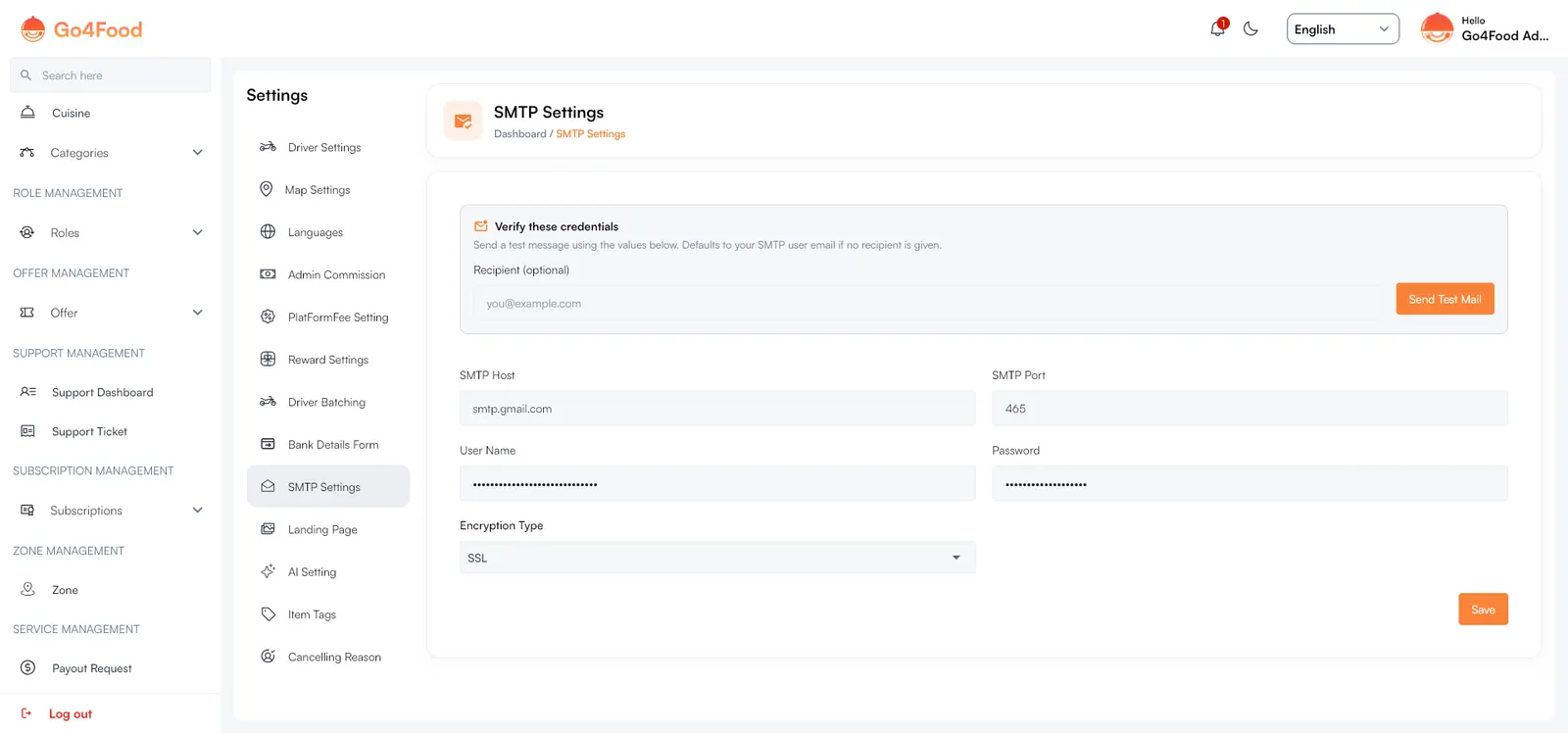
- 1Test email sandbox tool to verify SMTP server credentials.
- 2Destination recipient address and Send Test Email button.
- 3SMTP Host domain and transmission port (SSL 465 / TLS 587).
- 4Email username and dedicated account App Password.
- 5Save button to persist verified mailing credentials.
| Setting | Example |
|---|---|
| SMTP Host | smtp.gmail.com |
| SMTP Port | 465 for SSL, 587 for TLS |
| User Name | The full mailbox address. Emails are sent from this address. |
| Password | The mailbox password. For Gmail, create an App password (needs 2-step verification) and use that. |
| Encryption Type | SSL or TLS, matching the port. |
Fill in the server details#
Enter the values from your email provider.
Send a test#
In Verify these credentials, type an address in Recipient (optional) (or leave it empty to send to the SMTP user itself) and click Send Test Mail. The test uses the values on screen, so you can test before saving.
Save#
When the test email arrives, click Save.
Needs the Cloud Functions
Both the test and every real email are sent by Cloud Functions (sendSmtpTestEmail and sendTransactionalEmail). If the test fails with a server error, check that the setup tool deployed the functions. Many hosts block port 25; use 465 or 587.
Email Templates#
Open Service ManagementEmail Templates to change the subject and body of each email.

| Template | Sent when |
|---|---|
| Order Confirmed | A customer places an order. |
| Order Delivered | The restaurant hands over a take-away order. |
| Refer & Earn | Someone signs up with a user's referral code; sent to the referrer. |
| Restaurant Added | An owner adds a restaurant. |
| Sign up | A new user registers. |
| Wallet Top-up | A user adds money to their wallet. |
| Withdrawal Request | A restaurant owner or driver requests a withdrawal (sent to them). |
| Withdrawal Request (Admin) | Meant as a copy of the request for you. Not sent by the current apps. |
| Withdrawal Approved | Meant for when you complete a withdrawal. Not sent by the current apps. |
Click Edit on a card to change the Subject and the HTML Body, with a Live Preview. Words in double braces, such as {{name}} or {{order_id}}, are replaced with real values; the card lists the Variables each template supports. Switch a template off to stop sending that email.
Push Notifications#
Notification ManagementPush Notifications sends your own message (title and description) to all customers, drivers or restaurant owners, and keeps a list you can Resend. It is covered in Offers, banners & push.