

The Three Phone Apps
Which folder builds which app, the order to set them up in, and how to run them on a phone.
Go4Food has three phone apps. Each is its own Flutter project with its own package name, and all three use the same Firebase project.
| App | Folder | For | Package name (demo) |
|---|---|---|---|
| Customer app | customer/ | People who order food | com.go4food.user |
| Restaurant app | restaurant/ | Restaurant owners: menu, orders, wallet | com.go4food.vendor |
| Driver app | driver/ | Delivery drivers: order requests, pickup, delivery | com.go4food.rider |
Set them up in this order#
Done in Step 2
Your package names and the Firebase connection are already set (package names, FlutterFire). This step makes the apps yours and builds them for the stores.
Much of it is in the admin panel
The app name shown inside the apps, the colour of each app, the minimum app version, the map type and key, the languages, payment methods and every policy text are not in the app code. You change them in the admin panel (App settings & theme) and the apps pick them up on their next start, without a new build.
Run an app#
Connect a phone with USB debugging on, or start an Android emulator or the iOS Simulator, then:
cd customer
flutter pub get
flutter run
Use cd restaurant or cd driver for the other apps.
File → Open and pick the app folder (for example customer), not the whole Go4Food folder. Choose a device in the toolbar and click the green Run button.
File → Open Folder and pick the app folder. Choose a device at the bottom right and press F5, or press CtrlShiftP (CmdShiftP on a Mac) and pick Flutter: Run.
| Command | Does |
|---|---|
flutter devices | Lists connected phones and emulators |
flutter run -d <device_id> | Runs on one device |
flutter run --release | The fast release build. Use it to judge speed. |
First build is slow
The first build downloads packages and can take several minutes. Later builds take seconds. Press r to hot reload, R to restart, q to quit.
What you see on the first run#
Each app opens with its splash screen, then asks the user to pick a language (the list comes from Settings → Languages in the admin panel). After that the sign-in screen appears.
Customer app#
Create an account and you land on the home screen with the restaurants near you. You need at least one zone and one open restaurant in it to see anything (Zones & map settings).


Restaurant app#
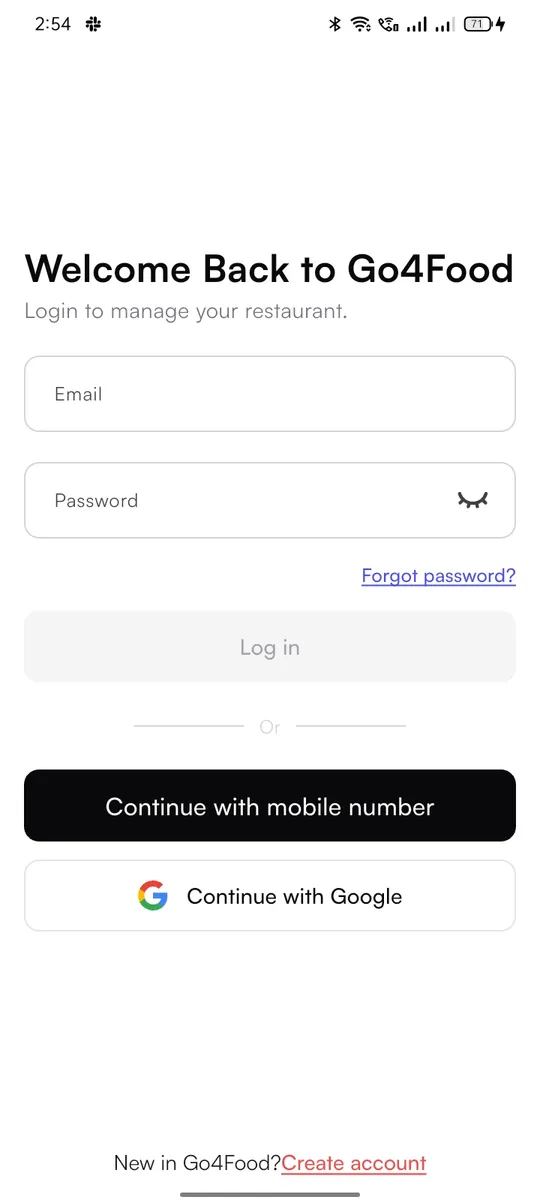
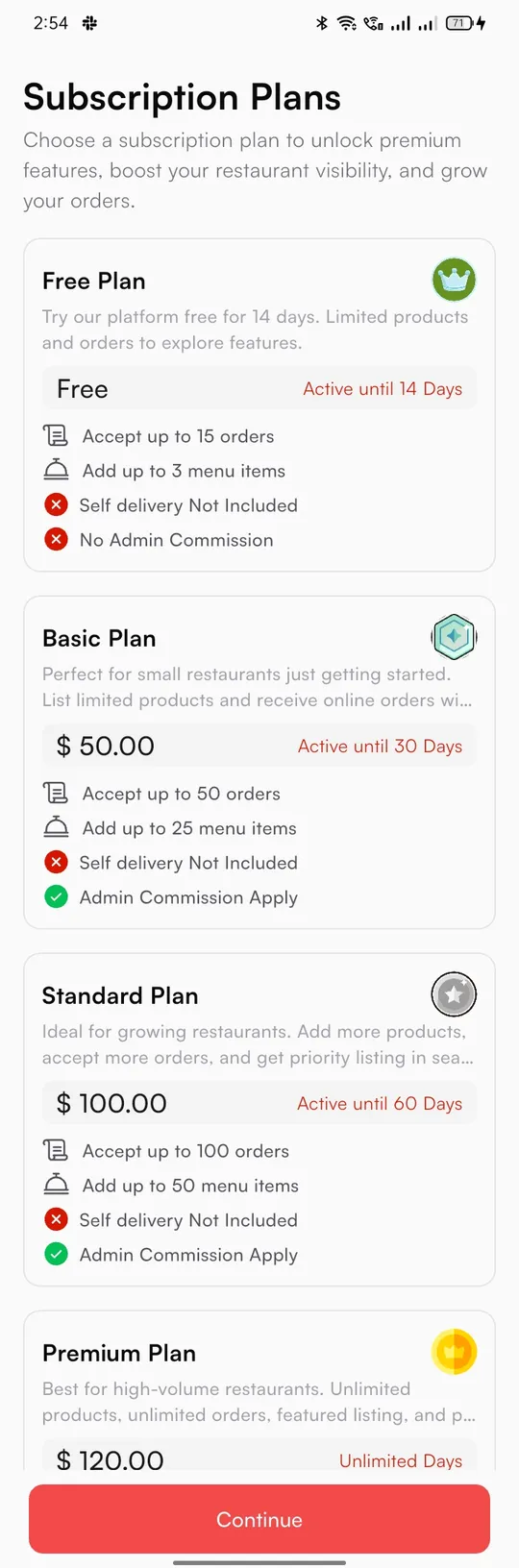
The owner signs up, then (depending on your settings) picks a subscription plan, uploads documents and adds the restaurant. New restaurants show in the admin panel under New Restaurant Join Request (Documents & verification).


Driver app#
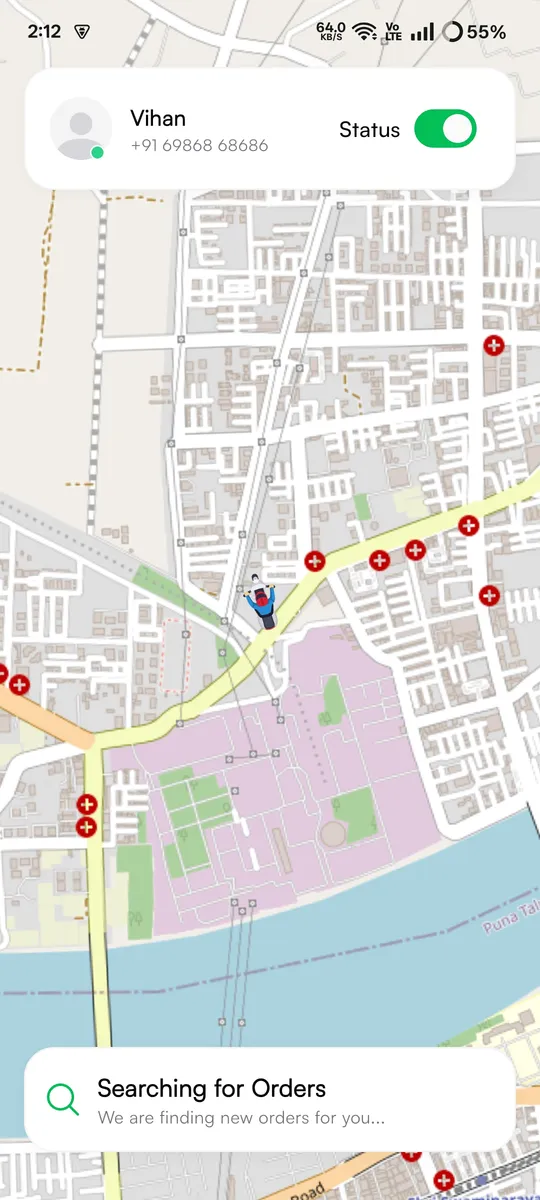
The driver signs up with their details. When Driver Document Verification is on, they also upload documents and you approve them in the admin panel.


Blank app or endless loading?
The app reads its settings from Firestore when it starts. If nothing loads, check that the setup tool finished (Run the setup tool) and that you ran FlutterFire in this app folder (Connect with FlutterFire).