

Push Notifications Setup
Order alerts reach customers, restaurants and drivers through Firebase Cloud Messaging. Add the iPhone push key and the web push key, and you are done.
Every push in Go4Food is sent by your Cloud Function sendPushNotification, through Firebase Cloud Messaging (FCM) with the function's own server identity. The apps only ask the function to send and receive the result. No key file or server key goes into any app.
| Who | Where | Receives |
|---|---|---|
| Customer | Customer app and website | Order updates (accepted, picked up, delivered, cancelled) and your announcements |
| Restaurant | Restaurant app and restaurant panel | New orders, with a ringing order sound, and your announcements |
| Driver | Driver app | New order requests, with a ringing order sound, and your announcements |

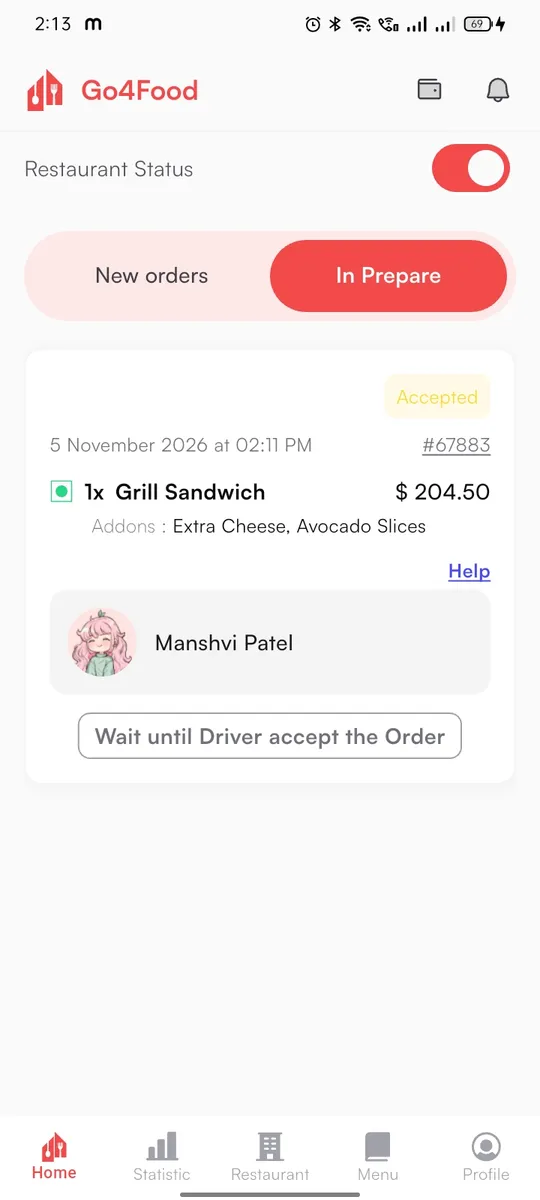

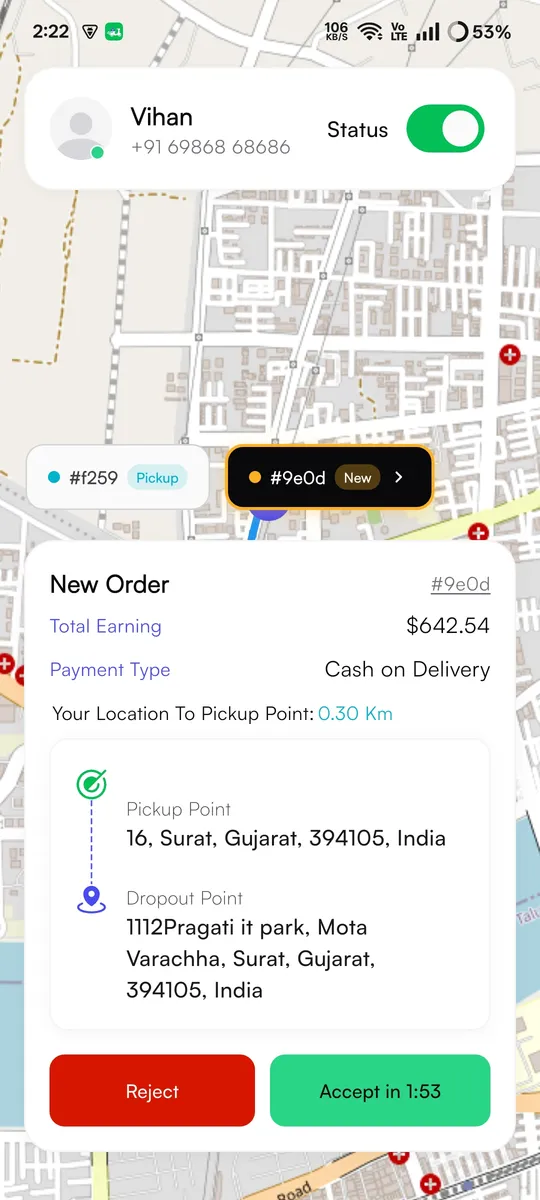
1. Android#
Nothing to do. Notifications work as soon as the app is connected to Firebase (Connect with FlutterFire). On Android 13 and newer, the app asks the user to allow notifications on first start.
2. iPhone: the APNs key#
Apple delivers iPhone notifications. Firebase needs your Apple push key to talk to Apple.
Create the key#
Apple Developer → Certificates, IDs & Profiles → Keys → +. Name it, tick Apple Push Notifications service (APNs), Register, and download the .p8 file (you can download it only once). Note the Key ID and your Team ID (top right of the developer site).
Upload it to Firebase#
Firebase console → gear icon → Project settings → Cloud Messaging. Under Apple app configuration, pick each iOS app and, next to APNs Authentication Key, click Upload: choose the .p8 and enter the Key ID and Team ID. One key works for all three apps.

Check the capability#
In Xcode, Push Notifications and Background Modes → Remote notifications must be on for the Runner target. They already are in all three apps (iPhone release).
3. Websites: the web push key#
The admin panel and the customer website ask the browser for a push token with your project's Web Push certificate (VAPID key). You copy it from Firebase and paste it in the admin panel.
Copy the Sender ID and the key pair#
On the same Cloud Messaging tab, copy the Sender ID. Scroll down to Web configuration → Web Push certificates, click Generate key pair if there is none, and copy the long key under Key pair.

- 1Cloud Messaging Web configuration section.
- 2Web Push certificates: click Generate key pair and copy the VAPID token.
Paste them in the admin panel#
Open SettingsNotification Settings and fill in:
| Field | What to enter |
|---|---|
| Notification Sender Key | The Sender ID from the Cloud Messaging tab |
| Web Notification Key | The Key pair (VAPID key) from Web Push certificates |
| Client Id For Google LogIn | The Web client ID for Google sign-in on the websites (Prepare & build) |
Click Save. The first two fields are required.
Check the service worker#
Browser notifications that arrive while the tab is closed are shown by web/firebase-messaging-sw.js in admin_panel, customer_web and restaurant_web. It must contain your own Firebase config, not the demo one (Prepare & build). Rebuild and deploy after changing it.
Websites need HTTPS
Browser push works only on https:// (and on localhost while testing), and only after the visitor clicks Allow in the browser. Safari on iPhone shows web notifications only after the site is added to the Home Screen.
4. Send your own announcements#
In the admin panel, Push Notifications (under Notification Management) sends a Title and Description to everyone of one User Type: Customer, Vendor (restaurants) or Driver. The apps subscribe to the topics go4food-customer, go4food-restaurant and go4food-driver, and only an admin may send to a topic. See Offers, banners & push. Email texts are set separately in Email Templates (Notifications & email).
The new-order sound
The restaurant and driver apps ring with order_sound.wav for new orders. To use your own sound, replace android/app/src/main/res/raw/order_sound.wav and ios/Runner/order_sound.wav in both apps and keep the name. iOS plays only sounds shorter than 30 seconds. Android keeps the old sound for a notification channel that already exists, so uninstall the app once after changing it.
Test it#
- Sign in to each app on a real phone and allow notifications.
- Place an order in the customer app: the restaurant app rings.
- Accept it as the restaurant: an online driver nearby gets the order request.
- Move the order on: the customer gets each update.
- Send a test from Push Notifications in the admin panel to each audience.
No notification arrives?
Open the Firebase console → Functions → sendPushNotification → Logs. Every push writes one line: push sent, or sendPushNotification failed with the reason. No line at all means the app never asked to send. On iPhone, check the APNs key first.