

Customer App & Website
What your customers see: restaurants near them, menus, cart and checkout, live order tracking, wallet, rewards and support. The customer website offers the same in the browser.
The customer app (folder customer/) runs on Android and iOS. The customer website (folder customer_web/ in the Go4Food-web project) gives the same features in the browser. Everything they show comes from your admin panel: restaurants and menus, cuisines, banners, delivery charges, fees, payment methods, rewards and languages.


Sign in and sign up#
The login screen offers Email and password with forgot password?, Continue with mobile number (an SMS code), Continue with Google and, on iPhone, Continue with Apple. Skip lets a visitor look around before signing in.
New customers tap Create account and fill in Enter Basic Details: first and last name, phone number, email, password and an optional Refer Code. If the code belongs to another user, that user gets the referral amount you set in the admin panel in their wallet.


Home, cuisines and top rated food#
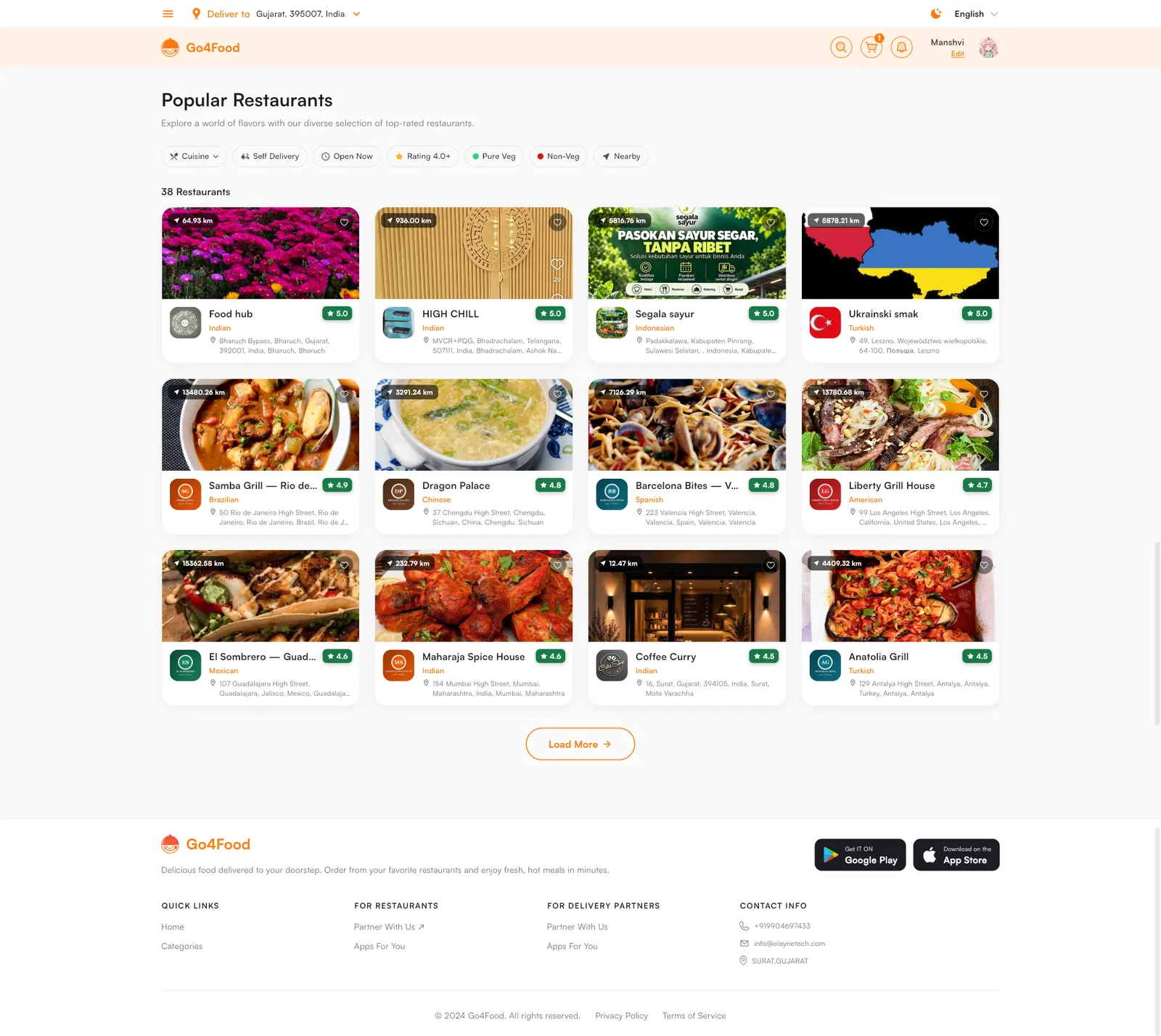
The home screen opens on the customer's delivery address (tap Home at the top to change it) and the cart. Below the search bar come your banners, the cuisine row, Popular Restaurants, Top-Rated Food and All Restaurants with the distance and rating of each restaurant. The bottom bar has Home, Orders, Wallet and Profile.
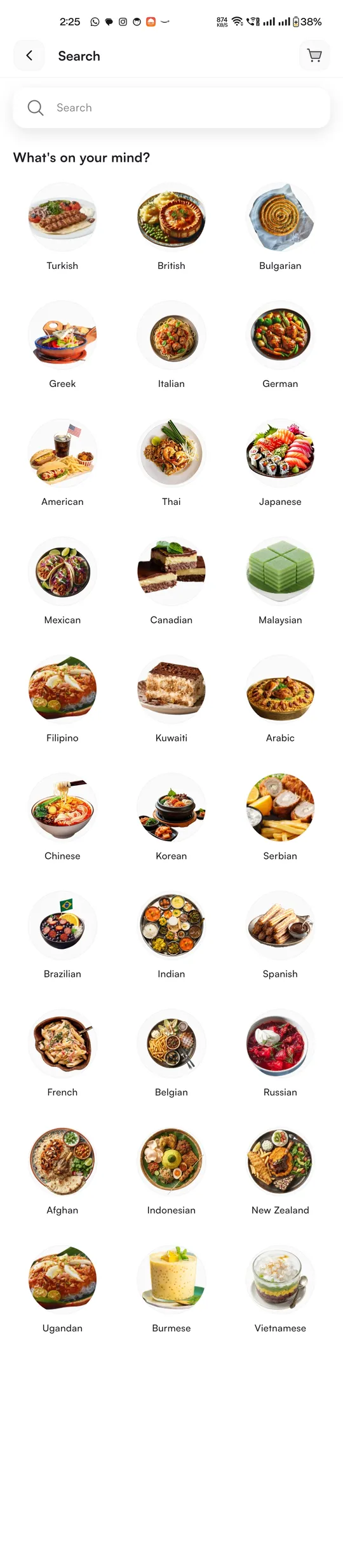
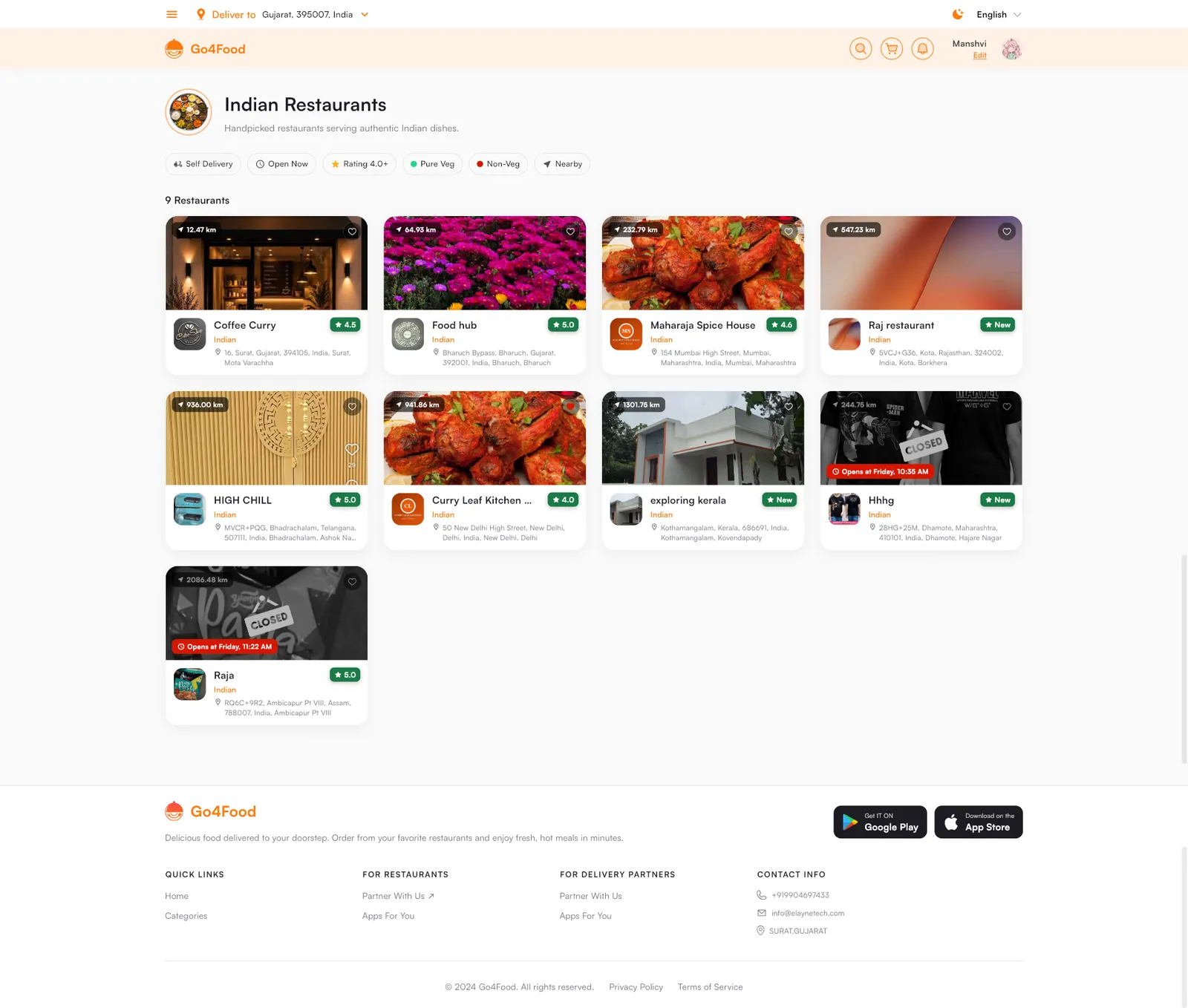
- Cuisines come from the admin panel. Tapping one lists the restaurants that serve it.
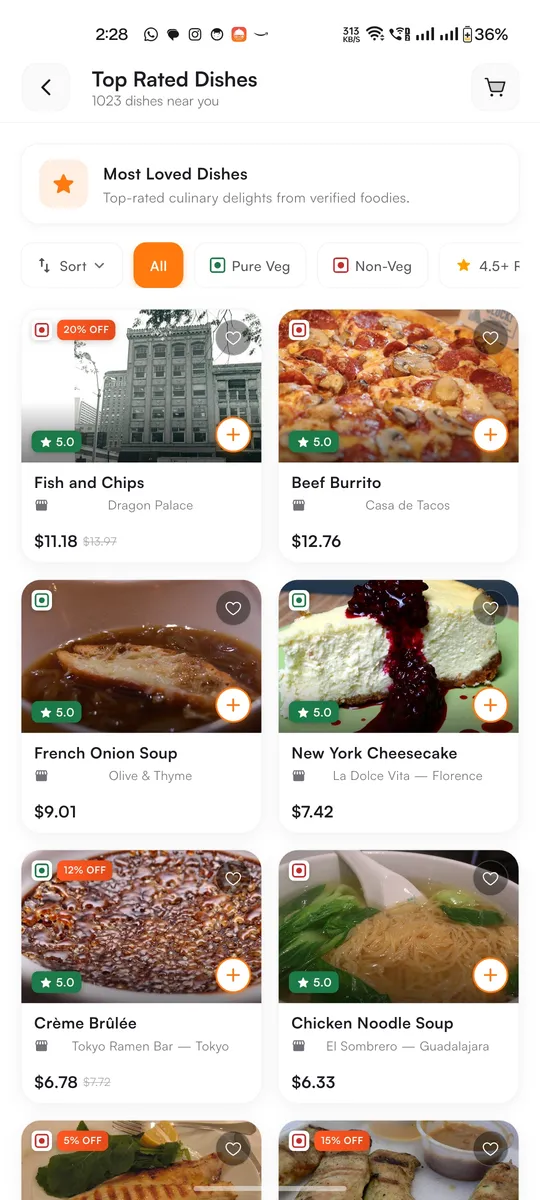
- Top Rated Dishes lists the best rated dishes nearby, with Sort (Highest Rated (Default), Price: Low to High, Price: High to Low) and quick filters All, Pure Veg, Non-Veg and 4.5+.
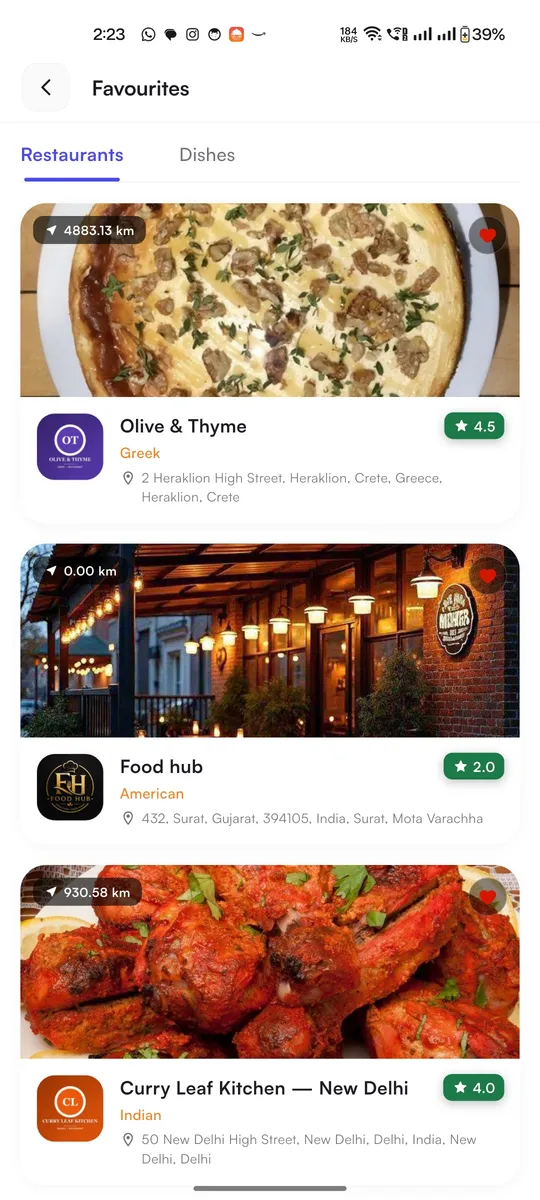
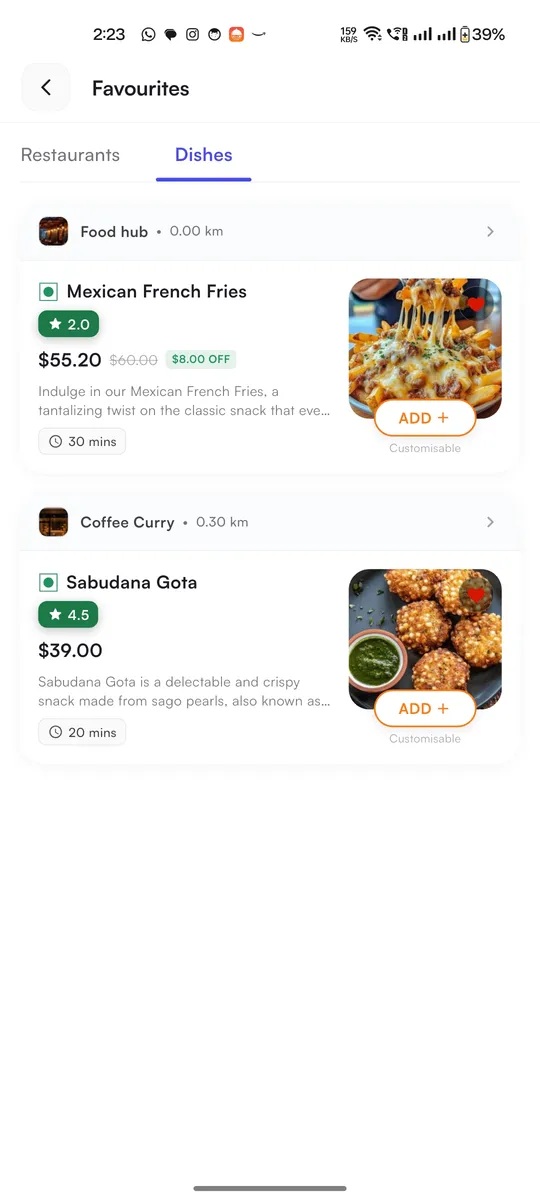
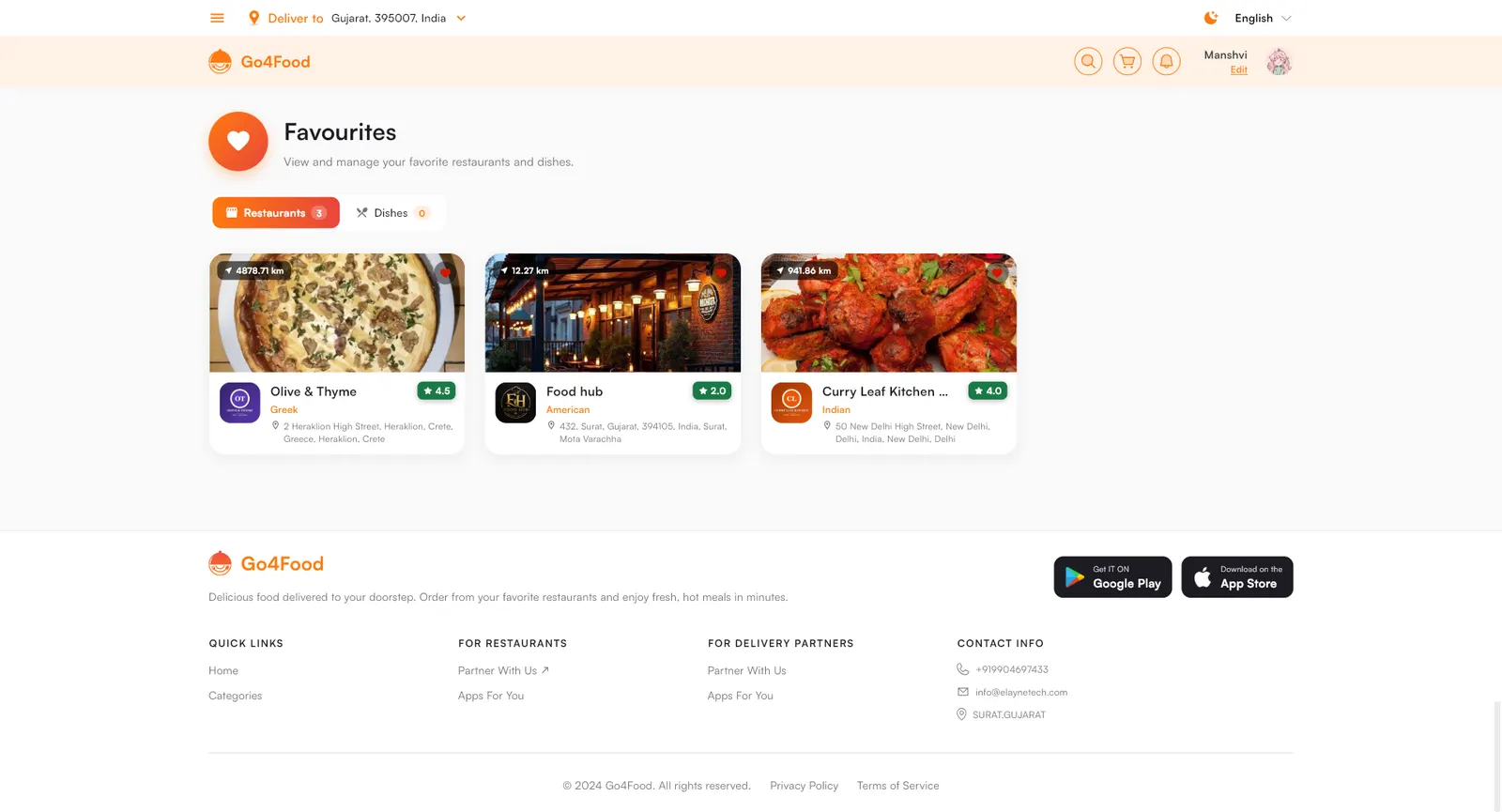
- The heart on any restaurant or dish saves it to Favourites.


Search#
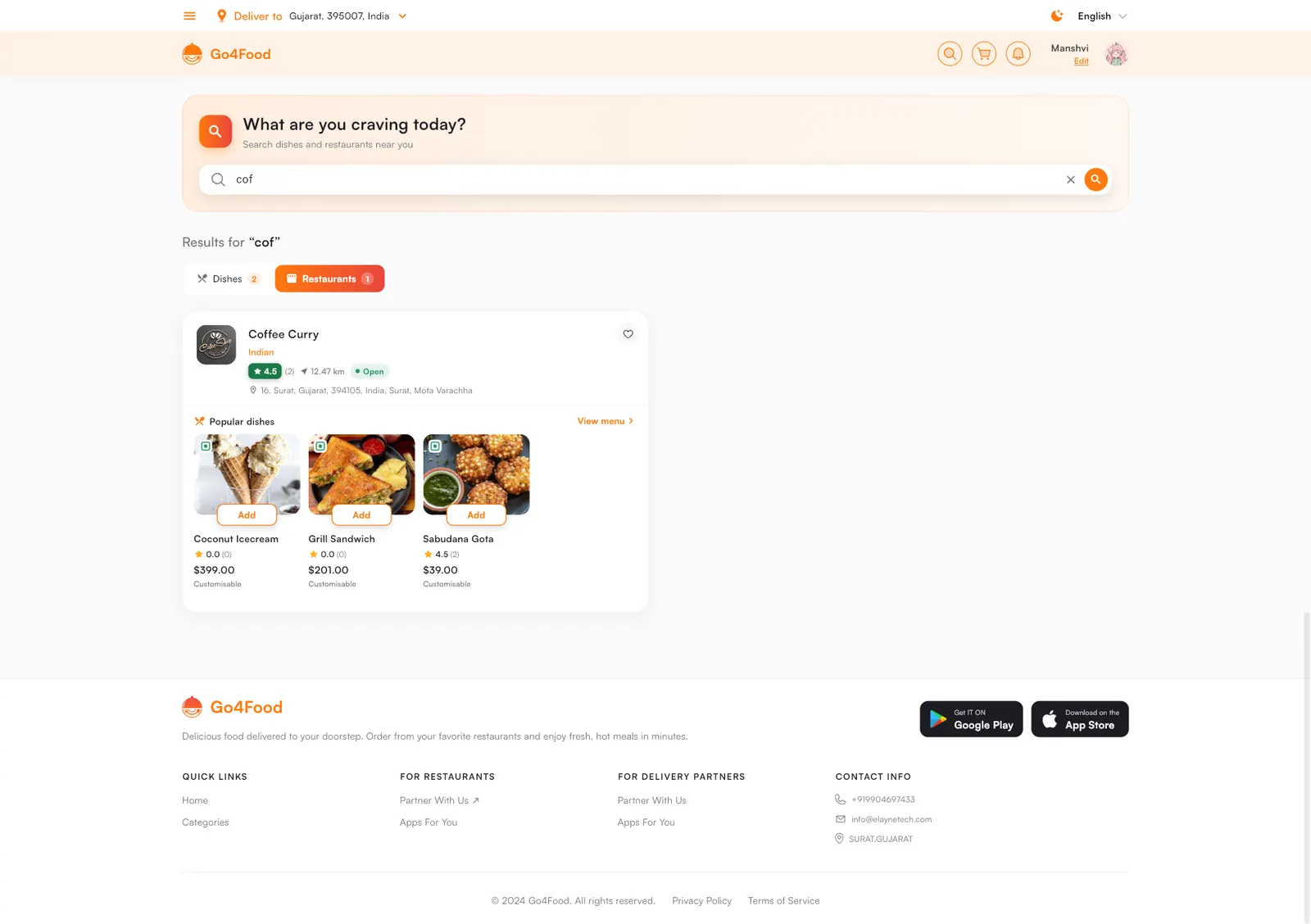
Search looks through dishes and restaurants at the same time. The results come in two tabs: Dishes (each dish with its restaurant and an ADD button) and Restaurants (each restaurant with some of its dishes).


Restaurant page and item details#
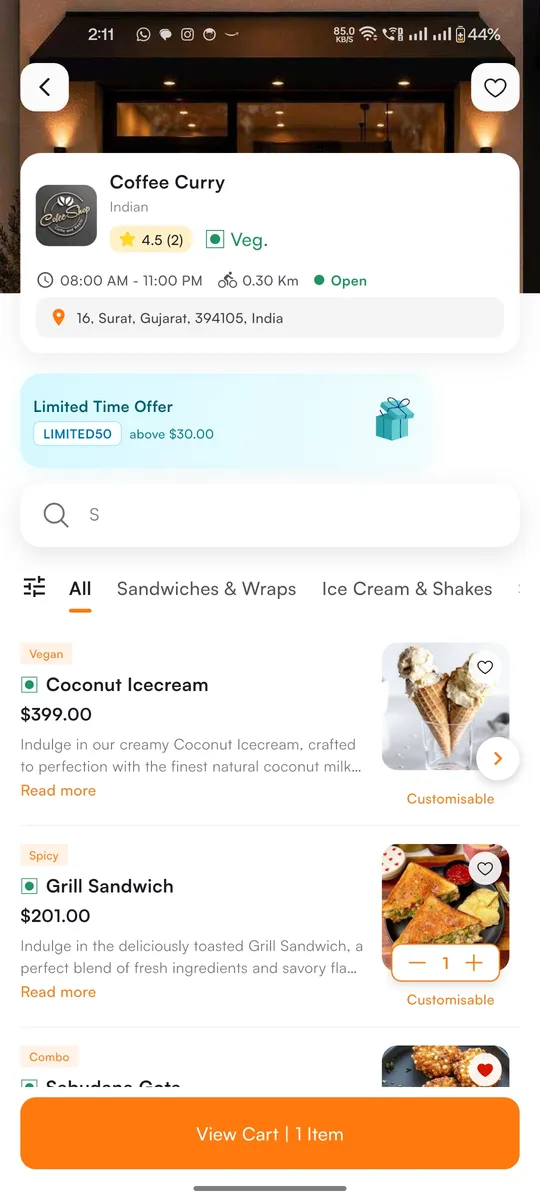
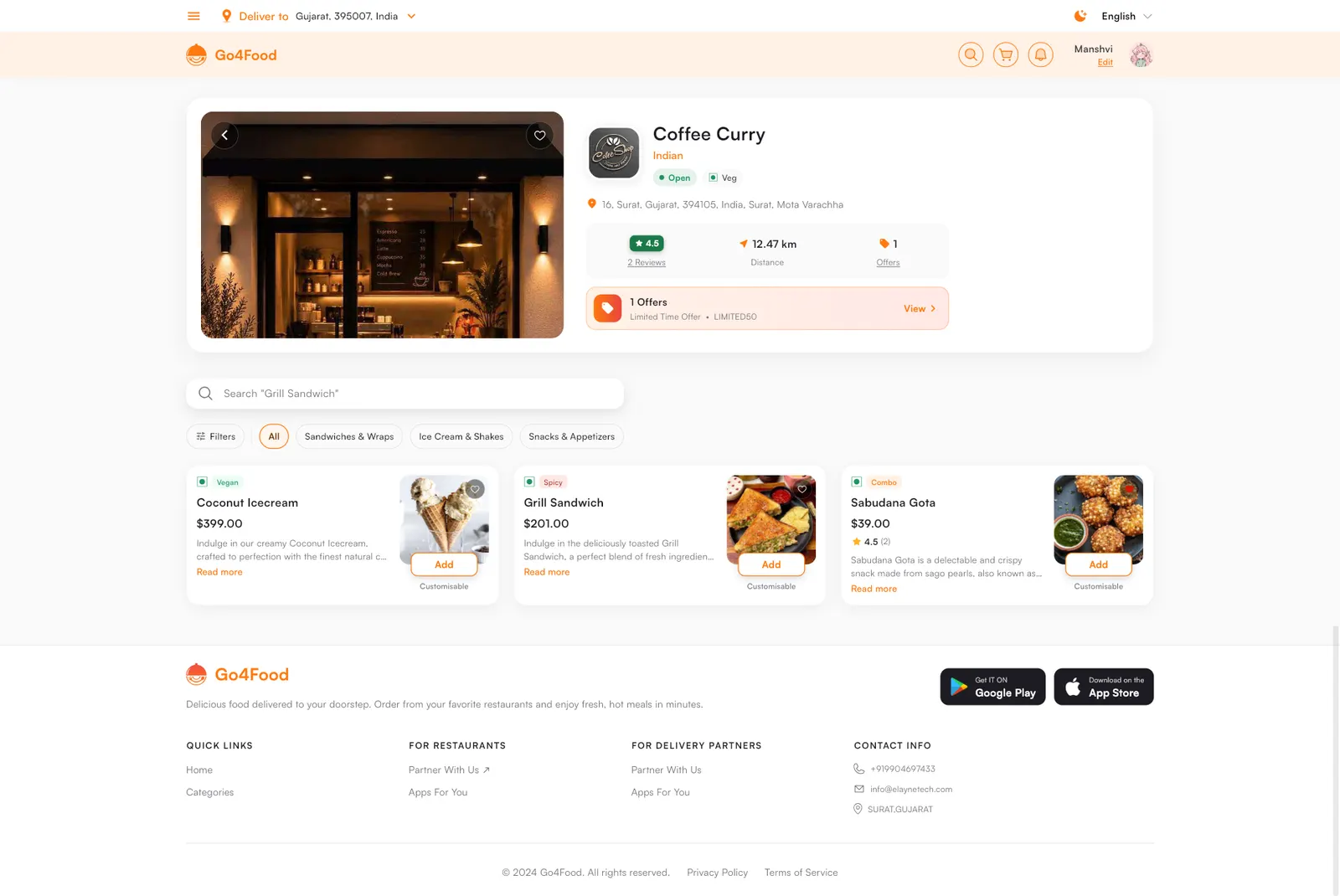
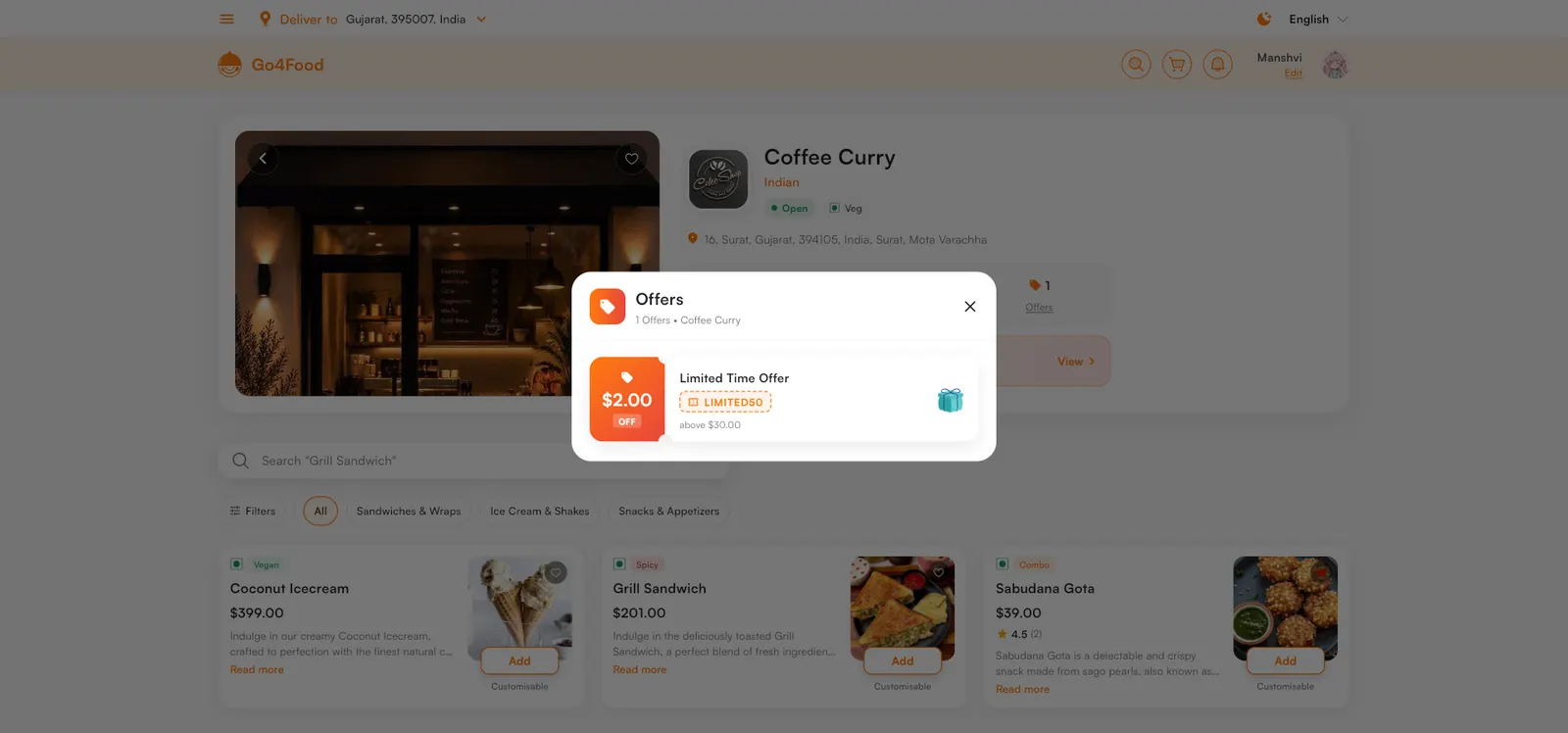
A restaurant page shows the logo, cuisine, rating, veg / non-veg badge, opening hours, distance, Open or closed and the address. Offers from the restaurant appear as cards (for example a coupon code with its minimum order). Below are a menu search, the menu categories as tabs and the items.
- Each item shows its tag (for example Vegan, Spicy, Combo), price, description and Customisable when it has variants or add-ons.
- The filter button opens Filters & Sort: Food Preference (Pure Veg / Non-Veg), Offers & Discounts, and Sort By default, price, rating or popularity. Apply Filters or Reset.
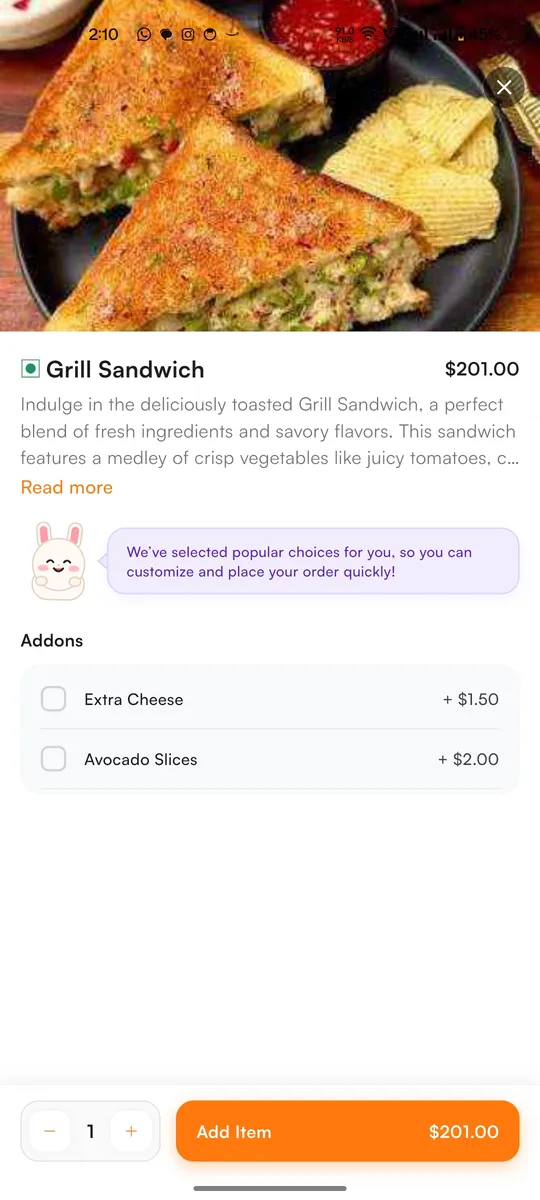
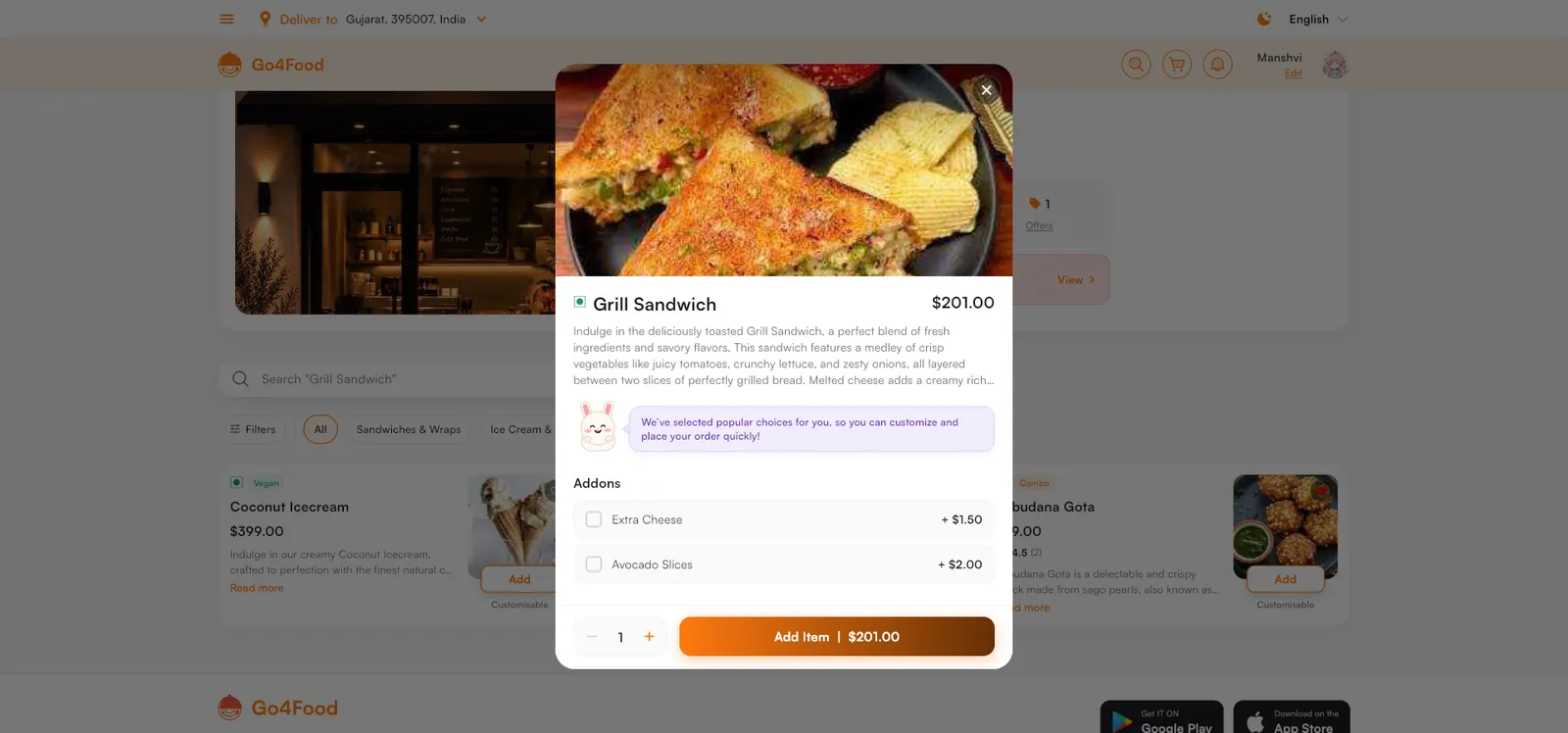
- Tapping an item opens its details: photo, description, variants and Addons, quantity and Add Item with the total price.
- Once something is in the cart, View Cart appears at the bottom. A cart holds items from one restaurant at a time.

Cart and checkout#
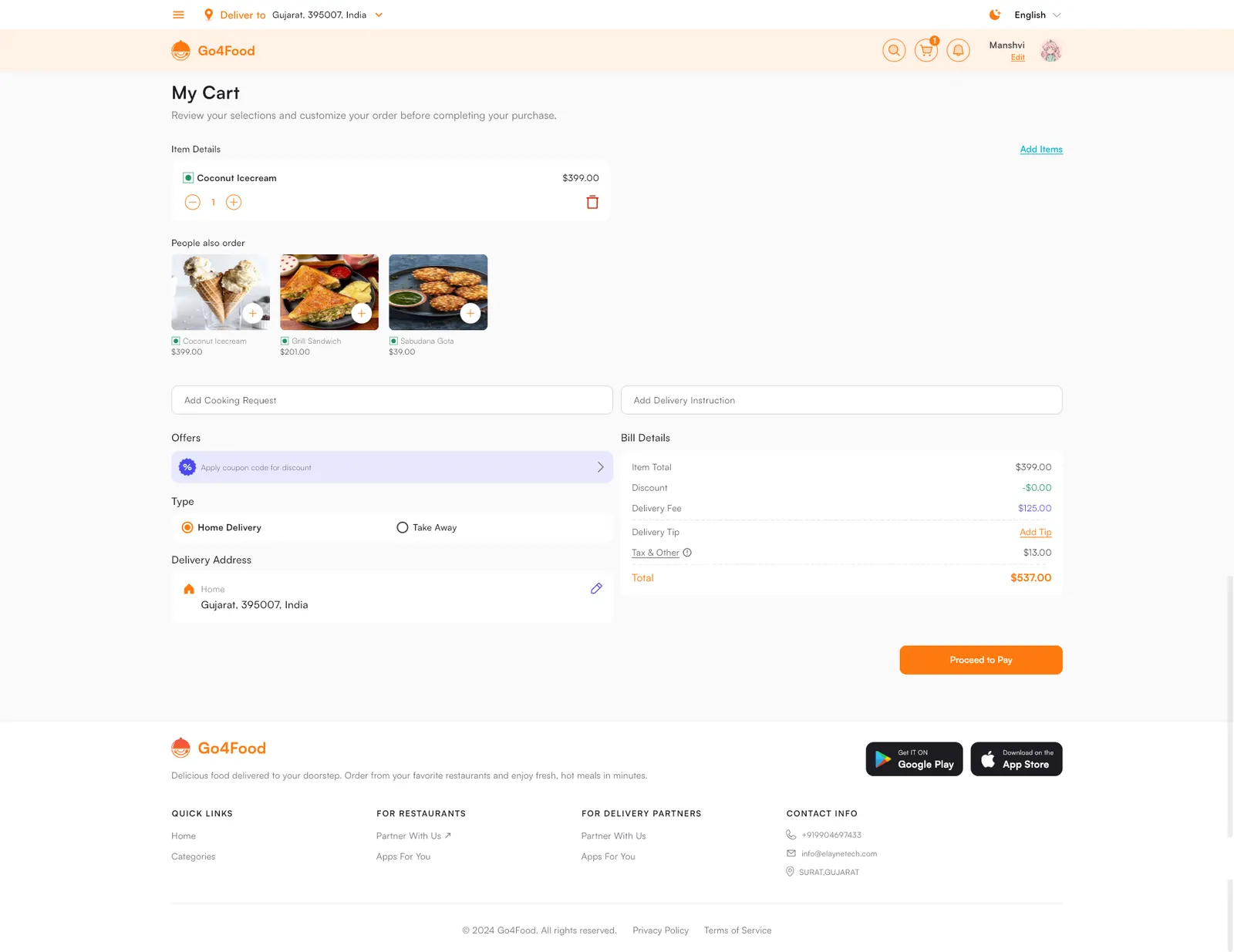
My Cart collects everything needed to place the order:


| Part of the cart | What it does |
|---|---|
| Items In Cart | Change quantities, remove items, Add Items from the same restaurant. Complete your meal suggests more dishes. |
| Cooking Request | Optional note for the restaurant |
| Apply Coupon Code | VIEW OFFERS lists the coupons the customer can use, or they type a code |
| Home Delivery / Take Away | Take Away means the customer collects from the restaurant, so no delivery charge is added |
| Deliver to | The delivery address. CHANGE picks another saved address or adds a new one. |
| Payment Method | Wallet (with the balance), Cash on Delivery and each online gateway you turned on in the admin panel |
| Bill Summary | Item Total, coupon discount, Delivery Partner Fee, platform fee, packaging fee and Taxes & Charges, then the Grand Total |
| Delivery Instructions | Optional note for the driver |
| Delivery Partner Tip | Fixed amounts or Custom. The tip goes to the driver. |
Where the amounts come from:
- Delivery charge. Worked out from the distance between the restaurant and the address, using the delivery charges in Driver Settings. It is not added for Take Away orders or for restaurants that deliver with their own drivers.
- Platform fee and packaging fee. Added only when they are switched on in PlatFormFee Setting (the packaging fee also has to be turned on by the restaurant).
- Taxes. Come from the taxes you set up in the admin panel.
Once a payment method is chosen the button changes from Proceed to Pay to Place Order. Wallet orders need enough balance, otherwise the app shows Insufficient Balance in Wallet Amount. Before placing a delivery order the app checks that a driver is available near the restaurant and shows No Delivery Drivers Available if not.
Payment gateways
The list of online payment methods is whatever you activate in Commission, fees & payments. Secret keys stay on the server in Cloud Functions. Never put them in the app.
Track the order#
While an order is running, a bar on the home screen shows the restaurant, the estimated time and View Order. My Orders lists every order with its status. Filter Orders narrows the list to All Orders, Pending Orders, Completed Orders or Cancelled Orders.


| Status shown | Meaning |
|---|---|
| Pending | Placed, waiting for the restaurant. The customer can still Cancel Order with a reason. |
| Accepted | The restaurant accepted the order and Go4Food is finding a driver |
| Driver Accepted | A driver accepted. The card shows the OTP and Track Order (driver on the map). |
| On Ready | The restaurant marked the food ready |
| Picked | The driver picked up the food and is on the way |
| Completed | Delivered. Add Review and Re - Order appear. |
| Rejected / Cancelled | Rejected by the restaurant or cancelled. A paid amount comes back to the wallet. |
The order details screen shows the Delivery OTP, the restaurant and the Delivery Partner (both with a call button), the items, the Delivery Route from pickup to drop-off, the Bill Summary and the order ID. The customer gives the OTP to the driver, who enters it to finish the delivery. Push notifications follow every step (accepted by the restaurant, accepted by the driver, delivered).
Order complete and reviews#
When the driver confirms the OTP, the customer gets Order delivered successfully and the order shows Order Delivered. From there they can Rate Delivery Partner (stars and a written review) and review the food with Add Review in My Orders.


Wallet#
My Wallet shows the Available Balance, Add Money (through an online gateway) and the Transaction History: money added, wallet payments, refunds of cancelled orders, reward redemptions, referral credits and top-ups you make from the admin panel.


Rewards and Refer & Earn#
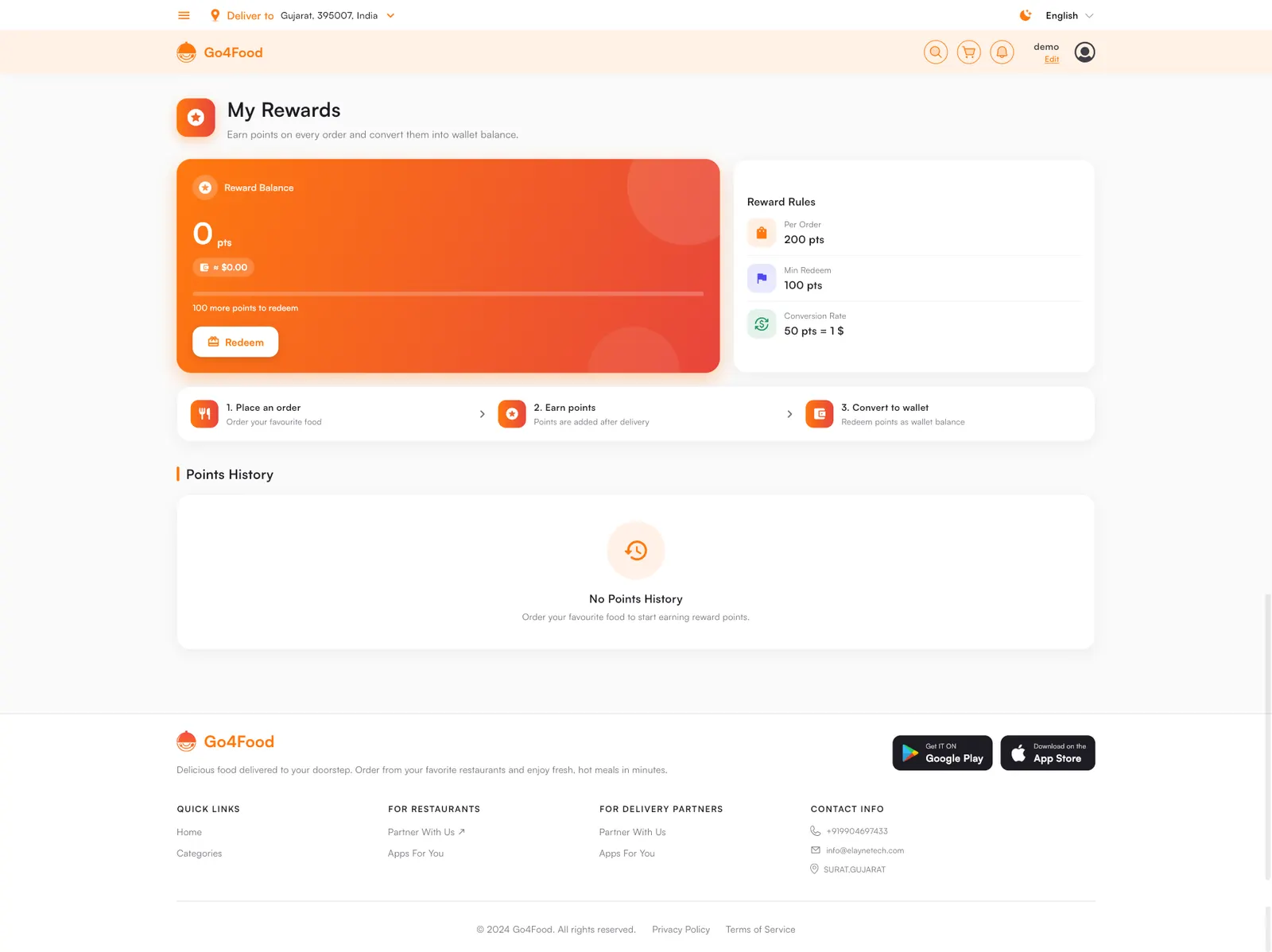
- My Rewards shows the Reward Balance in points and its value, the points earned Per Order, the Min Redeem and the Points History. Points are added after delivery. Redeem turns them into wallet money. You set the numbers and the conversion rate in Reward Settings (Reasons, tags, rewards & more).
- Refer & Earn shows the customer's own code with Tap To Copy and Refer Now to share it. When a friend signs up with the code, the customer gets the referral amount in their wallet.
Profile and account#
My Profile holds everything else. Edit Profile changes the photo, name, email and phone number.




| Menu item | What the customer can do |
|---|---|
| Favourites | Saved restaurants and dishes, in two tabs. Dishes can be added to the cart from here. |
| My Address | Add New Address (home, work or custom, picked on the map), Edit, Delete, Set as Default |
| Notifications | All order updates and offers, grouped by day. Clear All empties the list. |
| Order Statement | Pick a time range under Select Time and Download the order history |
| My Rewards / Refer & Earn | See above |
| Privacy & Policy, AboutApp, Terms & Condition | The texts you write in Policy Settings |
| Help & Support | Support tickets and chat (below) |
| Dark Mode, Language | Switch theme and language. Languages come from Languages. |
| Delete Account | The customer can delete their own account |
Help and support#
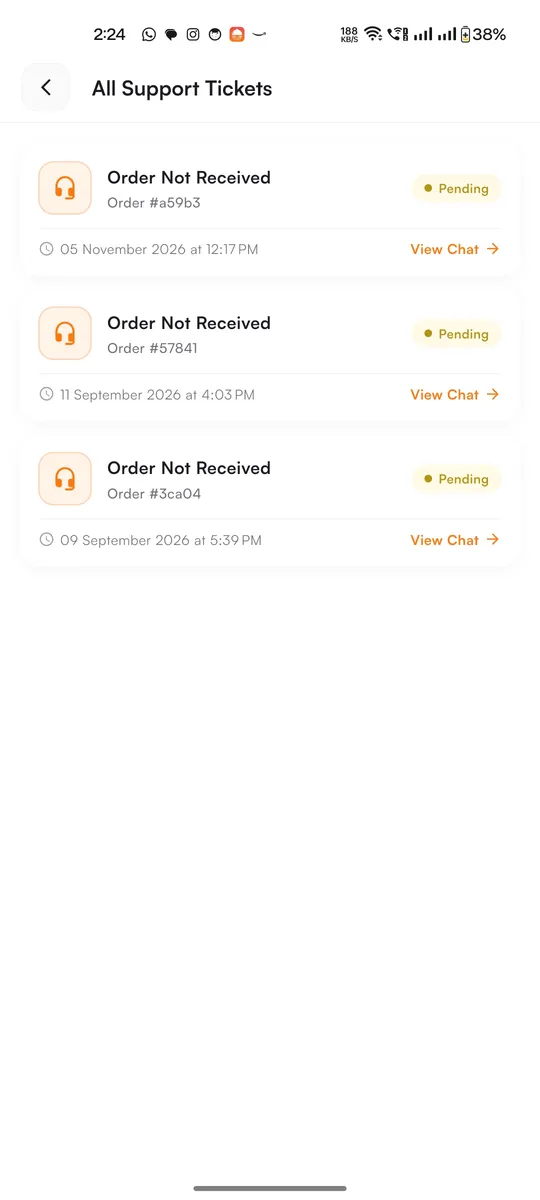
Help & Support shows the most recent order with a Help button, Issues with Previous Orders to pick an older order, and All Support Tickets. After choosing an order, the customer picks the problem (for example Order Not Received, Late Delivery Issue, Wrong Item Received, Missing Item Issue, Payment Issue) and taps CHAT WITH US. This opens a ticket and a chat with your support team. You answer it in the admin panel under Support tickets. Each ticket shows Pending until you close it, and View Chat reopens the conversation.



The customer website#
The customer website has the same features with a desktop layout. Build and publish it with the other websites: Deploy the websites. A first-time visitor is asked for their location (Locate Me or type an address) so the site can show restaurants nearby, and gets a cookie banner (No Thanks / Yes Accept). The top bar has the Deliver to address, dark mode, language, search, cart, notifications and the account. The menu button opens all account pages.


Browse and search#



Restaurant page#
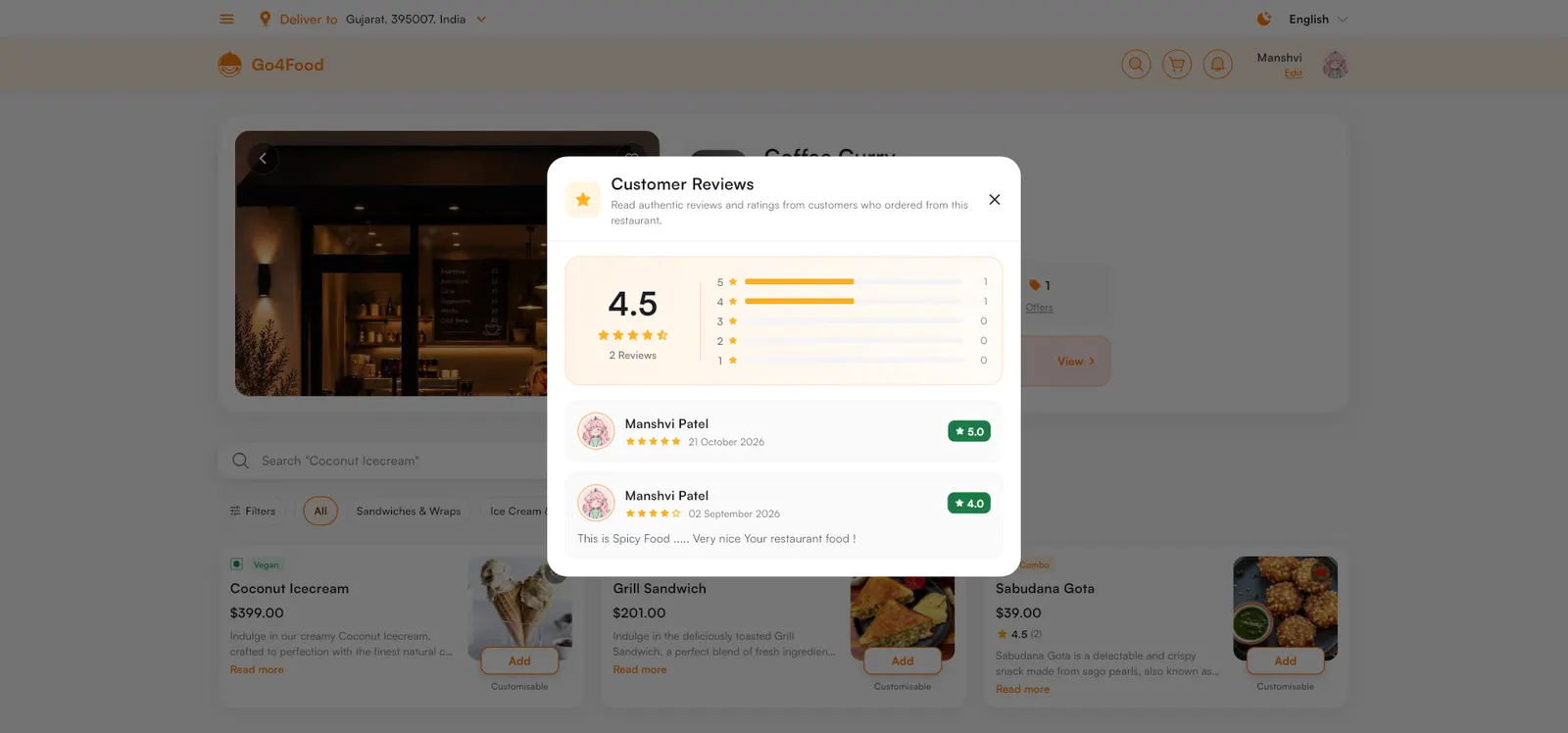

Cart and orders#


Account pages#


Help and support#


Partner links in the footer#
The footer has For Restaurants and For Delivery Partners links. Apps For You shows Google Play and App Store buttons for the partner apps. Under For Delivery Partners, Partner With Us opens Become a Delivery Partner: name, city, phone, optional email, vehicle type and a message. Submit Request saves it as a request you review in the admin panel (Delivery Partner Requests).

