

Owners, Restaurants & Join Requests
Manage restaurant owners and their restaurants, set a custom commission, top up wallets, and approve new owners by reviewing their documents.
In Go4Food an owner is the person who signs in to the restaurant app or web panel. Each owner has one or more restaurants. New owners who sign up appear under New Restaurant Join Request until you check their documents.
Restaurant ManagementOwnerOwners#
Open Owner in the side menu.

- The table shows Profile Image, Name, Email, Phone Number, Created At, Status, Verification Status and Action.
- Status switches the owner's account on or off.
- Verification Status is Verified, Not Verified (documents waiting for review) or Document Not Uploaded.
- Filter by date (All, Last Month, Last 6 Months, Last Year, Custom), and search by Name, Phone or Email.
- Click + Add Owner to create an owner yourself: profile image, First Name, Last Name, Email, Password and Phone Number.
- The download button gives an Owner Statement Download for a time range.
- Actions: eye (details), pencil (Edit Owner) and bin (delete).
Owner details#
Click the eye icon on an owner.
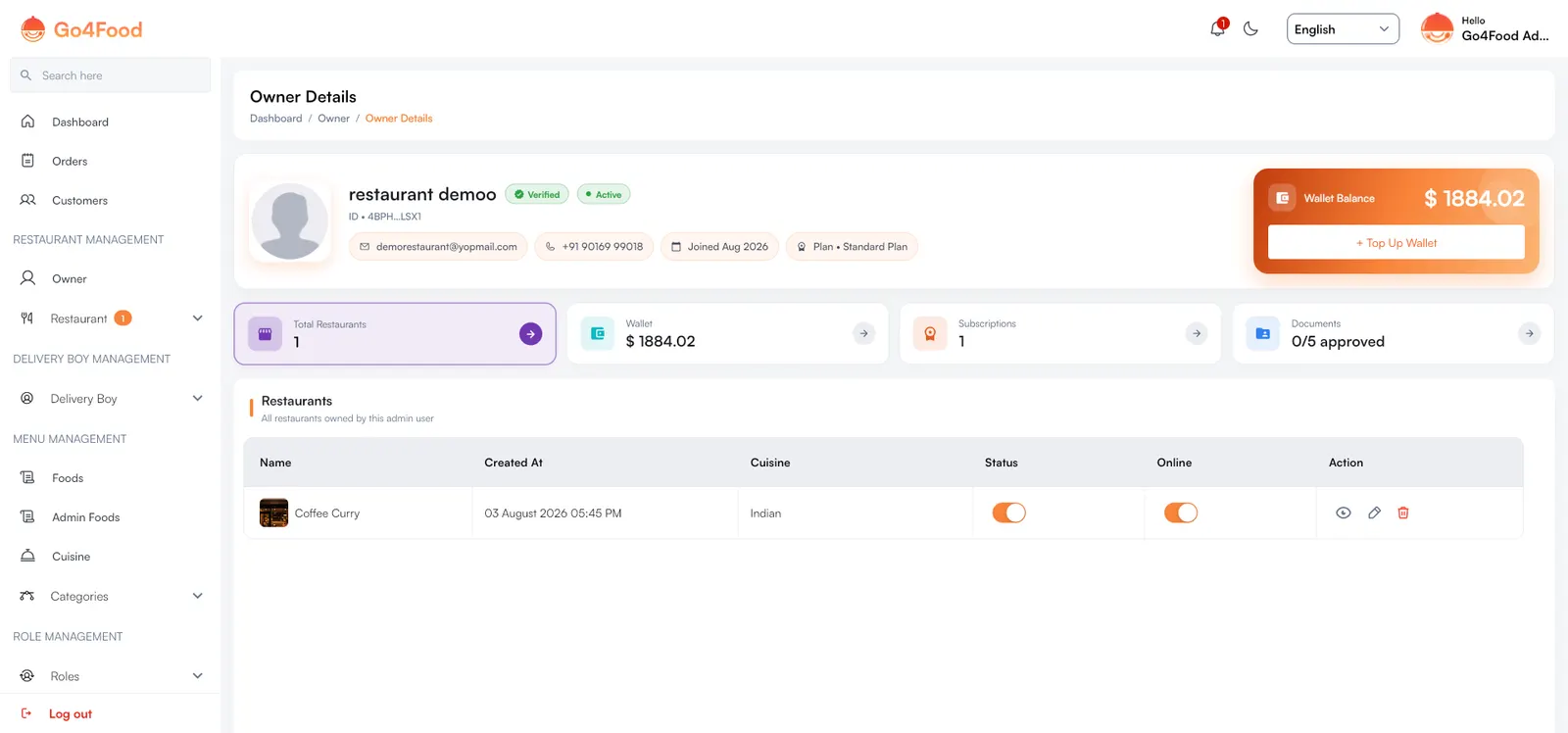
The top card shows the owner's name, Verified and Active badges, email, phone, join date and current subscription plan. The orange card shows the Wallet Balance. Click + Top Up Wallet to add money to it.
Click a card below to change the table:
| Card | Table |
|---|---|
| Total Restaurants | Restaurants owned by this owner, with status, online switch and actions |
| Wallet | Wallet Transaction: every credit and debit |
| Subscriptions | Subscription History: every plan this owner bought |
| Documents | The owner's documents and their review status (Approved, Rejected or Pending) |
Restaurants#
RestaurantRestaurant
- 1Search restaurants by vendor name or registered email.
- 2Statement download button for filtered revenue reports.
- 3Add Restaurant button to onboard a new kitchen.
- 4Restaurant title, owner account, and cuisine badges.
- 5Admin commission percentage and live online availability switch.
- 6Action controls to view profile, edit details, or remove store.
- The table shows Name, Owner Name, Cuisine, Admin Commission, Created At, Status, Online and Action.
- Status switches the restaurant on or off. Online shows whether it is open for orders now.
- Search by name or email, filter by date, and download a Restaurant Statement Download.
- Click + Add Restaurant to create one for an existing owner. Add the owner first: you will see "No owner found, Please add owner first" if there is none. The owner cannot be changed later.
A new restaurant needs the owner, Restaurant Name, Cuisine, Restaurant Type (Veg, Non veg or Both), Restaurant Address, Restaurant Logo, Cover Image, Opening Hours and Closing Hours, and an optional Packaging Fee.
Custom commission for one restaurant#
The Admin Commission column shows the commission this restaurant pays. Default means it uses the commission from Commission, fees & payments. Click the pencil next to it to open Edit Admin Commission:
- Turn on Custom Admin Commission to give this restaurant its own commission.
- Choose the Commission Type (Percentage or Fix) and enter the amount.
- When the switch is off, the default commission from Settings applies.
Restaurant details#
Click the eye icon on a restaurant.

The top shows the cover, logo, name, Open/Closed badge, rating, cuisine, Veg/Non veg type, owner, address and join date. Opening Hours lists each day, with today highlighted.
Click a card to change the table below:
| Card | Table |
|---|---|
| Total Orders | All orders of this restaurant, with date and status filters and a download |
| Items | The restaurant's menu. You can add or edit dishes here. |
| Reviews | Customer reviews of the restaurant |
| Wallet | Wallet credits and debits, with Top Up |
| Documents | The owner's documents and their review status |
New restaurant join requests#
When an owner signs up and uploads documents, they wait here for you. The number badge next to Restaurant in the side menu shows how many are waiting.
RestaurantNew Restaurant Join Request
- 1Search bar for finding specific applicant owners.
- 2Owner name and registration email.
- 3Verification documents progress counter (e.g. 0 / 5 approved).
- 4Current applicant account status indicator.
- 5Review button to inspect uploaded legal docs and accept/reject.
The Pending Join Requests table shows the Owner Name, Owner Email, how many Documents are approved (for example "0 / 5 approved"), the Account status and a Review button.
Open the request#
Click Review. The dialog lists every document the owner uploaded and the answers to any questions (text, dropdown or radio fields).
Check each document#
Click Approve on each document that is correct. Click Reject on any that is wrong and enter the Reason for rejection; the owner sees this reason. You can switch a document between approved and rejected until you save. Verify All approves every document at once.
Verify the account#
Turn on Account verified. This only works when every document is approved: otherwise you see "Please approve all documents before verifying the account."
Save#
Click Save. Nothing is stored until you do. The owner gets a notification for each approved or rejected document, and can re-upload a rejected one.
Which documents are asked for
The list of documents (and whether owners must upload them at all) comes from Documents and Vendor Document Verification in Restaurant Settings. See Documents & verification.