

Reasons, Tags, Rewards & More
The remaining Settings pages: lists the apps show to users, the reward points programme, the bank form for payouts, and your contact and store links.
These pages all sit in the Settings list. Most are simple lists: click + Add, type the text in the Default tab and any language tabs, and save. The setup tool fills each with sensible examples, so you only need to review them.
Cancelling Reason#
SettingsCancelling Reason holds the reasons a customer can pick when cancelling an order, such as Item Unavailability or Payment Issues. Click + Add Reason, type the Reason (with translations) and Save. Edit or delete reasons from the list.
Driver Reason#
SettingsDriver Reason holds the reasons a driver can pick when rejecting an order offer, such as Vehicle issues or Busy Schedule. It works exactly like Cancelling Reason.
Help & Support#
SettingsHelp & Support holds the topics users choose from when they open a support ticket in their app.

| Field | What it does |
|---|---|
| Title | The topic name, for example Late Delivery Issue. Translatable. |
| Description | A short explanation shown with the topic. Translatable. |
| User Type | Which app lists the topic: Customer, Driver or Vendor. |
| Allow Image Upload | Lets the user attach photos to a ticket on this topic (useful for Wrong Item Received). |
The tickets themselves are answered from Support Ticket; see Support tickets.
Item Tags#
SettingsItem Tags is the list of labels restaurants can put on menu items, such as New, Popular, Spicy or Bestseller. Restaurants pick tags when they add or edit an item, and customers see them on the item. Click + Add Item Tag, type the Item Tag with translations, and save.
Reward Settings#
Customers earn points for each completed order and turn them into wallet money. Open SettingsReward Settings.

| Setting | What it does |
|---|---|
| Points Per Order | Points the customer earns when an order is delivered. Example 200. |
| Conversion Rate | How many points equal one unit of your currency. Example 50 means 50 points = 1. |
| Minimum Redemption Points | The customer needs at least this many points before redeeming them to the wallet. |
| Minimum Order Amount | Orders below this total earn no points. |
| Status | Inactive turns the reward programme off. |
Customers see their points and redeem them from My Rewards in the Customer app.
Bank Details Form#
Restaurant owners and drivers fill in this form to receive payouts. You decide which fields it has. Open SettingsBank Details Form.
Click + Add Field and set:
| Field | What it does |
|---|---|
| Label and Hint | The field name and the placeholder inside it, with translations. Example: "Account Number". |
| Field Type | Text, Number, Dropdown, Radio Buttons or Checkboxes. The last three need options (+ Add Option). |
| Show for | Restaurant, Driver or Both. |
| Required | Whether the field must be filled. |
| Active | Inactive fields are hidden in the apps. |
Use Move Up and Move Down to change the order; the apps show the fields in this order and pick up changes straight away.
Keep at least one active field for each
If restaurants or drivers have no active bank fields, they cannot add a bank account and so cannot withdraw. The page warns you when this happens. How payouts are paid: Commission, fees & payments.
Contact us#
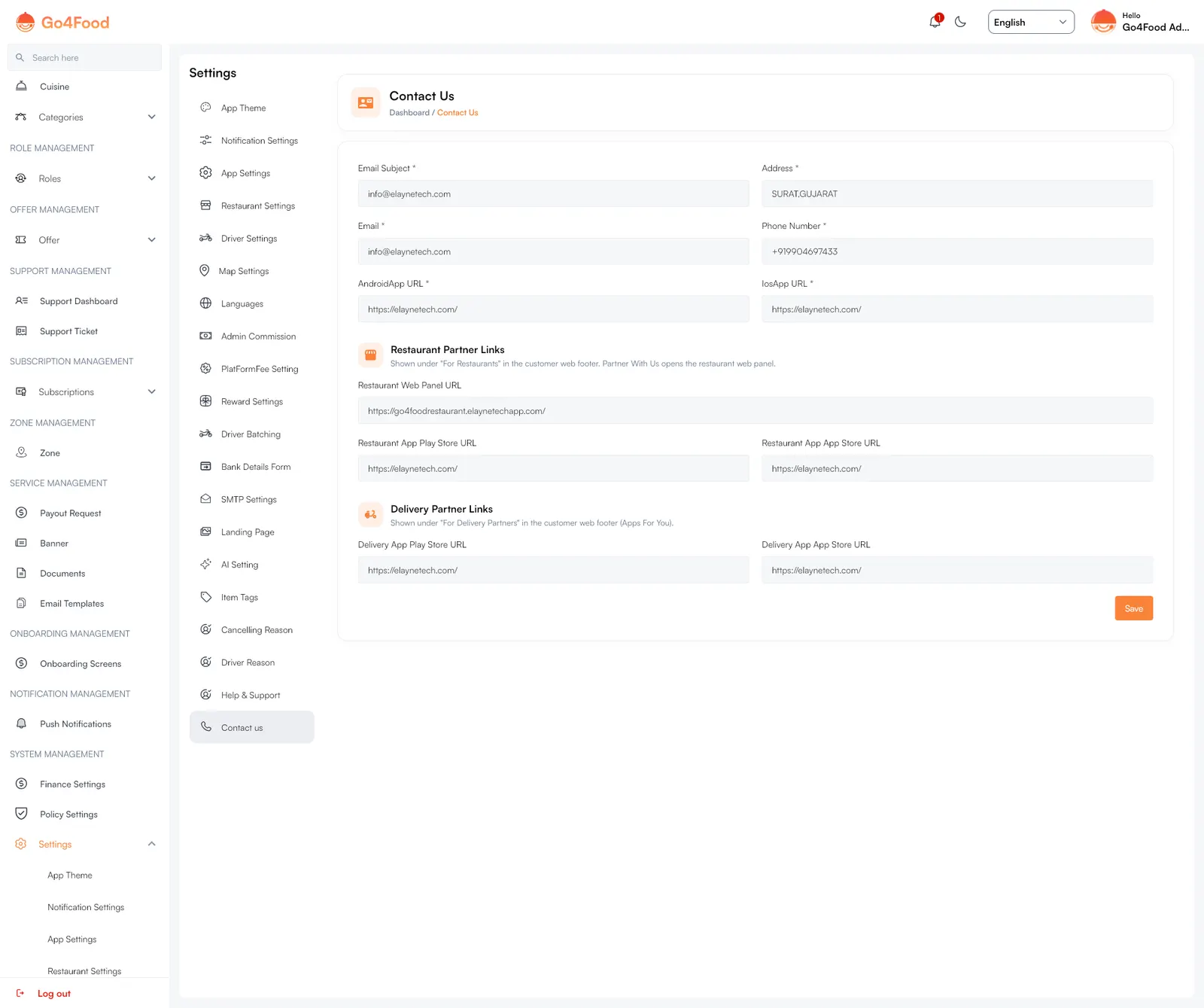
SettingsContact us holds your support contact details and the store links shown to users.
| Setting | What it does |
|---|---|
| Email Subject, Email, Phone Number, Address | Your support contact details, shown on the contact screens. All required. |
| AndroidApp URL, IosApp URL | Store links to your Customer app. Required. |
| Restaurant Web Panel URL | Address of your restaurant web panel. Partner With Us in the customer website footer opens it. |
| Restaurant App Play Store URL, Restaurant App App Store URL | Shown under "For Restaurants" in the customer website footer. |
| Delivery App Play Store URL, Delivery App App Store URL | Shown under "For Delivery Partners" in the customer website footer. |
Fill in the store links once your apps are published; until then you can point them at your landing page.
Related settings on other pages#
- Payment gateways, platform fee and commission: Commission, fees & payments.
- Privacy policy, terms and about text: Policies, onboarding & landing page.
- Languages: Languages & RTL.