

Branding, Logos & Colours
Rebrand every Zipkart app and website from one page: display title, main colour, font and logos. No rebuild needed.
Open SettingsGeneral Settings. The page has one tab per app, so each app can have its own look:
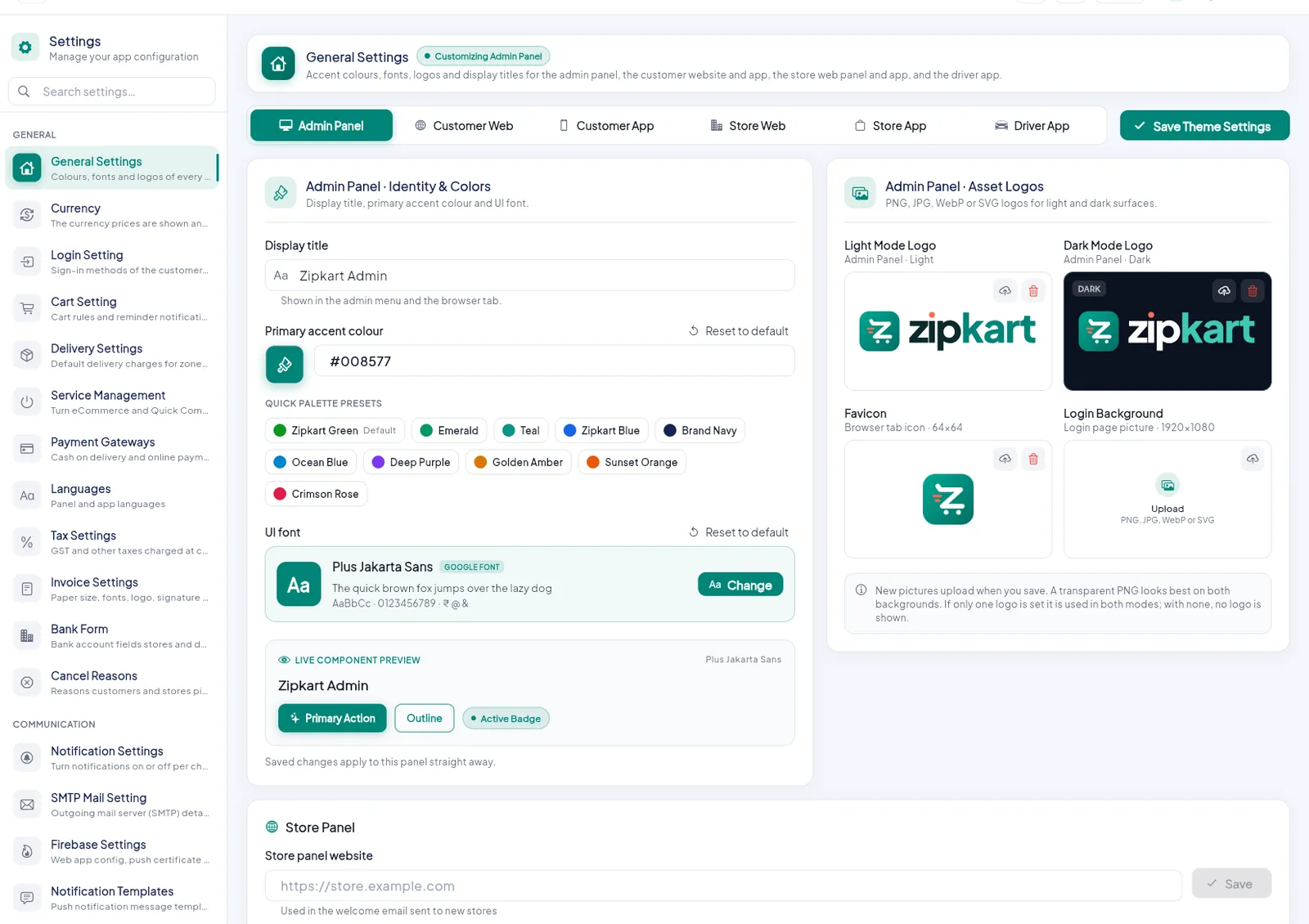
- 1Pick the app you are styling.
- 2Save all tabs together.
- 3Display title: the name in the browser tab or app switcher.
- 4Main colour: type a HEX code, pick one, or choose a preset.
- 5Font: any Google Font from the list.
- 6Logos for light and dark backgrounds.
- 7Favicon (64×64) and login page picture.
- 8Your store panel address, used in emails to new stores.
Identity & colours#
| Field | What it changes |
|---|---|
| Display title | The name in the browser tab (websites) or the phone's app switcher (apps) |
| Primary accent colour | Buttons, highlights and links in that app. Type a HEX code such as #008577, use the colour picker or a Quick palette preset. |
| UI font | The font of that app, from the Google Fonts list |
A live preview below the fields shows the result before you save. Reset to default brings back the Zipkart value for a field.
Logos#
| Picture | Shown on | Size |
|---|---|---|
| Light Mode Logo | Light backgrounds | Transparent PNG or SVG works best |
| Dark Mode Logo | Dark backgrounds | Transparent PNG or SVG |
| Favicon | Browser tab (Admin Panel, Customer Web and Store Web tabs) | 64 × 64 px |
| Login Background | The admin panel login page | 1920 × 1080 px |
- PNG, JPG, WebP and SVG are accepted.
- Upload only one logo and it is used in both light and dark mode.
- New pictures upload when you click Save Theme Settings.
Save#
Click Save Theme Settings. All six tabs are saved together. The admin panel changes at once; the websites and apps use the new look the next time they open.
Store panel address#
At the bottom of the page, the Store Panel card holds your Store panel website, for example https://store.yourdomain.com. New stores get a welcome email that links to it. Fill it in after you deploy the store panel.
What still needs a rebuild
The launcher icon and the name under the icon on a phone are part of the app build: see App Name & Icon. Everything on this page is live.