

First-Time Setup
Fill in these settings once, in this order, before you take real orders. Each one is a page in the admin panel. No code and no database editing.
Step 3 in order
First create your super admin (3.1). Then fill in the settings below, one page each, in this order (3.2 to 3.13). No code and no database editing.
Every setting lives under Settings at the bottom of the side menu. The settings page has its own menu and a search box, so you can jump to any of them.
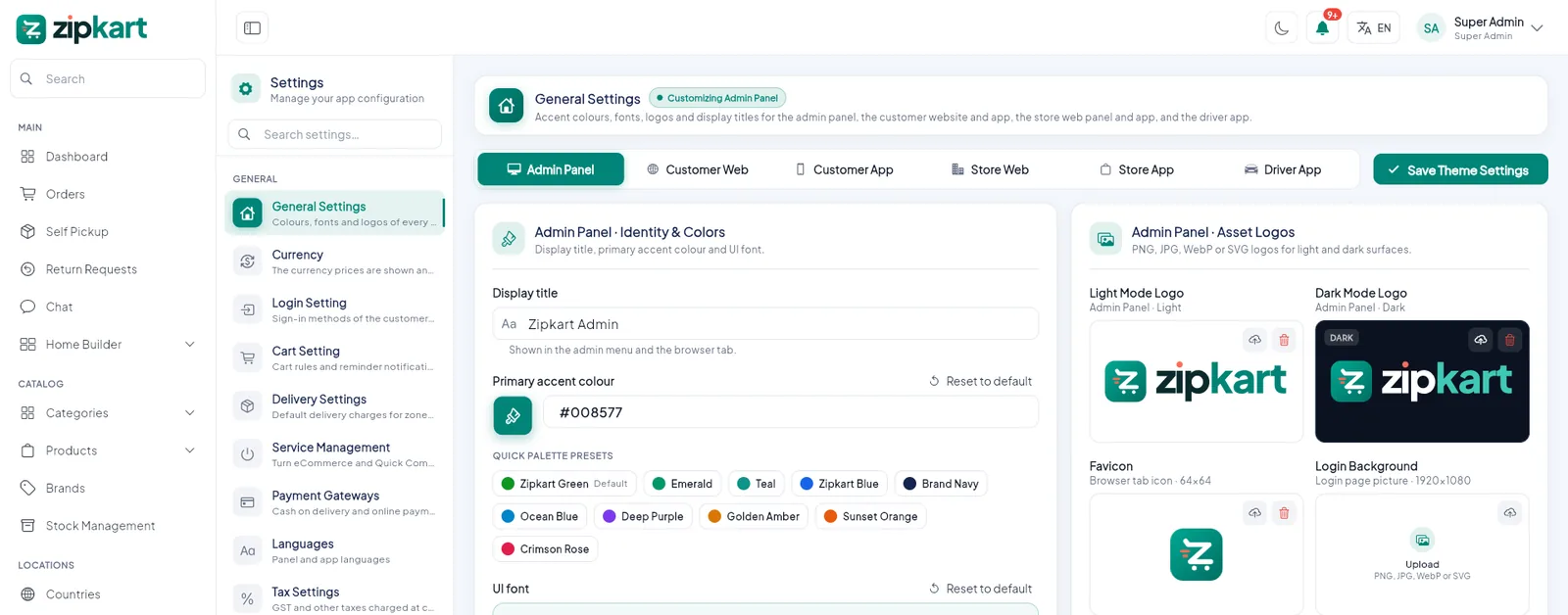
- 1Search the settings by name.
- 2Each item opens one settings page.
- 3The page you picked opens here.
Do these in order#
Do not skip a step
A missing zone, store, currency or payment setting is the most common reason an app shows no products or cannot check out. Tick each one in the Setup checklist.
Your catalogue and home screen come with example data. Replace them with your own using the User guide before you launch.
All settings at a glance#
| Settings page | What you set there | Guide |
|---|---|---|
| General Settings | Display title, colour, font and logos for the admin panel, customer website, customer app, store website, store app and driver app. Store panel address. | Branding |
| Currency | Your currencies, symbol and position, the one in use | Currency |
| Login Setting | Sign-in methods for the customer app and the driver app | Login Methods |
| Cart Setting | Abandoned-cart reminders | Services & Delivery |
| Delivery Settings | Default delivery charges, distance unit, admin commission | Services & Delivery |
| Service Management | Quick Commerce and eCommerce on or off | Services & Delivery |
| Payment Gateways | COD, wallet top-up, 10 online gateways, sandbox or live | Payment Gateways |
| Languages | Languages, translations, right-to-left | Languages & RTL |
| Tax Settings, Invoice Settings, Bank Form | Taxes, invoice layout, payout bank fields | Taxes & Invoice |
| Cancel Reasons | Reasons customers and stores choose when cancelling | Content Pages |
| Notification Settings, Notification Templates, Email Templates | Which messages go out and their texts | Notification Templates |
| SMTP Mail Setting | Outgoing email server | Email & SMTP |
| Firebase Settings | Web push keys | Push Setup |
| Social Media, About Us, Contact Us, Policies | Links and pages shown in the apps and website | Content Pages |
| Maintenance Mode | Pause any app with a message | Maintenance Mode |
| Third Party API Credentials | Map provider and Google Maps key | Maps & API Credentials |
Changes go live at once
Settings are saved to your Firebase project and the apps and websites pick them up straight away, or the next time they open. There is nothing to rebuild.