

Bulk Upload & Bulk Update
Add hundreds of products from an Excel file, or change prices and stock for many products at once.
Bulk upload (new products)#
Open CatalogProductsBulk Upload.
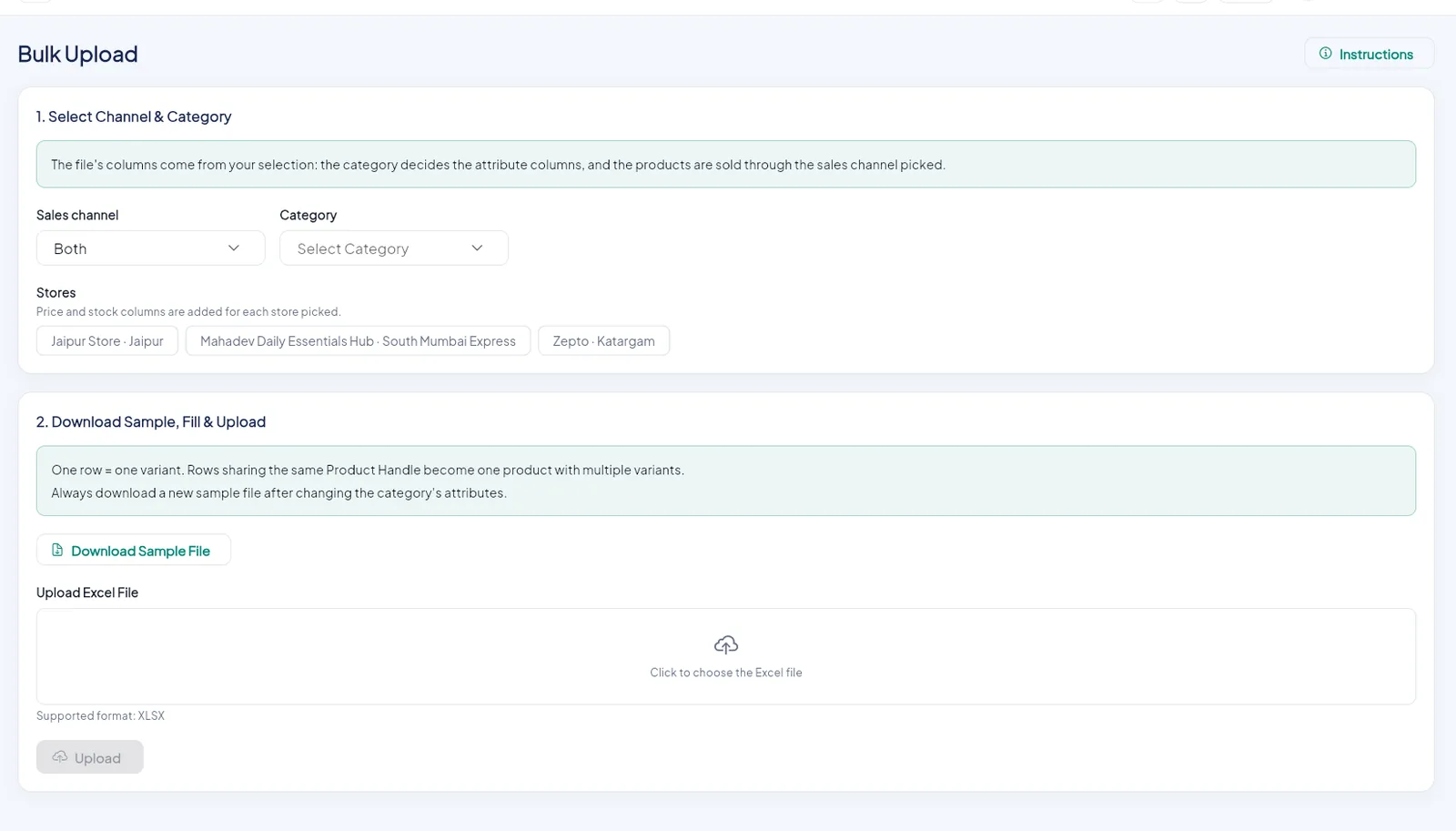
- 1Instructions.
- 2Pick the sales channel and the category.
- 3Pick the stores (a price and stock column is added for each).
- 4Download the sample file.
- 5Upload the filled-in file.
- 6Upload.
Choose the channel, category and stores#
The category decides which attribute columns the file has. The stores you pick each get a price and a stock column.
Download the sample file#
Click Download Sample File. It is an Excel file with the right columns for your choice.
Fill it in#
One row is one variant. Rows that share the same Product Handle become one product with several variants. Fill in names, descriptions, image links, attributes, and price and stock per store.
Upload#
Drop the file on the upload box and click Upload. Zipkart checks every row and tells you which ones have a problem.
Download a new sample after changing the category
Each category has its own attribute columns. A sample from another category will not match.
Bulk update (existing products)#
Open CatalogProductsBulk Update.

Choose what to download#
Pick a sales channel and a category, or all products.
Download products for update#
Click Download Products For Update to get an Excel file of the matching products with their current prices and stock.
Edit and upload#
Change only the cells you want, keep the Product ID and Variant ID columns as they are, upload the file and click Update.
Merge-only
Bulk update only changes the cells you filled in. Products and variants that are not in the file are never touched or deleted.