

Blaze Plan & Storage
Upgrade the project to the pay-as-you-go Blaze plan, then turn on Storage for pictures and files.
Zipkart needs the Blaze plan: Cloud Functions, Storage and phone sign-in do not run on the free Spark plan. Blaze still includes Firebase's free monthly usage, so a small shop often pays little. See Third-Party Services & Costs.
Open Storage#
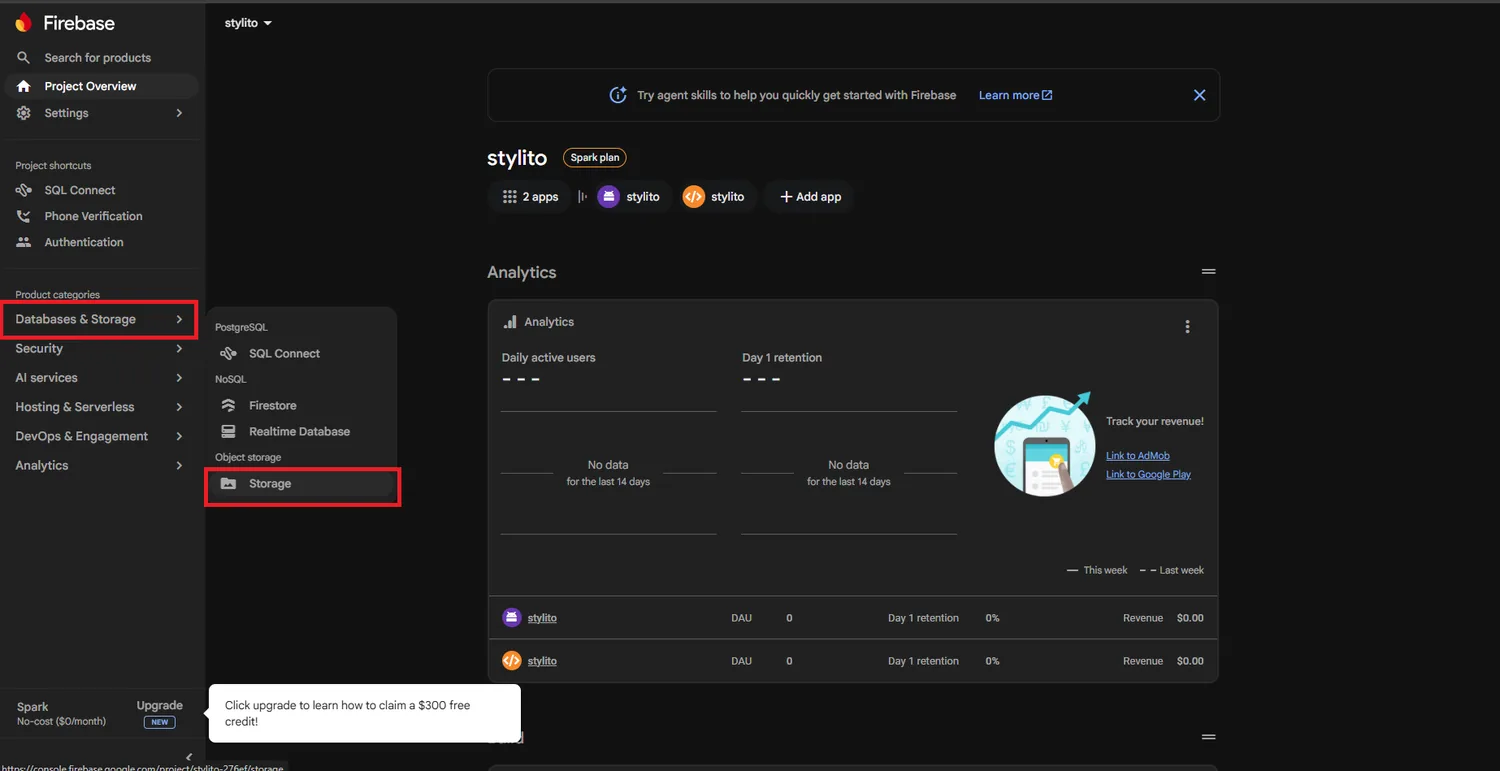
In the left menu, open Databases & Storage and click Storage.
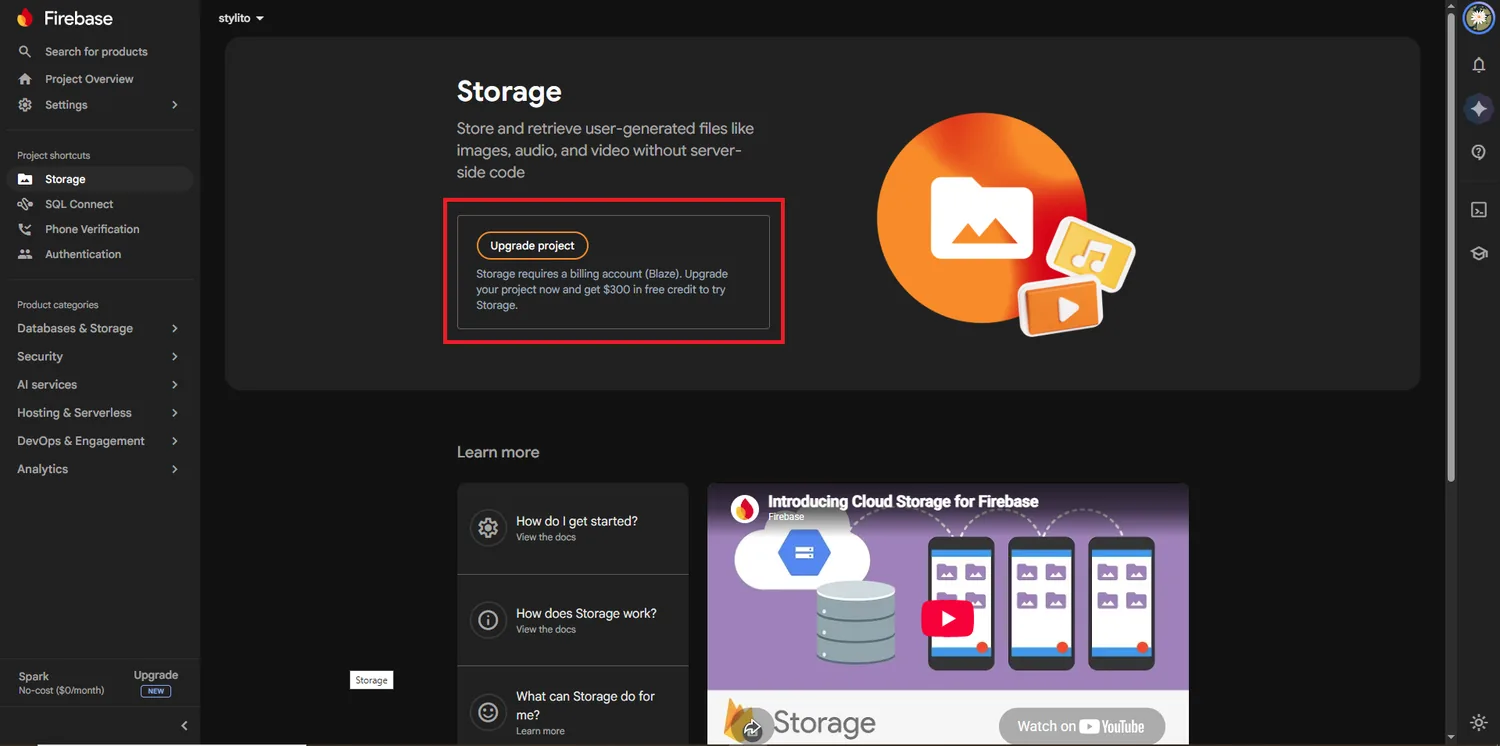
Upgrade the project#
A new project has no Storage until it is upgraded. Click Upgrade project.
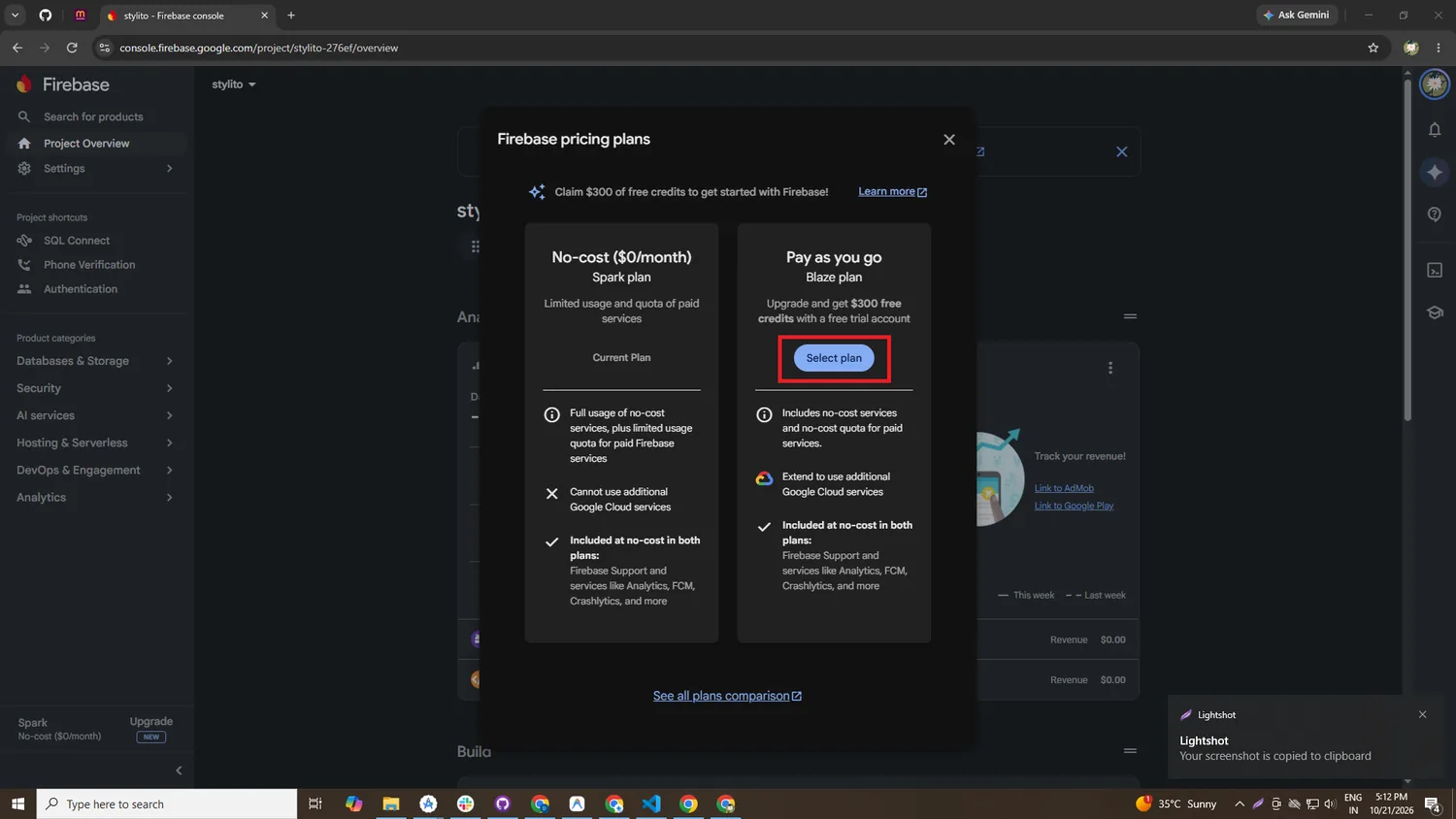
Choose the Blaze plan#
Under Pay as you go (Blaze plan) click Select plan, then link or create a billing account. New Google Cloud accounts usually get free credit.
Get started with Storage#
Back on the Storage page, click Get started. Choose Start in production mode and click Next. Zipkart's own Storage rules replace the default rules when you run the setup tool.
Pick the location#
Choose the bucket location and click Done. A US location such as US-CENTRAL1 is in the free tier and next to Zipkart's Cloud Functions.
The location is permanent
The Storage and Firestore locations cannot be changed later. Pick them carefully.
Set a budget alert now
Open SettingsUsage and billing and add a monthly budget (for example 25 USD). Google emails you if costs pass it. It does not stop your shop; it warns you.
Done
Your project is on Blaze and Storage is ready for pictures. Next, create the Firestore database.