

Maps & API Credentials
Use free OpenStreetMap maps, or switch to Google Maps with your own key. One switch changes the maps in every app and website.
Open SettingsThird Party API Credentials.
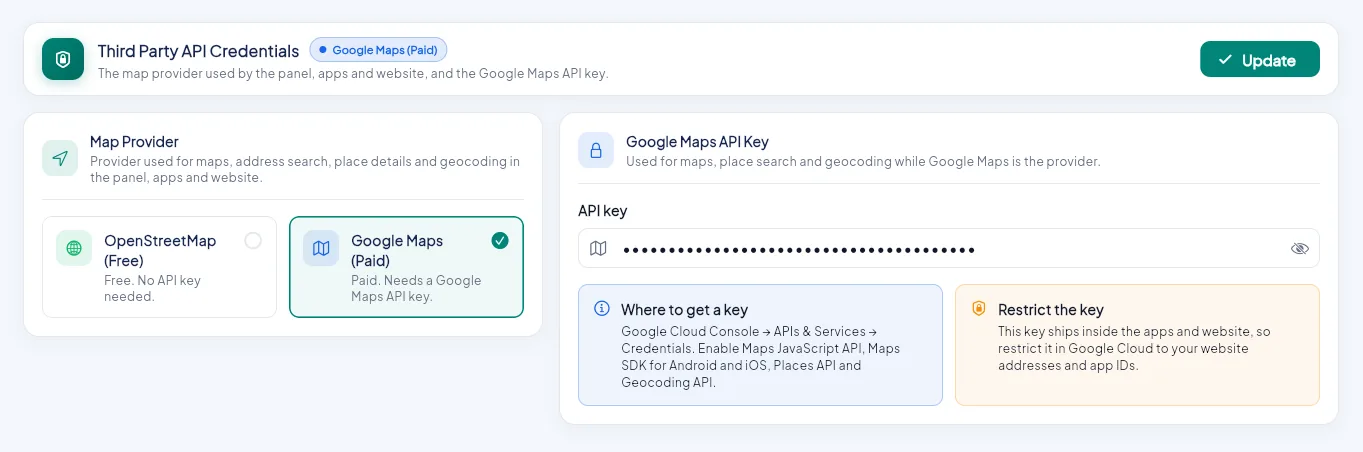
- 1Map provider: OpenStreetMap (free) or Google Maps (paid).
- 2Your Google Maps API key.
- 3Restrict the key in Google Cloud.
- 4Update.
| Provider | Cost | What you need |
|---|---|---|
| OpenStreetMap | Free, with usage limits (below) | Nothing. Maps, address search and routes work without a key. |
| Google Maps | Paid after Google's monthly free amount | A Google Maps API key |
OpenStreetMap: free, with usage limits#
When OpenStreetMap is selected, the apps use three free public services run by volunteers and donations. They are free to use, but each has a fair-use policy, no uptime guarantee, and may block an app that sends too many requests.
| Service | Used for | Main limits (see each policy) |
|---|---|---|
OpenStreetMap tiles (tile.openstreetmap.org) |
The map pictures in every app and website | Moderate use only; no heavy or commercial-scale traffic and no bulk downloading. Apps must identify themselves and show the "© OpenStreetMap contributors" credit. Heavy users can be blocked without notice. |
Nominatim (nominatim.openstreetmap.org) |
Address search and turning a map pin into an address | An absolute maximum of 1 request per second for the whole app, a valid identification, and results cached. Search-as-you-type autocomplete is not allowed on the public server. |
OSRM demo server (router.project-osrm.org) |
The road route line on the tracking map | A demo service: about 1 request per second, no guarantee, not meant for production traffic. |
These limits suit testing and a small shop. For a busy live shop, do one of these before you launch:
- Switch to Google Maps below (paid after Google's monthly free amount), or
- Use a commercial OpenStreetMap provider for tiles, geocoding and routing (for example MapTiler, Stadia Maps, Geoapify or LocationIQ), or run your own tile, Nominatim and OSRM servers. These need a small code change to the service addresses in each app's map files.
The policies change
The limits above summarise the OpenStreetMap Foundation and OSRM policies at the time of writing. Always read the current policy pages linked in the table.
Use Google Maps#
Enable the APIs#
Open the Google Cloud Console, select your Firebase project at the top and open APIs & Services → Library. Enable:
| API | Used for |
|---|---|
| Maps JavaScript API | The map on the admin panel, store panel and customer website |
| Maps SDK for Android, Maps SDK for iOS | The map in the phone apps |
| Places API (New) | Address search while typing |
| Geocoding API | Turning a map pin into a written address |
| Routes API | The road line on the delivery tracking map |
Create the key#
Open APIs & Services → Credentials → Create credentials → API key and copy it (it starts with AIza).
Save it here#
Select Google Maps, paste the key into API key and click Update. The websites switch to Google Maps on their next load.
Add the key to the phone apps#
The native map in the phone apps needs the key inside the app build too. See Google Maps Key. Without it, the phone apps keep showing OpenStreetMap; they never crash.
Protect your key#
- In Google Cloud, open the key and set API restrictions to the APIs above only. Always do this.
- The phone apps call Places, Geocoding and Routes with this key. A website restriction would block them. If the phone apps use Google Maps, keep Application restrictions on None and set a daily quota instead.
- If you use Google Maps on the websites only, restrict the key to your website addresses.
- Add a budget alert in Google Cloud Billing.
Switching back
Select OpenStreetMap and click Update. Your saved key is kept for later.