

Stores & Payouts
Add each store (or dark store) that fulfils orders, give it a login, set its zone, hours and commission, and pay out its earnings.
Zipkart is run by you, the platform owner. Stores do not sign up themselves: you add each store in the admin panel and Zipkart emails it a login for the store app and store panel.
Open LocationsStoresManage Stores.
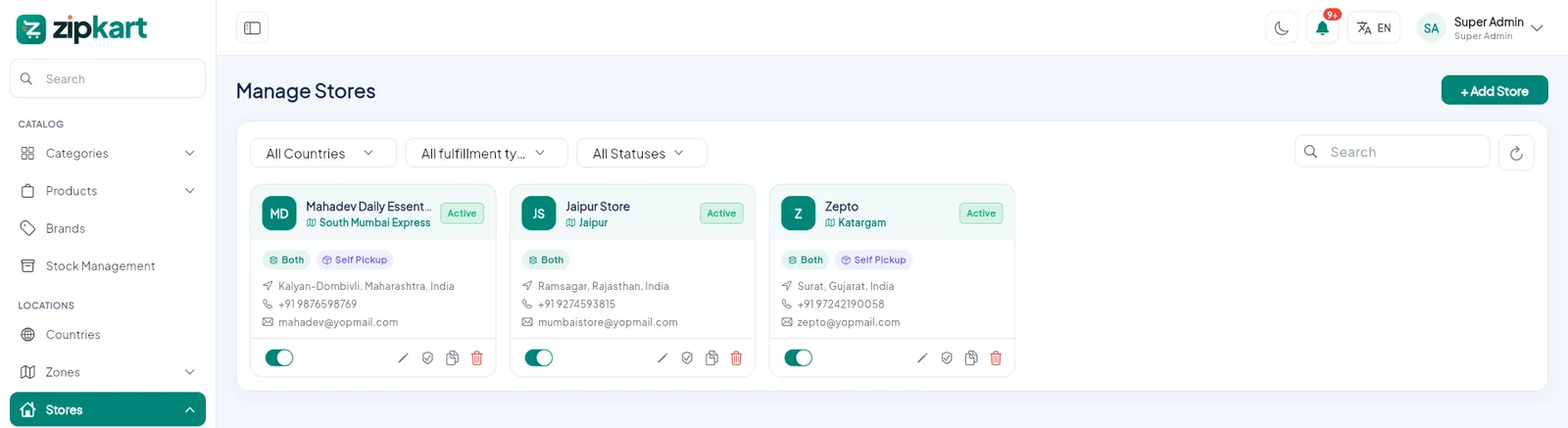
- 1Add a new store.
- 2Filter by country, fulfilment type and status.
- 3Each card: name, zone, fulfilment, address and contact.
- 4Active switch, edit, staff, payouts and delete.
Add a store#
Click + Add Store. The form has four parts.
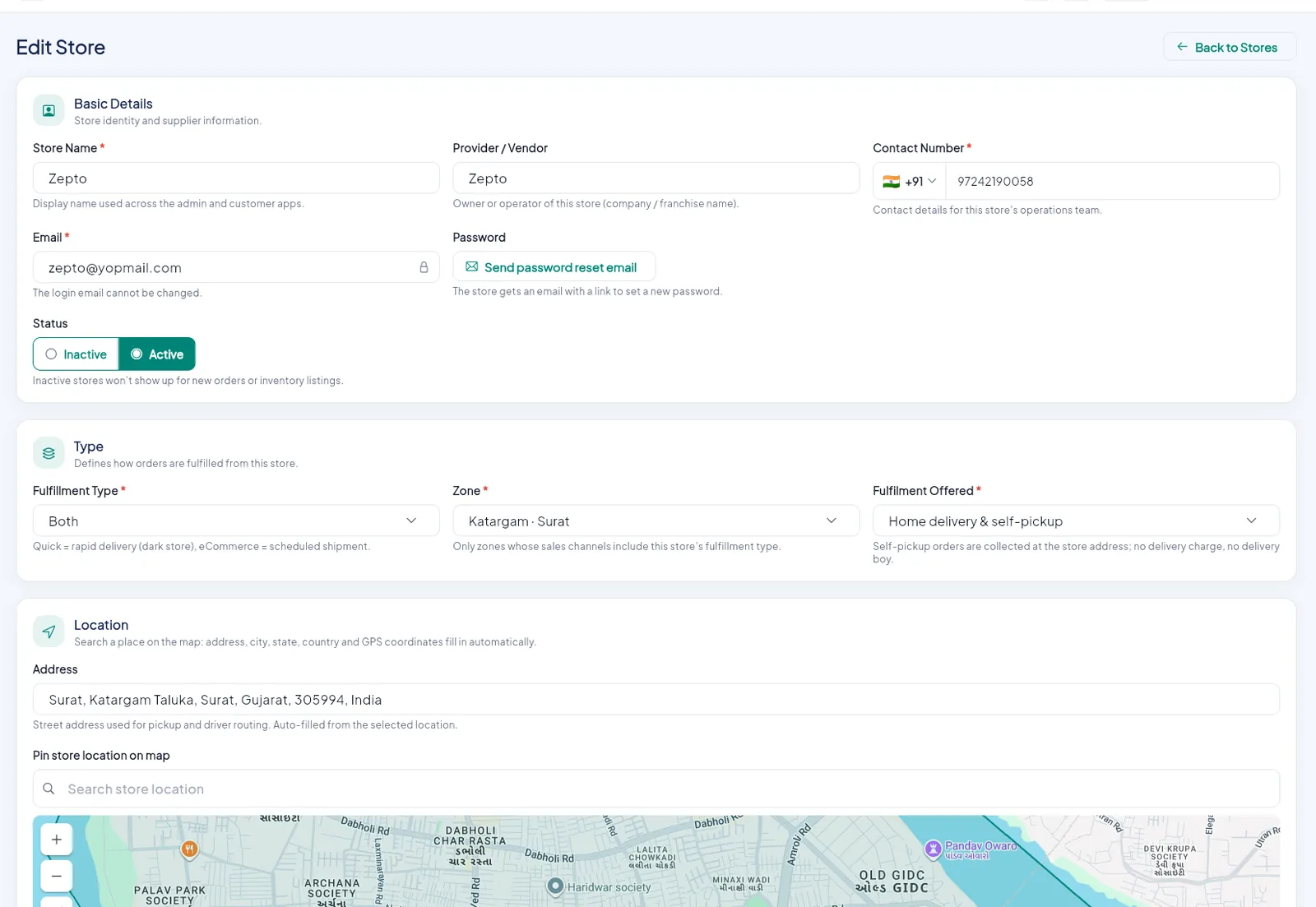
- 1Basic details: store name, vendor, contact and login email.
- 2Send a password reset email to the store.
- 3Active stores take orders; inactive stores are hidden.
- 4Fulfilment type: Quick, eCommerce or Both.
- 5The zone this store serves.
- 6Home delivery, self pickup, or both.
- 7Search the address and pin the exact location.
| Section | Fields |
|---|---|
| Basic details | Store Name, Provider / Vendor, Contact Number, Email (the store's login), Status |
| Type | Fulfilment Type (Quick, eCommerce or Both), Zone, Fulfilment Offered (Home delivery, Self pickup, or both) |
| Location | Address search and the pin on the map. Riders and customers use this point for pickup and distance. |
| Operations | Opening hours per day (with a break), preparation time in minutes, the store's commission %, and which store-panel pages the store may open |
When you save, Zipkart creates the store's login and emails it a link to set its password. Send password reset email sends a new link at any time.
Quick stores and zones
A Quick store must sit inside a Quick zone. Customers in that zone see this store's products, and riders in that zone get its orders.
Self pickup
With Self pickup offered, customers can choose Pick-up at checkout and collect the order at the store with a pickup code. See Orders & Returns.
Store payouts#
Open LocationsStoresStore Payouts to see what each store has earned (sales minus your commission), the payout requests stores send from their app, and the history of what you paid. Mark a request as paid after you send the money. The bank fields the store fills in are set in Bank Form.
