

Run the Setup Tool
One page in your browser deploys the Firestore rules, indexes, Storage rules, the starter data and all 48 Cloud Functions. No commands to type, no database to edit by hand.
Have these ready
- The service account key (
.jsonfile) from Service Account Key. - Node.js 20 or newer on this computer (22 LTS recommended). See Requirements.
- Your Firebase project on the Blaze plan, with Storage and Firestore created in the previous steps.
Where the tool lives#
The tool is the firebase_setup folder in the root of the Zipkart download. Keep it where it is: it finds the functions folder next to it.
Zipkart/
├── admin/              Admin panel (Flutter web)
├── customer/           Customer app + customer website
├── store/              Store app + store panel
├── driver/             Delivery boy app
├── functions/          Cloud Functions (deployed by the tool)
└── firebase_setup/     ← the setup tool
    ├── start.bat       Windows: double-click this
    ├── start.sh        macOS / Linux: run this
    ├── database.json   Starter data (settings, categories, products, zones…)
    ├── firestore.rules, firestore.indexes.json, storage.rules
    └── server.js, index.html
Start the tool#
- Open the
Zipkartfolder, then thefirebase_setupfolder. - Double-click
start(the file of type Windows Batch File). - A black window opens. Leave it open while you work. Your browser opens the setup page by itself.
Open the Terminal app, go into the firebase_setup folder and start the tool. Tip: type cd (with a space) and drag the folder from Finder into the Terminal window.
cd ~/Downloads/Zipkart/firebase_setup
chmod +x start.sh
./start.sh
chmod +x is needed only the first time. Without it macOS answers permission denied.
The first start installs the tool's packages and takes 1–3 minutes. Then the page opens at http://localhost:5050 (or the next free port, shown in the window).
Node.js missing or too old?
The start file checks this for you. If it says Node.js is not installed or is too old, install the LTS version from nodejs.org, close the window and start the tool again.
Deploy in four steps#
Choose your key#
Click Choose the .json file and pick the key you downloaded, or drag the file onto the box. Everything under What to deploy is ticked for you. Leave it that way for a first setup.
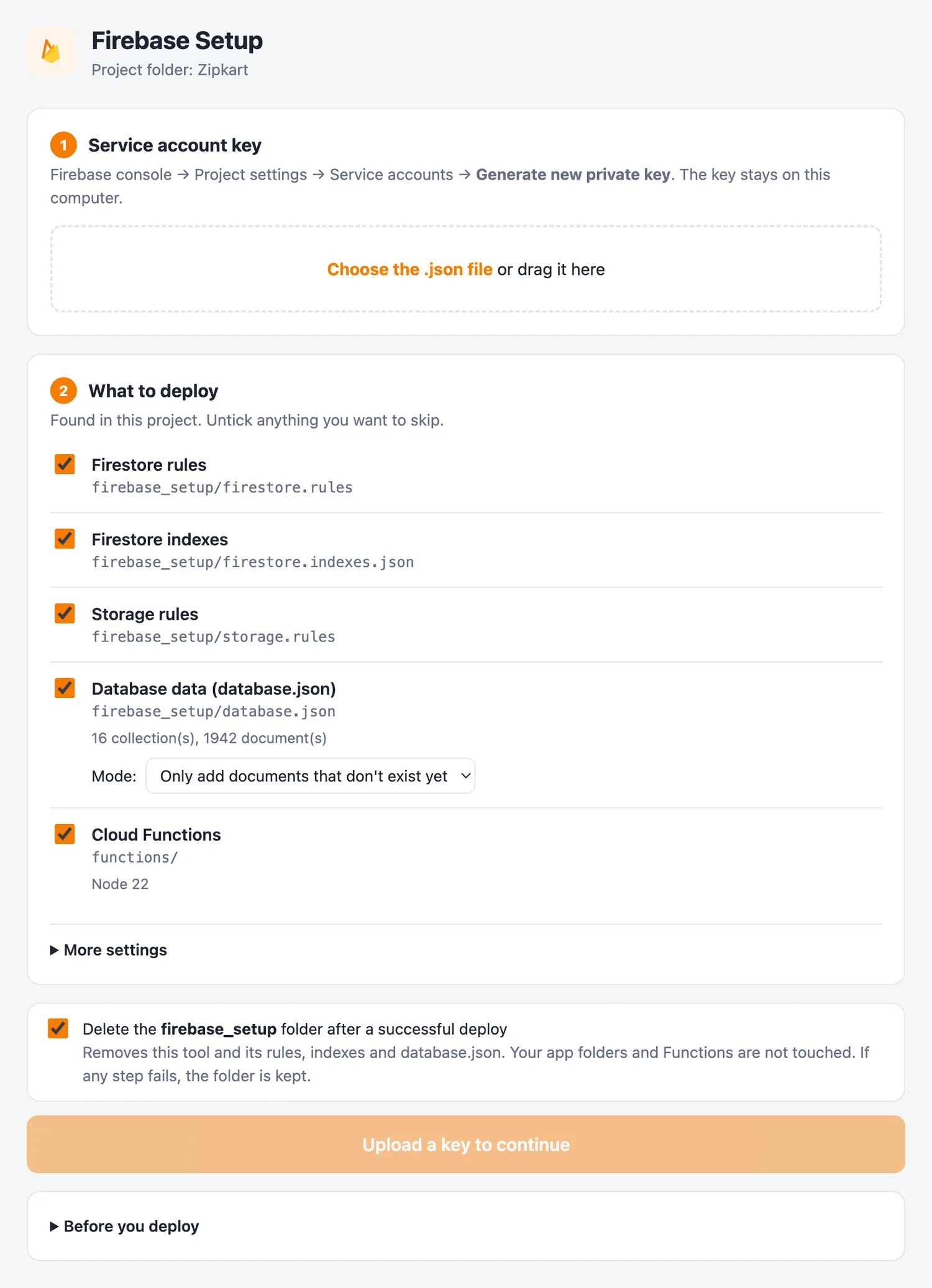
- 1Choose the key you downloaded (or drag it here).
- 2Everything Zipkart needs is found and ticked.
- 3Mode: keep Only add documents that don't exist yet for a first setup.
- 4Removes the tool after a successful deploy (recommended).
- 5Becomes Deploy to your-project-id once a key is loaded.
Fix “Not allowed yet” with one click#
The tool checks what your key may do. A key downloaded from Firebase can deploy rules and data, but not indexes or Cloud Functions. That is normal. If you own the project, click Sign in with Google and sign in with the Google account that created the Firebase project. Those two parts then deploy with your own account. Nothing changes in Google Cloud.
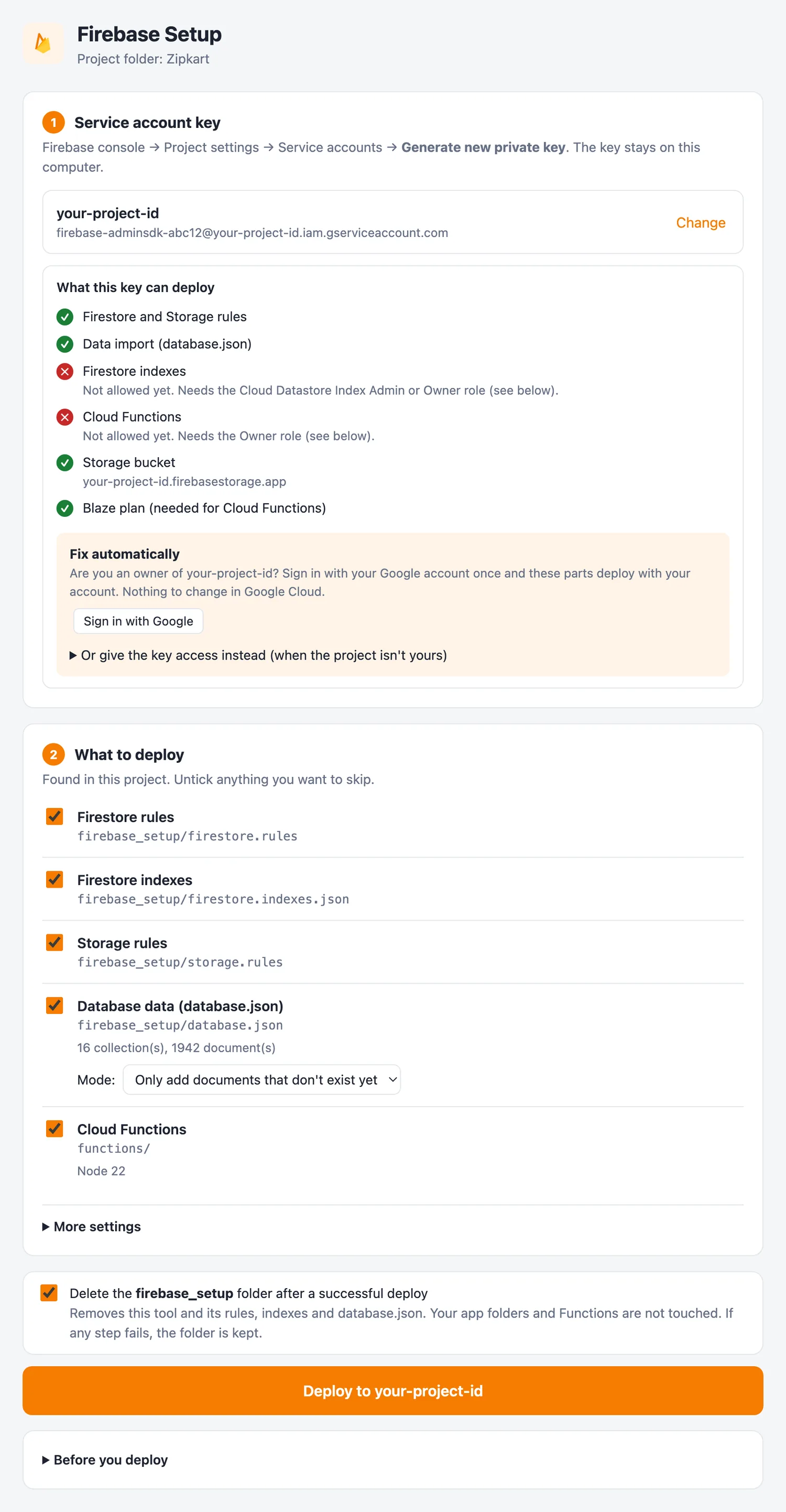
- 1Red crosses: parts this key cannot deploy yet.
- 2Click Sign in with Google and use the project owner's account.
- 3Not your project? Open this and give the key the role it shows instead.
- 4Deploy is still possible, but the red parts would fail.
Already used the Firebase CLI on this computer?
If you once ran firebase login with the owner's account, the tool uses that sign-in automatically and the crosses turn green by themselves.
Check that everything is green#
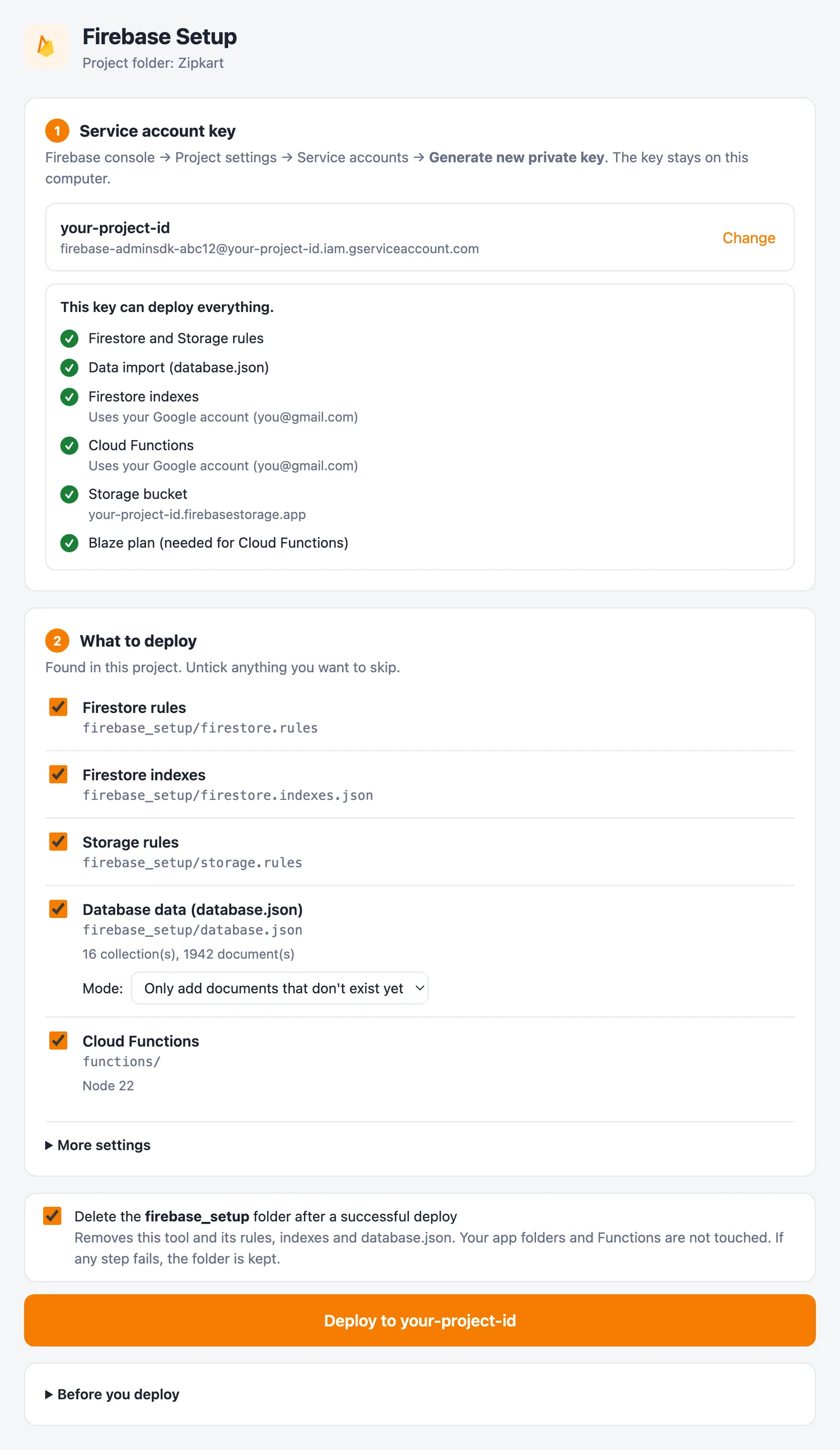
After you sign in, the box says This key can deploy everything. Indexes and Cloud Functions now show Uses your Google account. The Storage bucket and the Blaze plan must be green too. If one is red, the text next to it tells you what to do and links to the right Firebase page.
Deploy#
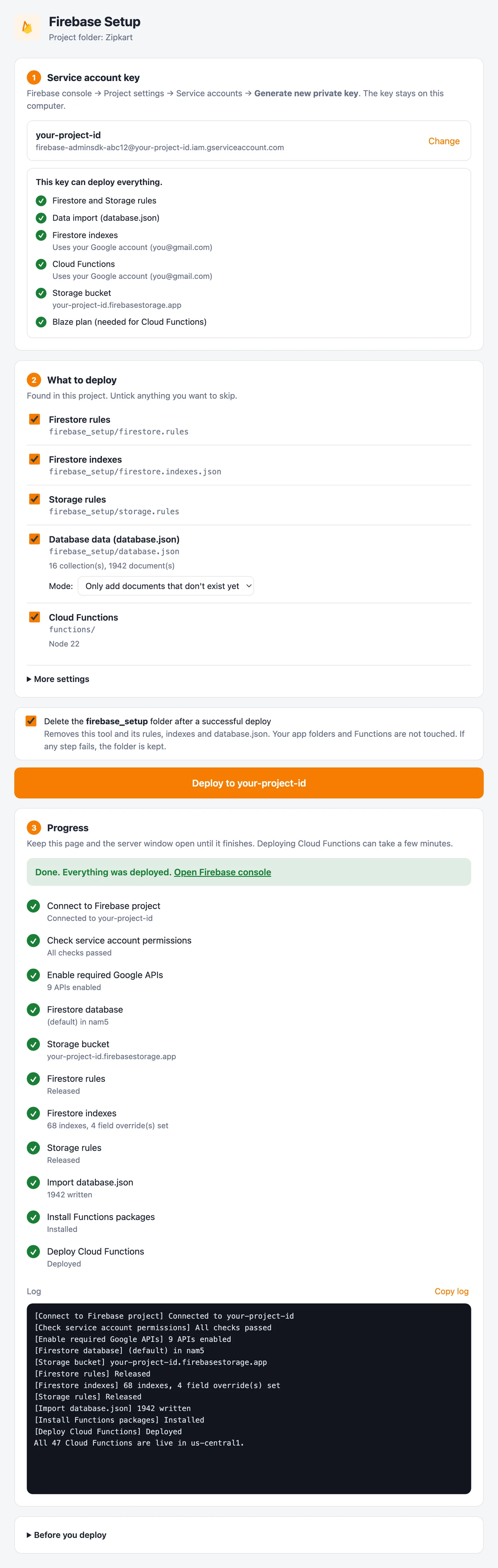
Click Deploy to your-project-id. Keep the page and the black window open. Each line turns green as it finishes. The first deploy takes 10–20 minutes, mostly for creating the 48 Cloud Functions.
Done
When the page says Done. Everything was deployed., your backend is live: security rules, 95 indexes, Storage rules, the starter shop data and all Cloud Functions. If Delete the firebase_setup folder was ticked, the folder removes itself and the page closes.
What the tool deploys#
| Part | What it is | Why Zipkart needs it |
|---|---|---|
| Firestore rules | firestore.rules |
Decides who may read and write each piece of data. Default deny. |
| Firestore indexes | firestore.indexes.json (95 indexes) |
Makes the order, product and report lists load fast. |
| Storage rules | storage.rules |
Protects uploaded pictures, documents and return photos. |
| Database data | database.json (16 collections, about 1,900 documents) |
A ready shop: settings, categories, brands, attributes, products, stores, zones, home layouts, languages, taxes, currencies and pages. |
| Cloud Functions | the functions folder (Node 22) |
Checkout, payments, wallets, refunds, rider dispatch, notifications and emails. |
| Google APIs | turned on for you | Firebase Rules, Firestore, Storage, Cloud Functions, Cloud Build, Artifact Registry, Cloud Run, Eventarc and Pub/Sub. |
The options explained#
Mode (database data)#
| Option | What it does | Use it when |
|---|---|---|
| Only add documents that don't exist yet (default) | Adds the starter data. Anything already in your database is left alone. | First setup, and every re-run. |
| Merge into existing documents | Adds new fields from the file and keeps your own values. | A new Zipkart version brings new settings. |
| Overwrite existing documents | Replaces documents with the file's version. | Resetting a test project. Never on a live shop. |
More settings#
| Setting | Meaning |
|---|---|
| Firestore location | Used only if the project has no Firestore database yet. Choose the region closest to your customers. It cannot be changed later. |
| Storage bucket location | Used only if the project has no Storage bucket yet. US regions are in the free tier. |
| Delete functions that are in Firebase but not in the Functions folder | Leave this off unless you removed functions on purpose. |
Delete the firebase_setup folder after a successful deploy#
Ticked by default. After a fully successful deploy, the tool deletes its own folder (with the key it used, the rules and database.json). Your app folders and functions are never touched. If any step fails, the folder is kept so you can run it again.
Keep a backup of the original download
Want to run the tool again later, for example after an upgrade? Keep the original Zipkart zip, or untick this option.
Starter data: keep it, change it, or remove it#
The starter data makes every app show a working shop the first time you open it. You manage all of it from the admin panel, so there is no need to touch the database:
- Keep and edit what you like: categories, brands and settings are a good base.
- Replace the sample products, stores and zones with your own from the admin panel pages for Products, Stores and Zones.
- Delete sample products and stores from their admin pages before real customers start ordering.
Running it again is safe#
You can start the tool as often as you like. With the default mode, nothing you created is overwritten. Only rules, indexes and functions that changed are updated.
If a step turns red#
| Message in the tool | Fix |
|---|---|
| Not allowed yet. Needs the … role | Click Sign in with Google with the project owner's account, or give the key that role in Google Cloud IAM (the tool shows the exact steps). |
| This project is on the free Spark plan | Upgrade to Blaze: Blaze Plan & Storage. |
| This project has no Storage bucket yet | Open Storage in Firebase and click Get started, then click Check again. |
| Permission denied while using the Eventarc Service Agent | Normal on a brand-new project. Wait 5 minutes and deploy again. |
| Some functions failed, others worked | Click Deploy again. Only what is missing or changed is sent. |
| The functions folder is not found | Put firebase_setup back next to the functions folder. |
| Lost connection to the setup server | The black window was closed. Start the tool again and reload the page. |
| The folder was not deleted | A window was open inside it. Close it and delete the folder yourself. |
More fixes: Troubleshooting.