

Create the Super Admin
The admin panel has no sign-up page. The very first account that signs in to a new project becomes the super admin.
Before you start
Finish Connect the Apps for the admin folder, so the panel talks to your project.
Start the admin panel#
Open a terminal in the admin folder and run it in Chrome. You can also open your deployed panel address instead, see Websites & Hosting.
cd admin
flutter pub get
flutter run -d chrome
Sign in with the email you want as super admin#
The login page opens. Type the email address and password you want for your own account. Use a real email: password reset links go there. The password needs at least 6 characters.
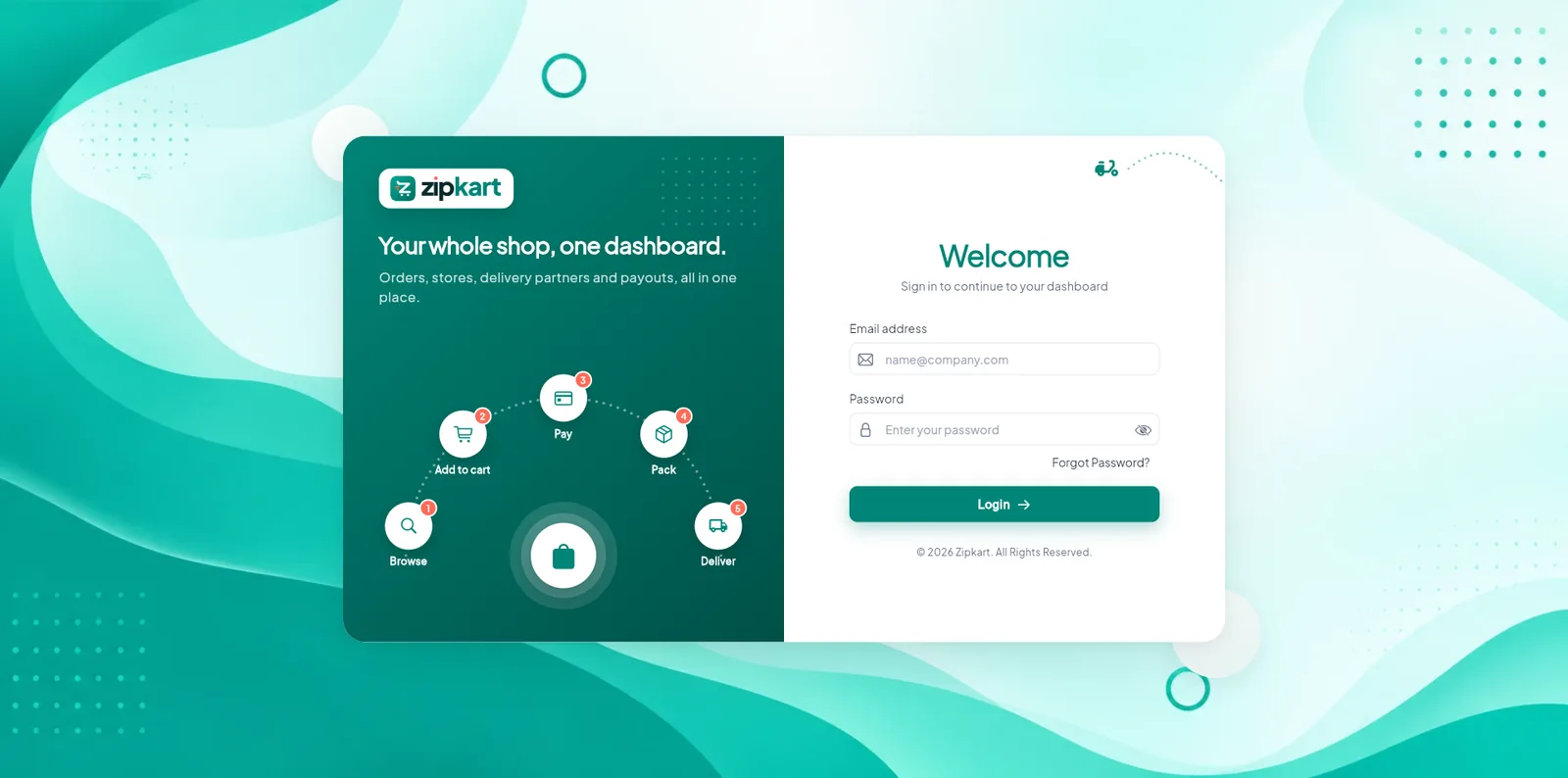
- 1Your email address (use a real one).
- 2Choose a password of 6 or more characters.
- 3Click Login. On a new project this creates the super admin.
You are in#
The panel creates your login, makes it the super admin, shows Super admin created & logged in successfully and opens the Dashboard.
Sign in right after the setup tool
Until the first person signs in, anyone who opens your panel address could become the super admin. Create your account before you share or publish the panel address.
Signing in later#
From now on the login page only accepts accounts that have admin access. Any other email sees This account does not have admin access. Forgot your password? Click Forgot Password? on the login page and follow the email.
If the login fails#
| Message | What to do |
|---|---|
| Email sign-in is not enabled for this project | Turn on Email/Password in Authentication. |
| Firestore is not set up for this project yet | Create the database: Firestore Database. |
| Firestore security rules blocked the admin account | The rules are not deployed. Run the setup tool again. |
| Could not reach the database | Check your internet connection and that the app is connected to the right project. |
| Invalid email or password | The super admin already exists. Use Forgot Password? to reset it. |