

Payment Gateways
Cash on delivery, the customer wallet and ten online gateways. Switch on the ones you want, paste their keys and test them, all from one page.
Open SettingsPayment Gateways.
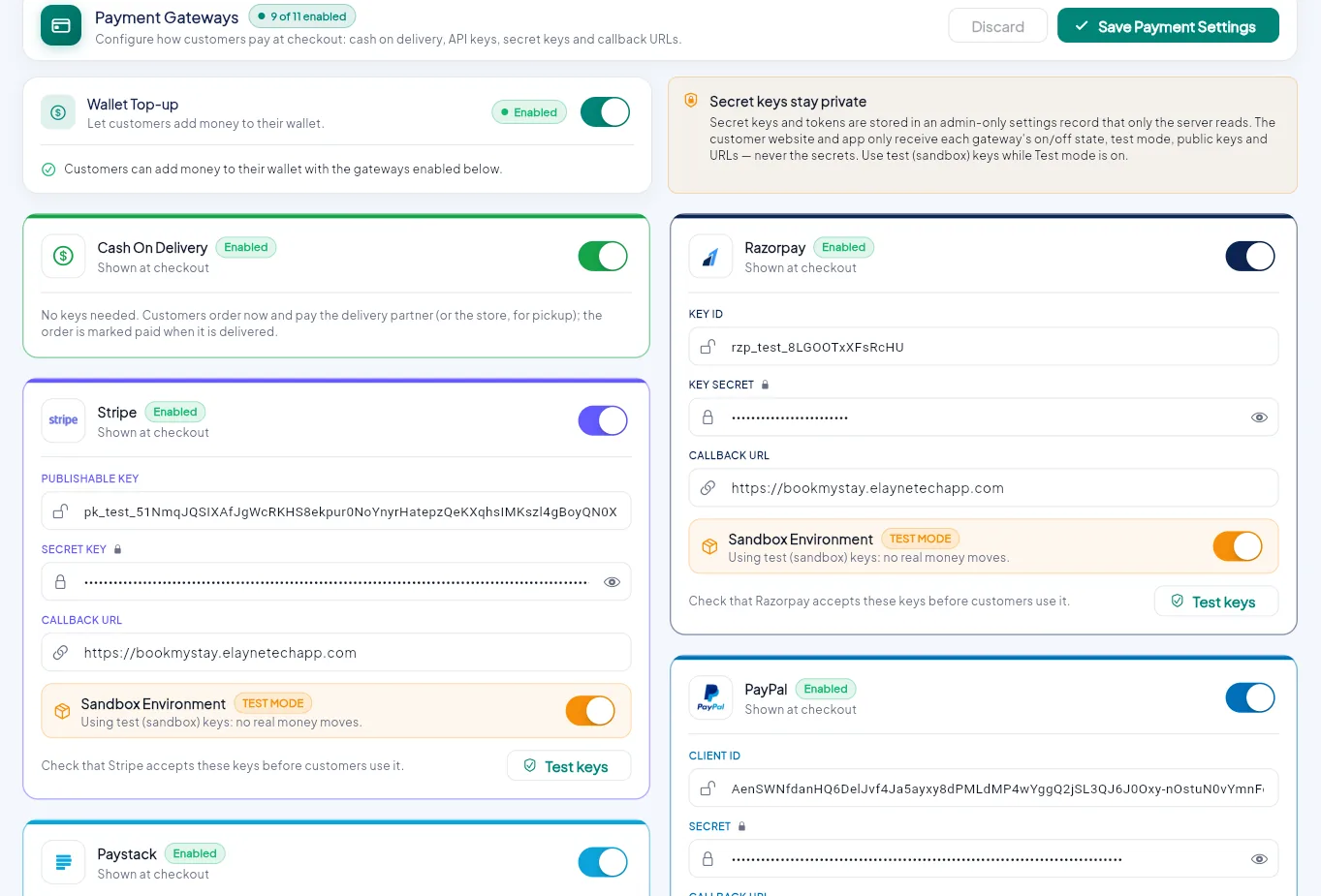
- 1Save Payment Settings (saves every gateway).
- 2Wallet top-up: customers can add money to their wallet.
- 3Secret keys are stored where only the server can read them.
- 4Cash on Delivery on or off.
- 5Turn a gateway on.
- 6Paste its keys.
- 7Callback URL: your customer website address.
- 8Sandbox: test mode with test keys.
- 9Test keys checks the keys with the gateway.
Turn on a gateway#
Open an account with the gateway#
Sign up on the gateway's website and copy its API keys from its dashboard. Start with the test (sandbox) keys.
Switch it on#
Turn on the gateway's switch. Fields in red are required for that gateway.
Paste the keys#
| Gateway | Keys it asks for |
|---|---|
| Stripe | Publishable key, Secret key |
| PayPal | Client ID, Secret |
| Razorpay | Key ID, Key secret |
| Paystack | Secret key |
| Flutterwave | Public key, Secret key |
| Xendit | Secret key |
| Midtrans | Client key, Server key, Merchant ID |
| Mercado Pago | Access token |
| Cashfree | App ID, Secret key |
| PhonePe | Client ID, Client version, Client secret |
Set the Callback URL#
Enter your customer website address, for example https://shop.yourdomain.com. After paying, the gateway sends the customer back there. Use the same address for every gateway.
Test mode first#
Keep Sandbox Environment on while you test. Click Test keys: Zipkart asks the gateway whether it accepts the keys and shows the answer.
Save#
Click Save Payment Settings. The gateway appears at checkout in the customer app and website at once.
Go live#
When test payments work: switch Sandbox Environment off, replace the test keys with your live keys, click Test keys, then Save Payment Settings.
Never mix test and live
Use test keys while Sandbox is on and live keys only when it is off. A live key in test mode, or a test key in live mode, is refused by the gateway.
Cash on delivery and wallet#
- Cash On Delivery needs no keys. The customer pays the rider (or the store, for pickup). Riders' cash is tracked in their wallet: see Delivery Boys.
- Wallet Top-up lets customers add money to their Zipkart wallet with the gateways you switched on. Refunds and cashback also go to the wallet, and customers can pay with it at checkout.
How payments stay safe#
- Secret keys are saved in an admin-only settings record that only the server reads. They never reach a phone or browser.
- The customer app only learns which gateways are on and their public keys.
- Every online payment is verified by Cloud Functions with the gateway before the order is accepted. Prices, coupons and delivery fees are recalculated on the server, so a changed app cannot pay less.
Checkout shows only Cash on Delivery?
The gateway is off, its keys are missing, or settings were not saved. Open this page, check the switch and keys, click Test keys and Save Payment Settings.