

Enable Authentication
Turn on the sign-in methods your apps use. It takes a few clicks per method.
Open Authentication#
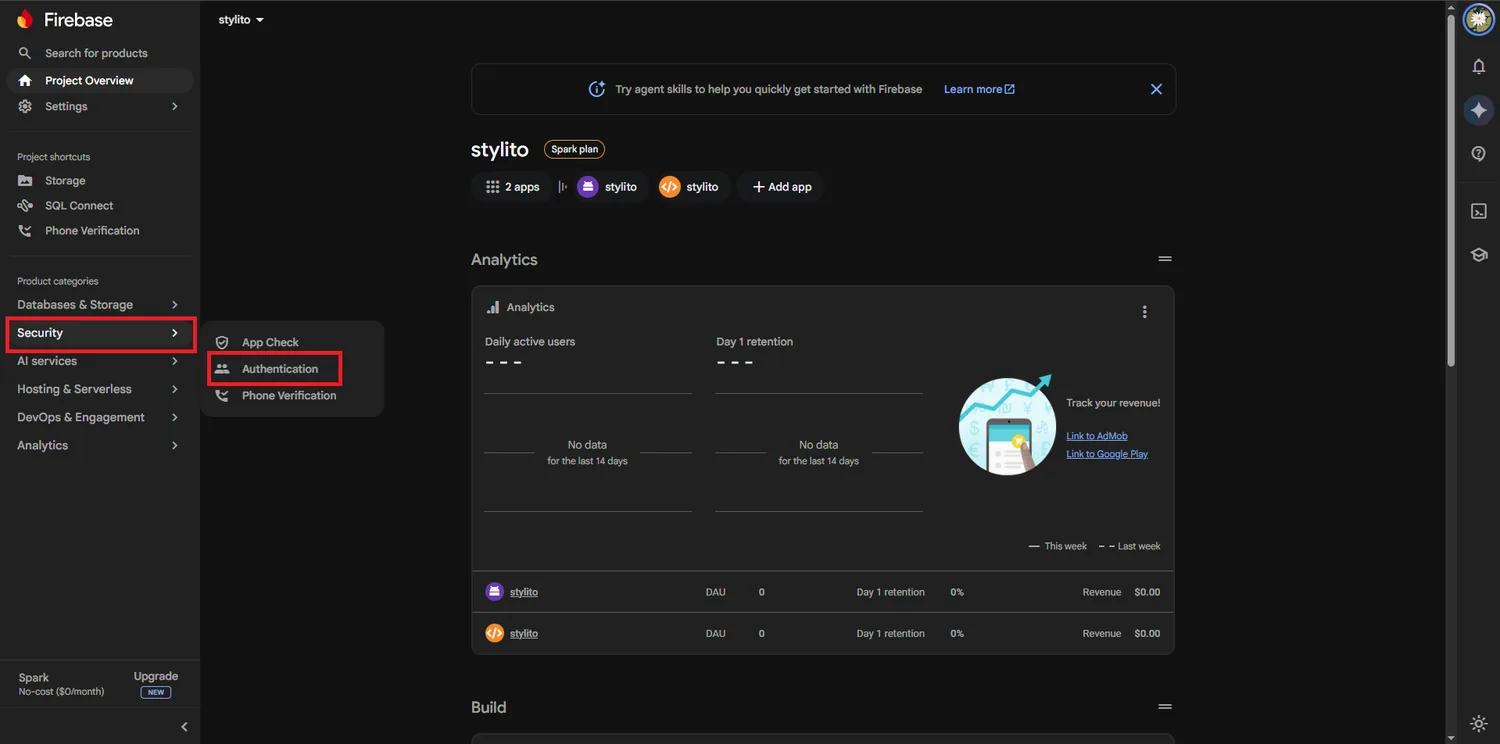
In the left menu, open Security and click Authentication, then Get started.
Open Sign-in method#
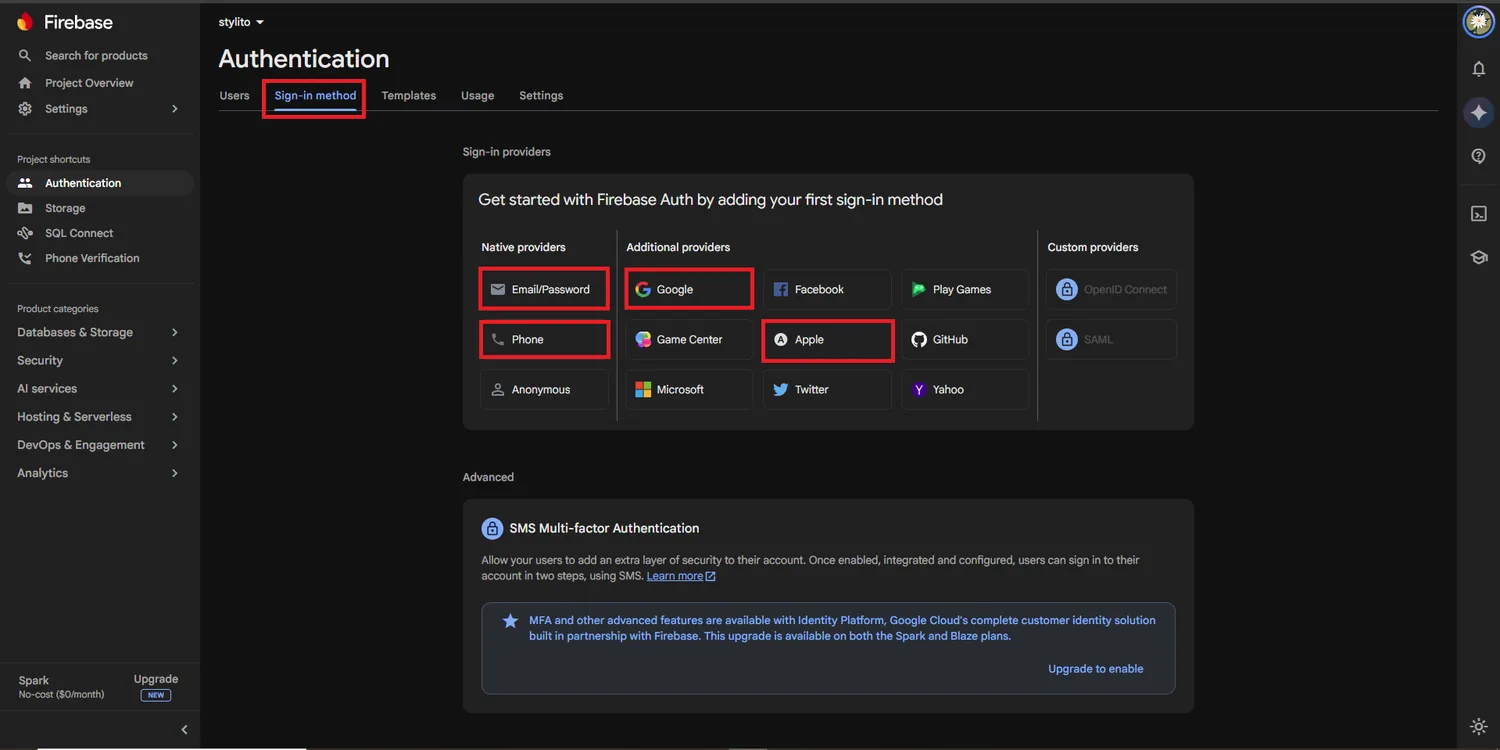
Open the Sign-in method tab. Turn on Email/Password, Phone, Google and Apple (the boxes marked in red).
Enable each one#
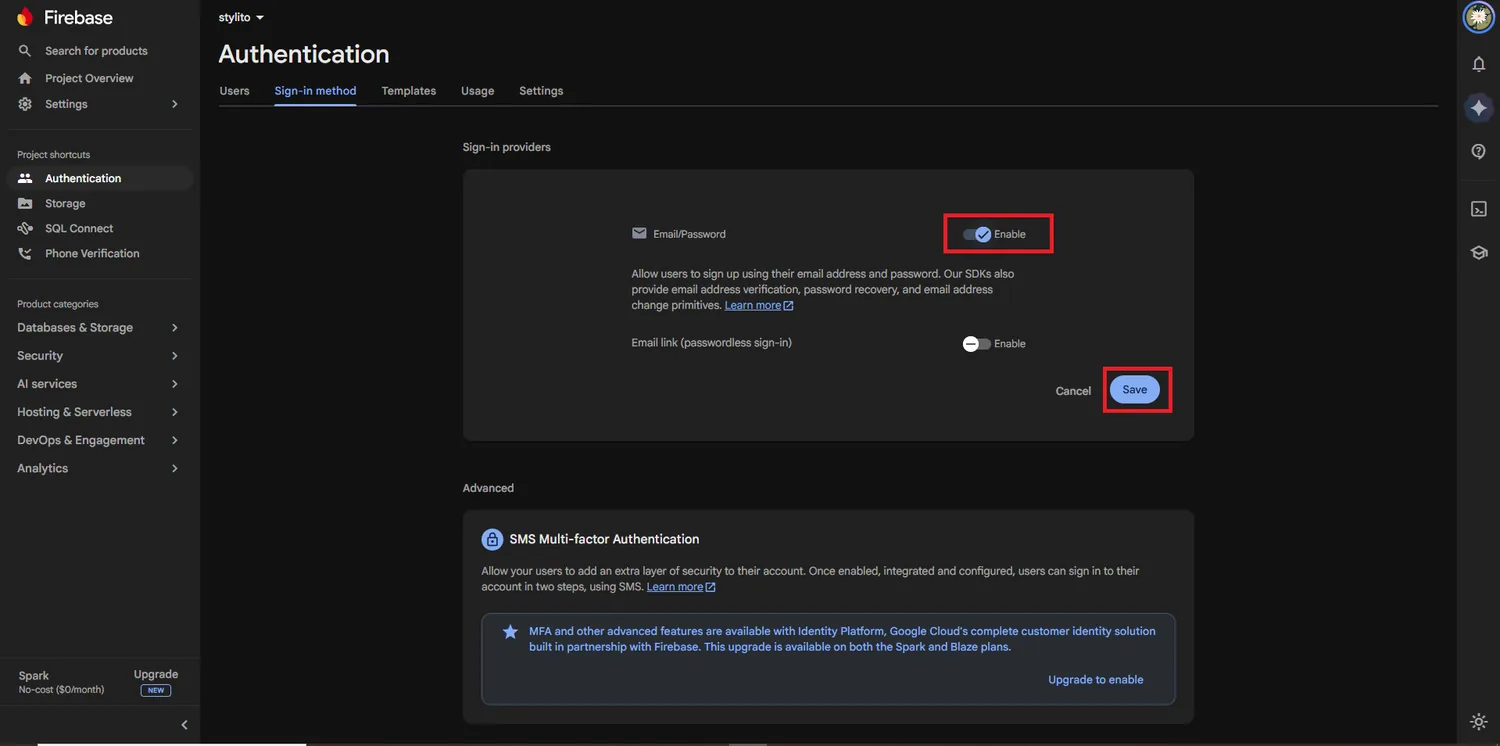
Click a provider, switch Enable on and click Save. For Email/Password leave Email link off. For Google, choose a support email.
Add the next provider#
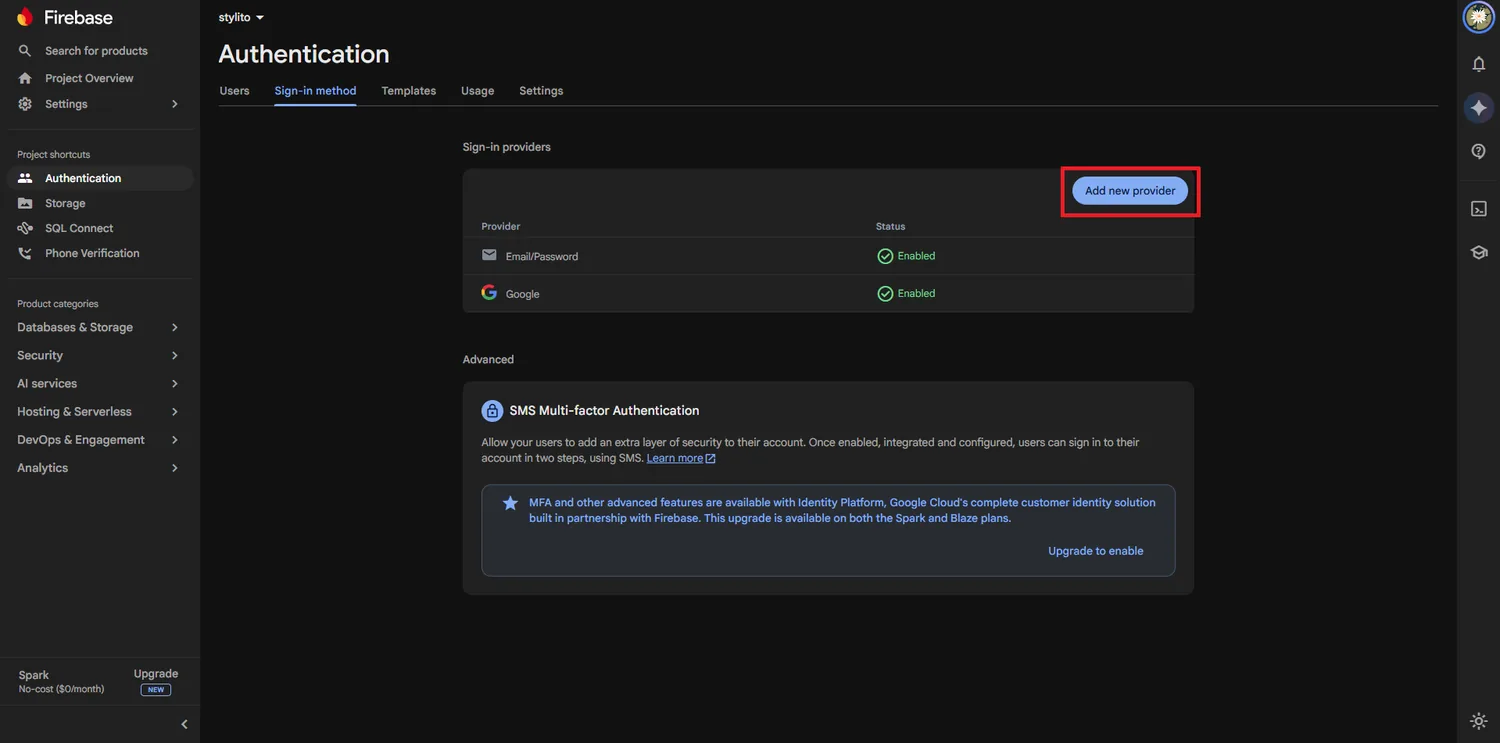
Click Add new provider and repeat until all four show Enabled.
Who uses which method#
| Method | Used by | Extra setup |
|---|---|---|
| Email/Password | All four apps: admin, store and staff logins, riders, customer email sign-up | None |
| Phone (SMS code) | Customer app, website and delivery boy app | Android needs the SHA keys. SMS is charged per message. |
| Customer app, website and delivery boy app | Android needs the SHA-1 key, iPhone needs the sign-in values. | |
| Apple | Customer app and delivery boy app on iPhone, and the website | Sign in with Apple capability in Xcode, see Customer Sign-In. |
Which of these buttons the customer actually sees is your choice in the admin panel: Login Methods.
Testing phone sign-in without SMS costs
In AuthenticationSign-in methodPhone, add test phone numbers with a fixed code. They sign in without sending a real SMS.
Websites on your own domain
When the customer website runs on your own domain, add the domain in AuthenticationSettingsAuthorized domains, or Google and phone sign-in are refused there. See Domains & SSL.